Every effect in the catalog — 50 in all, in five families: Color (7), Blur (4), Distort (18), Stylize (15), Light (6). This is the same list the + Effect picker shows; hover a card there and the tooltip reads name — family. How to add, order and animate them is in The effect stack; where an effect can live is in Effects on a layer vs the Effect Layer. Full parameter tables live on those family pages.
Basic parameters are always visible in the effect's entry. Advanced ones sit behind the entry's more toggle; the count is given so you know what is folded away. Thirty effects carry an advanced Mix (how much of the result is shown) — it is included in the advanced count. Parameters named Speed run on the effect clock, so the effect moves even without keyframes.
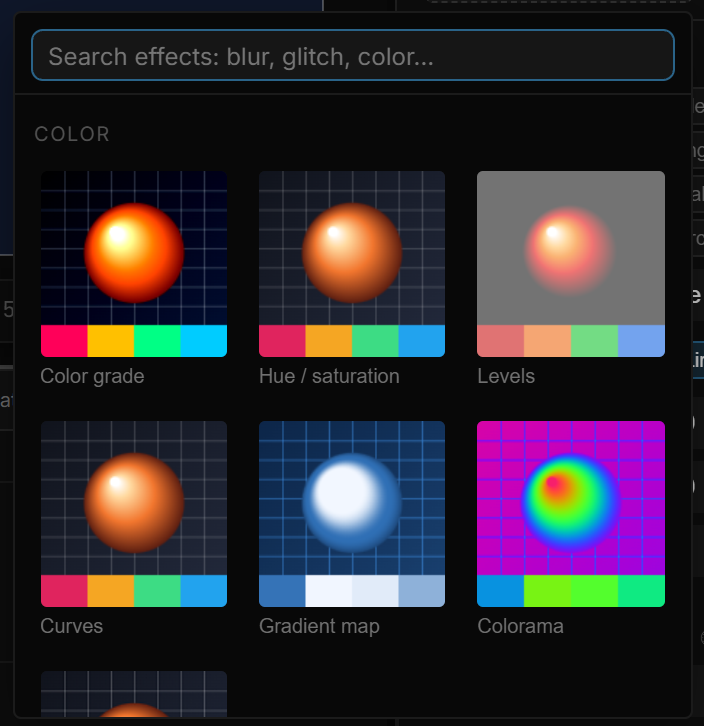
01Color
| Effect | Family | What it does | Basic parameters | Advanced |
|---|---|---|---|---|
| Color grade | Color | Exposure, brightness, contrast and saturation in one pass | Exposure, Brightness, Contrast, Saturation | 1 |
| Hue / saturation | Color | Shifts the hue wheel, saturates or lightens | Hue, Saturation, Lightness | 1 |
| Levels | Color | Remaps the black and white points with a gamma curve | In black, In white, Gamma | 3 |
| Curves | Color | Lifts or crushes shadows, midtones and highlights separately | Shadows, Midtones, Highlights, Contrast | 1 |
| Gradient map | Color | Replaces the tones with a three-stop color ramp | Shadow, Mid, Highlight | 3 |
| Colorama | Color | Cycles a palette through the image over time | Palette, Phase, Speed | 1 |
| Sharpen | Color | Sharpens edges | Amount, Radius | 1 |
02Blur
| Effect | Family | What it does | Basic parameters | Advanced |
|---|---|---|---|---|
| Box blur | Blur | A plain, even blur | Radius | 0 |
| Directional blur | Blur | Motion blur along one angle | Angle, Distance | 1 |
| Radial blur | Blur | Spin or zoom blur around a center | Mode, Amount | 4 |
| Depth of field | Blur | Sharp inside a focus radius, blurred outside, with a soft edge | Focus radius, Blur, Feather | 3 |
03Distort
| Effect | Family | What it does | Basic parameters | Advanced |
|---|---|---|---|---|
| Wave warp | Distort | Bends the image along a moving wave | Wave type, Propagation, Height, Width, Angle, Speed | 5 |
| Page curl | Distort | Peels the image back like a page | Progress, Angle, Curl radius | 1 |
| Mouse field | Distort | The pointer pushes, pulls or twists the pixels around it | Mode, Strength, Radius | 1 |
| Chromatic aberration | Distort | Splits the color channels apart | Amount | 0 |
| Lens distortion | Distort | Barrel or pincushion lens curvature with color fringing | Barrel, Zoom, Chromatic | 3 |
| Kaleidoscope | Distort | Mirrors the image into repeated wedges | Sides, Angle | 2 |
| Mirror | Distort | Reflects one half onto the other | Axis, Center, Invert | 0 |
| UV warp | Distort | Warps the image space — twirl, shear, push | Mode, Strength, Radius, Twirl, Shear X, Shear Y | 2 |
| Turbulent displace | Distort | Displaces pixels with animated noise | Amount, Size, Speed | 1 |
| Ripple shock | Distort | Rings that spread from the center and fade | Amplitude, Frequency, Decay, Speed | 3 |
| Heat mirage | Distort | Rising heat shimmer in horizontal rows | Amount, Rows, Speed | 3 |
| Zigzag shear | Distort | Shears alternating bands in opposite directions | Bands, Depth, Angle, Speed | 1 |
| Pixel stretch | Distort | Smears one line of pixels across the image | Orientation, Source, Stretch | 0 |
| Tile scroll | Distort | Tiles the image and scrolls the tiles | Scale X, Scale Y, Dir X, Dir Y, Speed | 1 |
| Isometric | Distort | Rotates and squashes the image into an isometric view | Rotation, Y scale, Zoom | 3 |
| Feedback tunnel | Distort | Feeds the image back into itself as a receding tunnel | Margin, Inward | 1 |
| Cylinder wrap | Distort | Wraps the image around a cylinder | Amount, Curve, Axis, Scale, Rotate | 1 |
| Perspective 3D | Distort | Rotates the image as a card in 3D space | Rotate X°, Rotate Y°, Rotate Z°, Distance, Depth, Zoom, Backface | 0 |
04Stylize
| Effect | Family | What it does | Basic parameters | Advanced |
|---|---|---|---|---|
| Posterize | Stylize | Reduces the image to a few tone levels | Levels | 0 |
| Dither | Stylize | Reduces the colors and dithers the result | Colors, Strength, Scale | 1 |
| Pixelate | Stylize | Big square pixels | Pixel size | 0 |
| Tile | Stylize | Repeats the image in a grid | Count | 0 |
| Halftone | Stylize | Print-style dot screen | Frequency, Angle, Softness | 1 |
| Engraving | Stylize | Hatched lines that thicken in the dark tones | Line density, Angle, Thickness | 2 |
| CRT screen | Stylize | Scanlines, curved glass and color fringing | Scanlines, Curvature, Chromatic, Speed | 2 |
| VHS | Stylize | Tape noise, wobble and tracking lines | Amount, Speed | 1 |
| Film grain | Stylize | Animated grain | Amount, Speed | 1 |
| Glitch | Stylize | Row slices that jump and tear | Amount, Rows, Speed | 1 |
| Datamosh blocks | Stylize | Blocks that shift and stretch like broken video | Cells, Shift, Stretch, Speed | 2 |
| Glass | Stylize | A frosted, refracting pane over what is behind the layer | Refraction, Depth, Dispersion, Frost, Light angle, Light | 3 |
| Pixel sort | Stylize | Sorts runs of pixels above a threshold | Threshold, Amount, Speed | 1 |
| Metaball | Stylize | Melts shapes together into blobs | Radius, Threshold | 1 |
| ASCII | Stylize | Redraws the image as characters | Shape, Cell size, Contrast, Keep color, Ink | 6 |
05Light
| Effect | Family | What it does | Basic parameters | Advanced |
|---|---|---|---|---|
| Vignette | Light | Darkens the corners | Intensity, Size, Softness | 2 |
| Bloom | Light | Bright areas glow outward | Threshold, Intensity, Radius | 1 |
| Halation | Light | A tinted halo around the brightest areas | Threshold, Intensity, Hue | 3 |
| Neon edge | Light | Glowing outline along the edges | Thickness, Glow, Color | 3 |
| Radial wipe | Light | Reveals the image clockwise around the center | Progress, Softness | 2 |
| Lens flare | Light | A sun with streaks and ghosts | Intensity, Color, Sun X, Sun Y | 8 |