This is where a scene stops being a picture and starts responding — to clicks, hovers, scrolling, sound, keys. All of it without writing code.
01One sentence, two moods
Every interaction in OmniMotion is the same sentence:
source → (mode) → target
and there are exactly two moods, which is the one thing worth learning before anything else:
| Mode | Fires | Examples | |
|---|---|---|---|
| ⚡ | Moment | Once, when something happens | a click, a hover starting, a threshold being crossed, a signal arriving |
| ∿ | Stream | Every frame, as a number | scroll progress, mouse position, an audio level, a variable |
"Click makes the card fade in" is a moment. "Scroll drives the card's position" is a stream. Everything you build — a reaction, a bind, a scroll-driven sequence — is one of these two, and the interface asks you that question first rather than making you pick a subsystem.
02Sentences — where interactions live
The Sentences tab in the right rail lists every interaction as a readable row. The bar at the top holds everything that works on the list:
- Scope — the menu on the left shows what you're looking at and how many interactions it holds: the selected layer's name (card · 4) or Whole scene. Click it to switch.
- Search — filters the list as you type.
- ⚠ n — appears when the inspector found problems. Click it to jump to the most serious one.
- + — adds an interaction (Shift+A does the same from anywhere in the tab).
The same + Interaction also sits at the end of the list. Either one opens a single searchable menu:
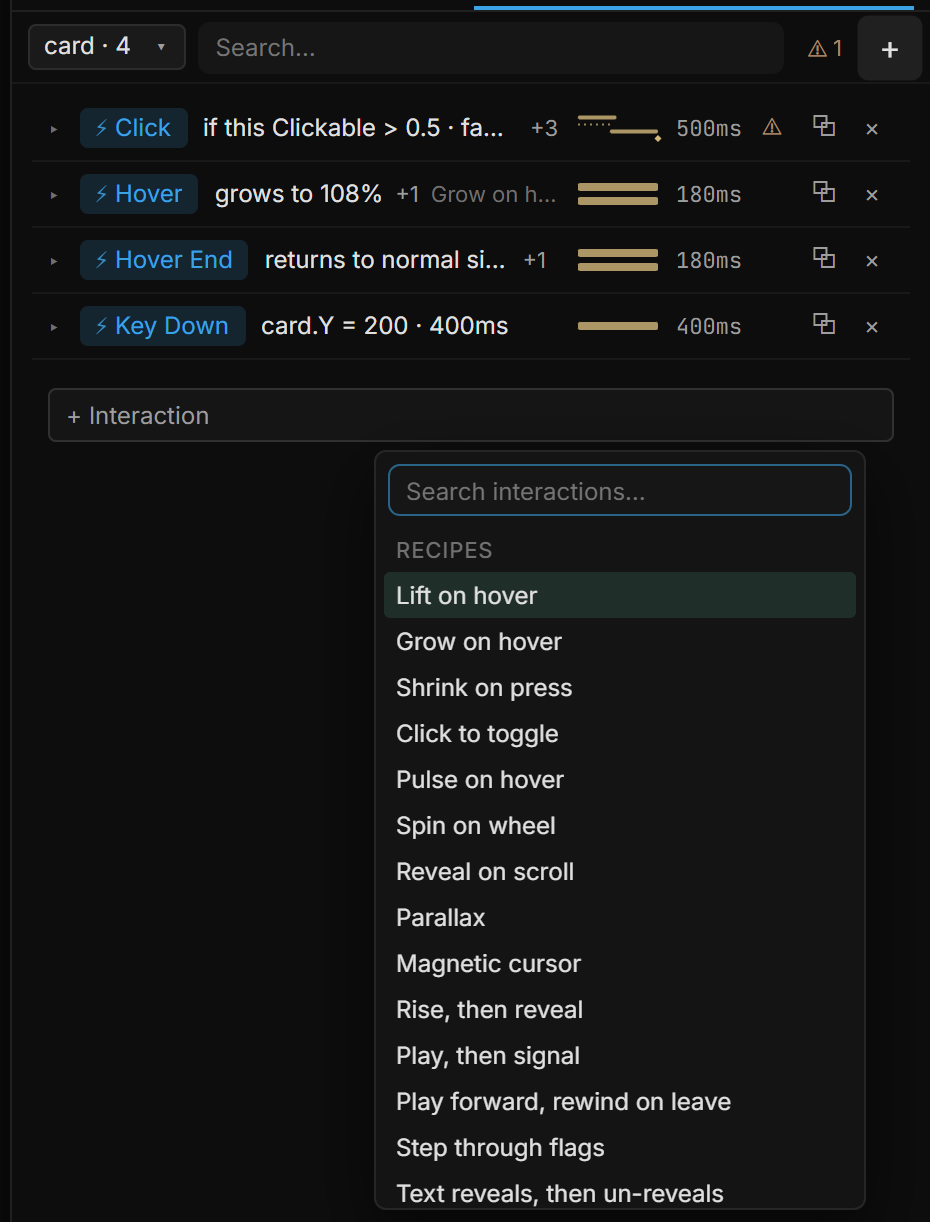
The menu is grouped by what you're starting from:
| Group | What it adds |
|---|---|
| Control | Only on a Slider or Toggle layer: a rule on its output — Power Becomes true (0→1), Becomes false (1→0), While true, Changes (a Slider offers Changes). See Fields |
| ✋ Gestures | Drag, rotate (dial) or hover presets that add a Gesture and its binding in one step — Drag to rotate (360° view), Draggable, Rotate (dial), *Hover parallax*… See Gestures |
| Presets | A ready-made behavior, named by its result — Grow on hover, Reveal on scroll, *Step through flags*… The full list is at the end of this page |
| Between layers | Recipes that connect this layer to another (Click → show target). After you pick one, a second list asks which layer is the target |
| ⚡ Triggers | An empty rule for that trigger — Click, Hover, Key Down, On Signal… — ready for its first step |
| ∿ Bindings | A continuous binding to a target, with a default source you can change right away. On an artboard whose content is taller than its frame, Drive sequence from scroll is here too (once the scene has a sequence) |
| Paste | The rule you copied with ⧉ on another layer |
A recipe is applied the moment you pick it, with sensible defaults, and its rule opens so you can adjust it. Here Grow on hover runs in Simulate — the card scales up while the pointer is over it and settles back when it leaves:
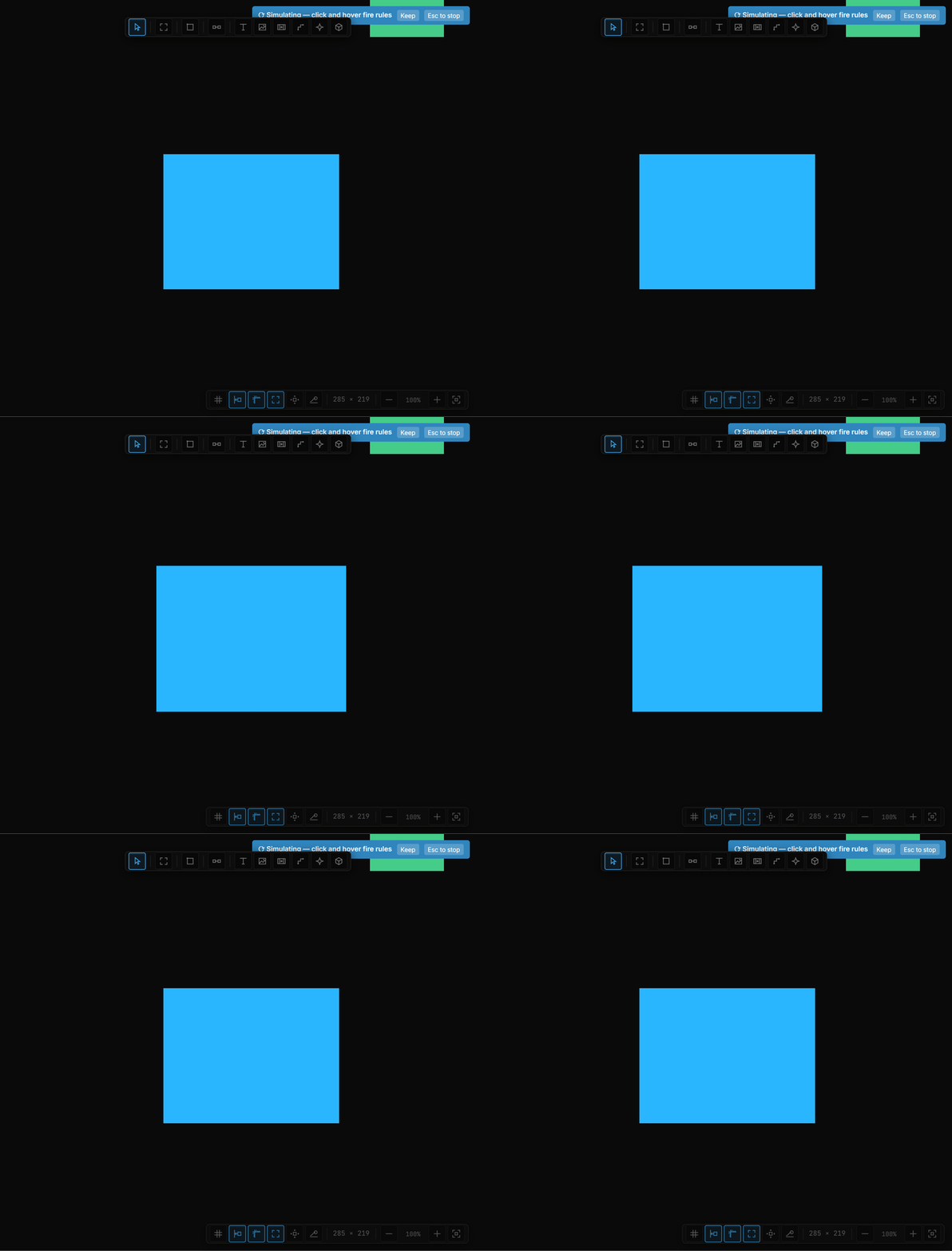
A recipe often creates more than one rule — Grow on hover writes both the hover and the hover-end, so the card comes back down. Ctrl+Z undoes the whole recipe as one step, never half a behavior.
03Reading a row
Every interaction is one line. The list stays short enough to scan, and each column always means the same thing:
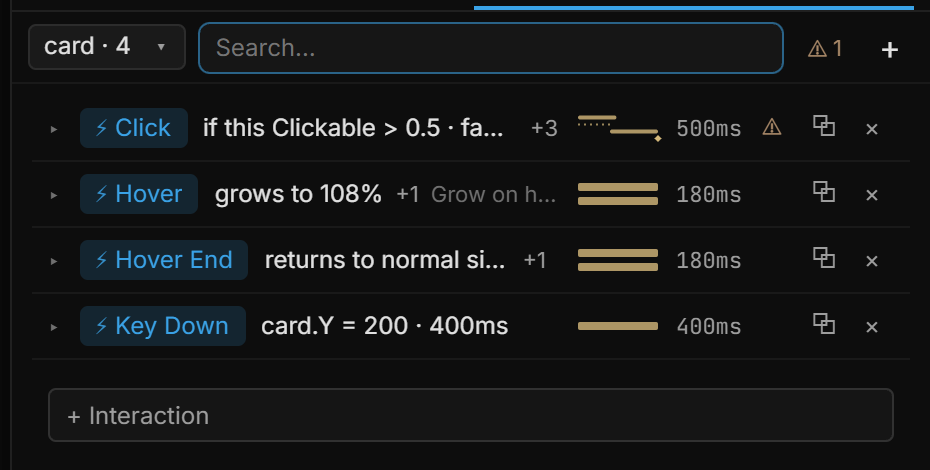
- The event — the colored chip on the left (⚡ Click, ⚡ Hover, ∿ Stream…).
- The sentence — what happens, in plain words, on one line. A long sentence ends in …; hover it for the whole thing. A faded name at the end (Grow on hover) tells you which recipe wrote the row.
- The timing picture — a tiny version of the rule's timeline: a bar for a step that takes time, a dotted line for a wait, a diamond for an instant step.
- The total duration — how long the whole chain takes. A + after it means a step waits on something whose end isn't known in advance (a sequence playing, a map flight).
- ⚠ — the inspector found something on this rule (details inside the rule).
- ⧉ copies the rule so you can paste it on another layer, × deletes it.
Hover a row and a checkbox appears that turns the rule off. A rule that is off shows its checkbox all the time, faded, so you can see at a glance what is disabled.
04Opening a rule
Click a row and it opens right under itself, with the rest of the list still in view:
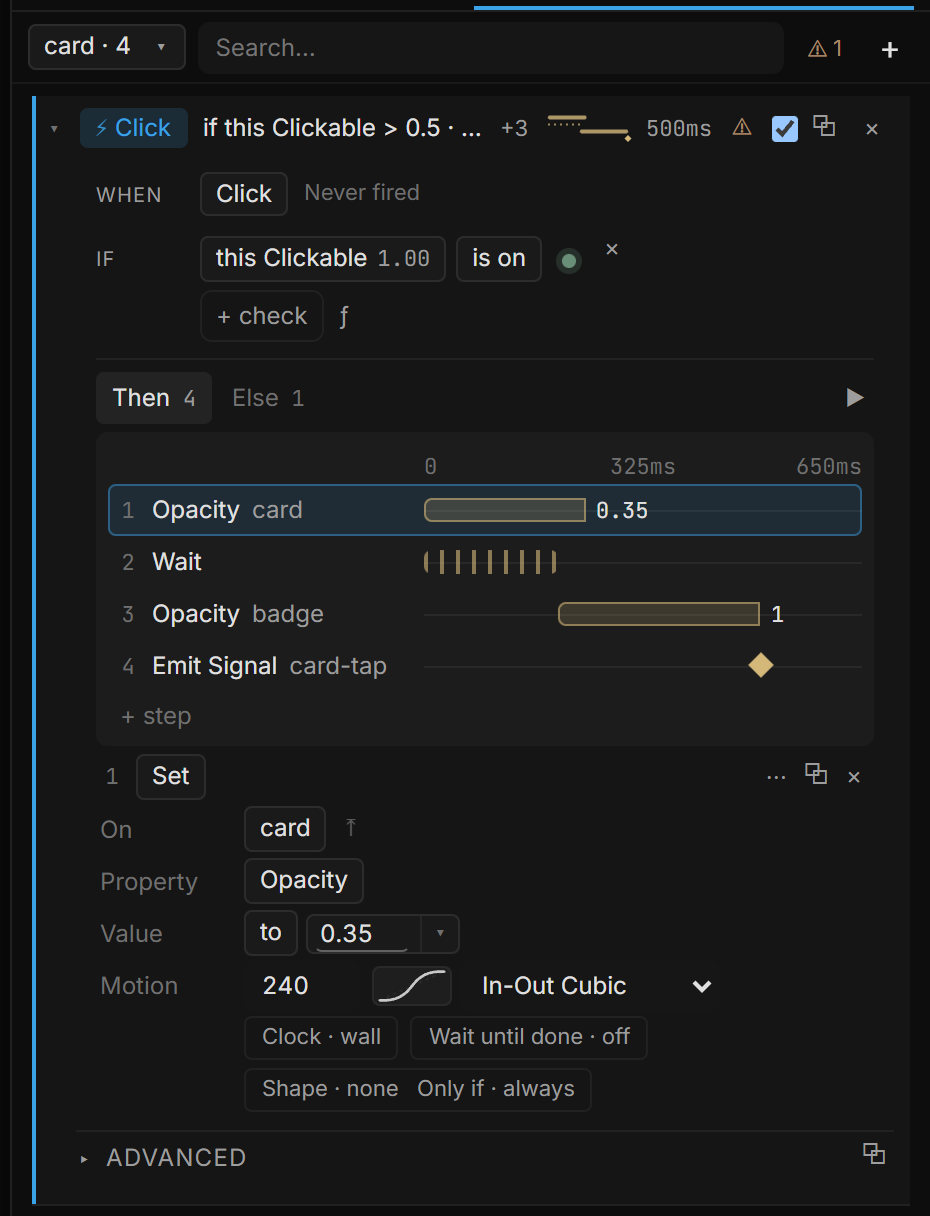
Top to bottom:
- WHEN — the event. On the right of the same line: Never fired, or how long ago it last ran.
- IF — an optional condition. Without one, the line offers + If. With one, a small light at its end tells you whether the condition is true right now (green) or not (hollow); hover the light for the exact value. An If also gives the rule an Else.
- Then / Else — tabs for the two branches, with ▶ on the right to run the rule once.
The step timeline
The steps of a branch are drawn as a small timeline, one row per step:
- On the left, what changes and where — Opacity card, Wait, Emit Signal card-tap.
- On the right, when: a bar for a step that takes time, a dotted stretch for a Wait, a diamond for an instant step. The value a step ends on is written right next to its bar.
- Steps that start together have bars that start at the same point; a Wait or Wait until done pushes the next step later, and you see its bar move.
You edit the timeline directly:
| To | Do |
|---|---|
| Change a step's duration | Drag the right end of its bar |
| Reorder steps | Drag a row up or down |
| Select a step | Click its row (or use ↑ ↓) |
| Move a step | Alt+↑ / Alt+↓ |
| Edit a step | Enter jumps to its settings below |
| Delete a step | Backspace or Delete |
| Add a step | + step under the last row |
Every drag is one undo step. The keys only apply while you're designing — in Simulate and Play, keys belong to the scene, so your Key Down rules get them.
▶ runs the rule once and the playhead walks across the timeline as it goes. For rules that follow the pointer or the page — hover, press, drag, scroll, a condition, every frame — you can also drag along the time ruler above the steps to scrub the chain by hand; let go away from 0 to hold that frame, press Esc to put everything back.
A step's settings
Under the timeline sits the selected step — its number, its type (Set, Wait, Play sound…), and ⋯ ⧉ ×. Then one line per setting:
- On — the layer it acts on (⤒ picks it on the canvas).
- Property and Value — what changes, and to what.
- Motion — the duration and the easing curve.
The rarer settings sit on one quiet line underneath, each showing its current value — click one to change it:
- Clock · wall / playhead — which clock a tween follows (see THEN clocks).
- Wait until done · on / off — hold the next step until this one has finished.
- Shape — a chain that shapes the value before it's written (Map Range, Smooth, Spring…), the same chain a stream uses.
- Only if — a condition just for this step. If it's false, only this step is skipped; to branch the whole rule, use IF.
Advanced at the bottom of a rule holds what you rarely touch: Active (a source that switches the rule on and off, with a fade back), When retriggered, From children (pointer events on the layer's children count too) and Tag (your own label — search finds it).
When something is wrong
When the inspector finds a problem — two steps writing the same property at once, a target that no longer exists, a step that changes nothing — you see it in three places: ⚠ n in the bar, ⚠ on the rule's row, and ⚠ on the step inside the timeline. Select that step to read the full explanation; many come with a one-click fix.
WHEN fields
| Field | Choices | What it does |
|---|---|---|
| Key (Key Down / Key Up) | A key, or empty | Type the key the way you think of it — w, 1, space, up, esc — and it is saved as the key's name (KeyW, Digit1, Space, ArrowUp, Escape). Empty means any key |
| When retriggered | Run alongside (default) · Restart · Ignore · Queue (run once more after) | What happens if the event fires again while this rule is still running a wait or a tween |
| On Variable watch | Changes · Becomes true (0→1) · Becomes false (1→0) · While true | Only on that trigger. Default is Changes |
| Scope (On Signal / Emit Signal) | A name, or empty | The emit and the listen must match. Empty is the global room |
THEN clocks
A tween (Set Property, fly a map, and the other timed steps) has a clock — Clock on the step's options line:
| Clock | What it follows |
|---|---|
| wall | Real time. Keeps going while the transport is paused |
| playhead | The timeline's playhead. Pauses with it, and runs backwards when you scrub or play in reverse |
Wait until done holds the next step until this one has finished — the same switch on Sequence Control.
05Starting from an event or a stream
When no recipe fits, start from the trigger itself: + Interaction › ⚡ Triggers and pick one — Click, Key Down, *On Signal*… An empty rule opens with + step, and you build the chain on its timeline.
For something that should follow a live value every frame, pick a target under ∿ Bindings — a layer property, a sequence's playhead, or (on an artboard) the page's own playhead. The stream opens with a default source; change it on its Input line (see Streams in the list).
Each list only offers what actually works in that mood — "Sequence playhead" appears for streams, "Signal" for moments — so you can't build a combination that silently does nothing.
The complete vocabulary — every trigger, every target, every stream source, every transform and every recipe — is Triggers, targets & verbs.
06Streams in the list
A stream row reads like a rule — the ∿ chip, a sentence (Y follows entering the screen) — and ends in a tiny live trace of its value, the value itself, and paused while you're designing (streams only write in Simulate and Play; hover for the explanation). Open it and it has the same three lines every stream has:
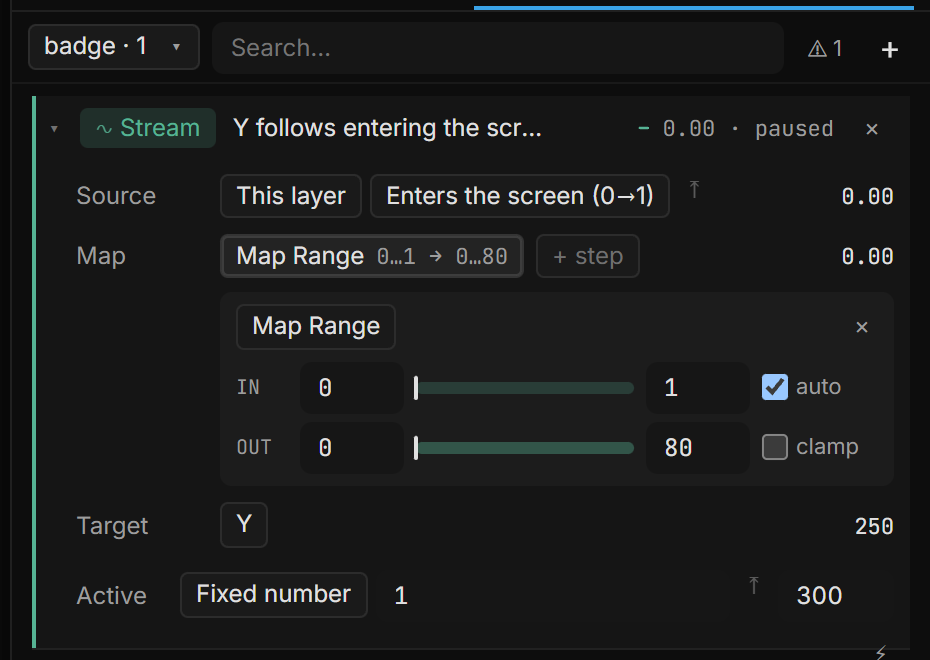
- Source — where the value comes from, with its live value on the right.
- Map — the steps that shape it, side by side (Map Range 0…1 → 0…80, *Smooth*…). Click one to edit it underneath; + step adds another. For Map Range, two bars show the In and Out ranges with a marker for the live value — drag or type the numbers at their ends. auto takes the incoming range from the step before; clamp keeps the result inside the Out range.
- Target — what the value is written to, with the value being written on the right.
Active underneath switches the stream on and off from a source of its own, with a fade back.
07The Scene group (Whole scene)
Switch Sentences to Whole scene. Under the layer rows sits a group titled Scene — Rules that belong to no layer — keyboard, signals, variables, timecode.
These rules survive deleting a layer. Hang "press Space → play the sequence" here, not on a random card. An empty Scene group says so.
+ Interaction inside the group adds a scene-owned rule. Pointer events are not on offer — a click needs a layer. What you can start from:
| Trigger |
|---|
| Key Down · Key Up |
| On Signal · On Variable · On Condition |
| Screen becomes — a named screen, or Portrait / Landscape |
| At a time · On Sequence End · Every Frame |
The same Scene group also lists two stream sentences that are not rules:
- Drive rows — a source drives a sequence's playhead. See Sequence drivers below.
- Page rows — an artboard gets its own playhead. See Page playheads.
Search in Whole scene counts scene rules, drivers and page timelines together.
08Sequence drivers
A sequence can follow a live 0 → 1 source instead of the clock. In Whole scene, pick a sequence that has no driver yet and press ∿ Drive. The default source is the first artboard's Scroll progress Y, or the variable progress if nothing scrolls.
The row reads {source} drives {sequence} · playhead. Click it — it opens with the same three lines as any stream:
| Line | What it is |
|---|---|
| Source | Any stream (a fixed number isn't offered). Hover the line for how it's read: 0 → 1, 0 is the sequence's start, 1 its end |
| Map | The same shaping steps as any stream |
| Target | The sequence's playhead. If the sequence isn't the active one, a note says so — only the active sequence's driver runs |
A live % shows progress while that sequence is active. Otherwise the row says not active.
⇥ on the row claims the playhead when that sequence's range is entered — so a driver can take over without you switching chips first. On: Claims the playhead when its range is entered — click to stop. Off: Only the ACTIVE sequence's driver runs. Click so this one claims the playhead inside its own range.
Two other ways to the same bind:
- Drag a sequence chip onto the playhead (timeline).
- On a scrolling artboard, ∿ Drive sequence from scroll in the Scroll section — only if content is taller than the frame. It drives the active sequence (or the first) from that artboard's scroll progress Y.
× removes the driver. More on driving time is in Timeline & animation.
09Page playheads
Each artboard can own a 0 → 1 playhead and its own length. The scene still shares one keyframe set (default and any named sequences). The page samples its subtree at that private time — "each page plays as it scrolls past."
Whole scene → Scene → ∿ Own playhead. Pick the artboard (the list is only boards that do not have a page timeline yet). The chip is Page; the sentence reads {source} drives {artboard}'s own playhead.
Default source: Enters the screen on Y — the page reads its own entry, so reordering boards does not break the window. Default Length is 2000 ms (step 100, minimum 100).
| Line | What it is |
|---|---|
| Source | Any stream (a fixed number isn't offered) |
| Map | Map Range, Ease, Smooth… — "this page plays between 30% and 60% of the scroll" is a Map Range |
| Target | The artboard's own playhead |
| Length | This page's own duration, in ms |
× is Remove this page timeline. From + Interaction › ∿ Bindings the target is Page playhead, and it is only offered on an artboard.
10Seeing what a sentence connects
A sentence names two layers: the one that listens and the one that changes. Hover the row in Sentences and both are outlined on the canvas, with a line drawn between them — ⚡ blue for a moment, ∿ green for a stream. Move the pointer away and it is gone.
There is nothing to turn on. A sentence that only touches its own layer outlines that one layer and draws no line, because there is no connection to draw.
11Design, Simulate, Play
Interactions don't run while you're designing — otherwise clicking a layer to select it would also fire its click rule. The top bar shows when Simulate is on, and a banner over the canvas says so too; while an artboard is in Play, the Sentences bar shows ▶ Playing.
Simulate runs your interactions while you keep editing. Press Simulate in the top bar (or Shift+P). Clicks and hovers fire their rules straight away — in Simulate a click on the canvas fires, it doesn't select; pick layers in the layer tree, or stop Simulate to arrange things. Keyboard, timer, signal, data and scroll rules run as they would in Play, and so do Streams (∿ — a property following the mouse, a scroll or a sequence driver): in Design a stream row shows its source value with paused, and writes nothing. Edit a sentence and try it straight away.
Simulate is a sandbox: when you stop (Esc, or the top-bar button), the scene rewinds to how it was when you started — Ctrl+Z brings the simulated state back if you want it. Keep on the banner does the opposite: whatever the rules changed stays in the document. Open URL and Send request do not run in Simulate; they need Play or the player.
Play is the real thing for one artboard. Select an artboard and press Play in the pill above it: editing chrome disappears, a banner tells you where you are, and the artboard behaves exactly as a visitor sees it. Esc leaves, and the scene rewinds.
For the complete experience — the whole scene, at full size, exactly as a visitor gets it — use Preview in the top bar, which opens your scene in the player (chapter 08).
12Scroll sections
Scrolling deserves its own tab because a scroll-driven scene isn't a list of rules — it's a timeline made of stretches. How a layer takes that scroll — Factor (parallax) and hold (pin) — is Scroll Participation. How a section drives a sequence, blends two films at an overlap, or feeds a bind is Drives — the full map is Scroll participation, sections & snaps. The Scroll tab lays the stretches out on one 0–100% axis:
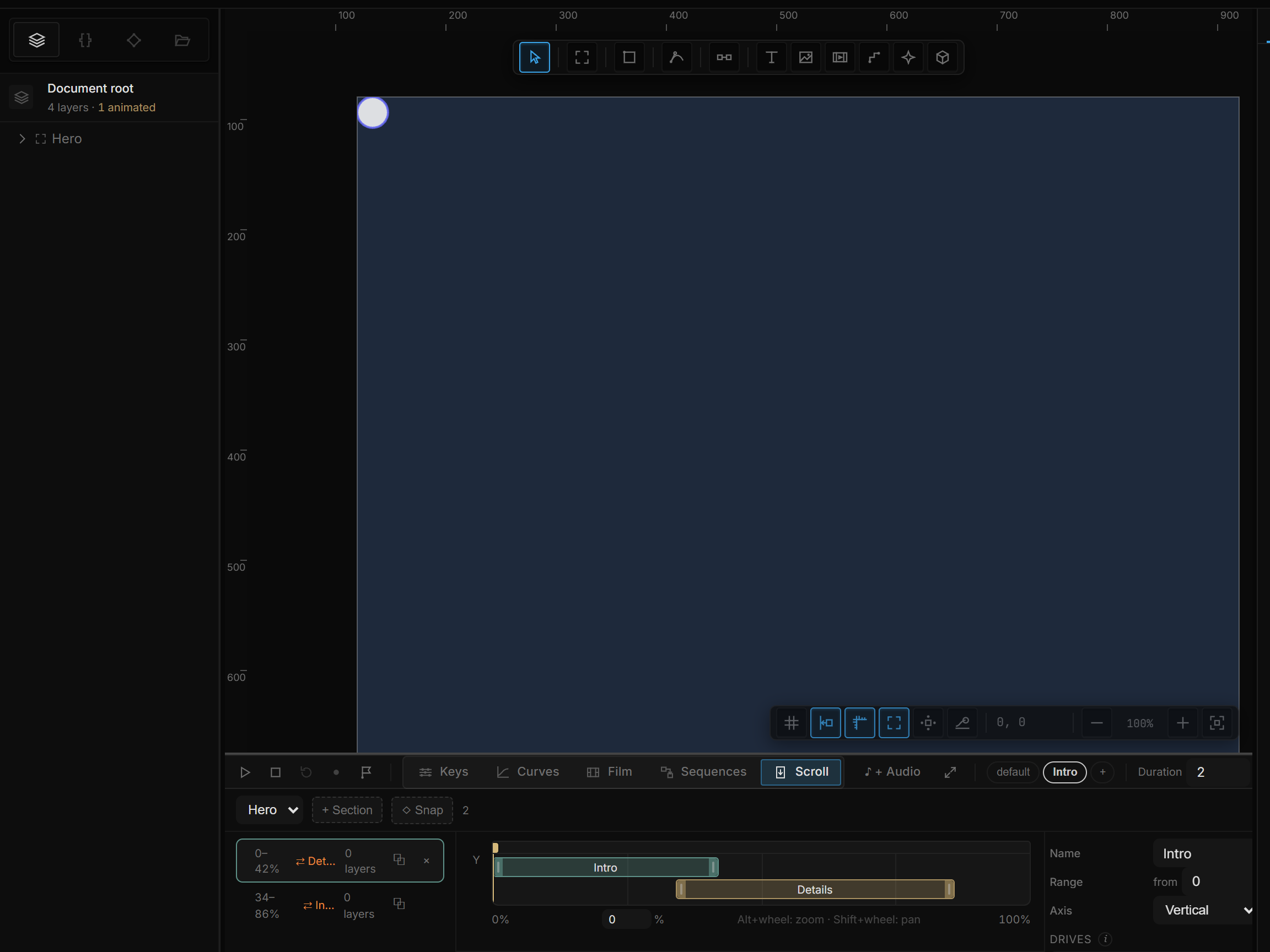
A section is a named stretch of an artboard's scroll. It does two things:
- It produces a 0 → 1 number across its range. Pick that section as the source anywhere a value is asked for — a sequence driver, a page timeline, any bind — and scrolling through that stretch scrubs it.
- It can hold layers in place. Tick the layers that should stop scrolling for that stretch and carry on afterwards — each one's "held in place" value also runs 0 → 1, so things can animate while they stand still.
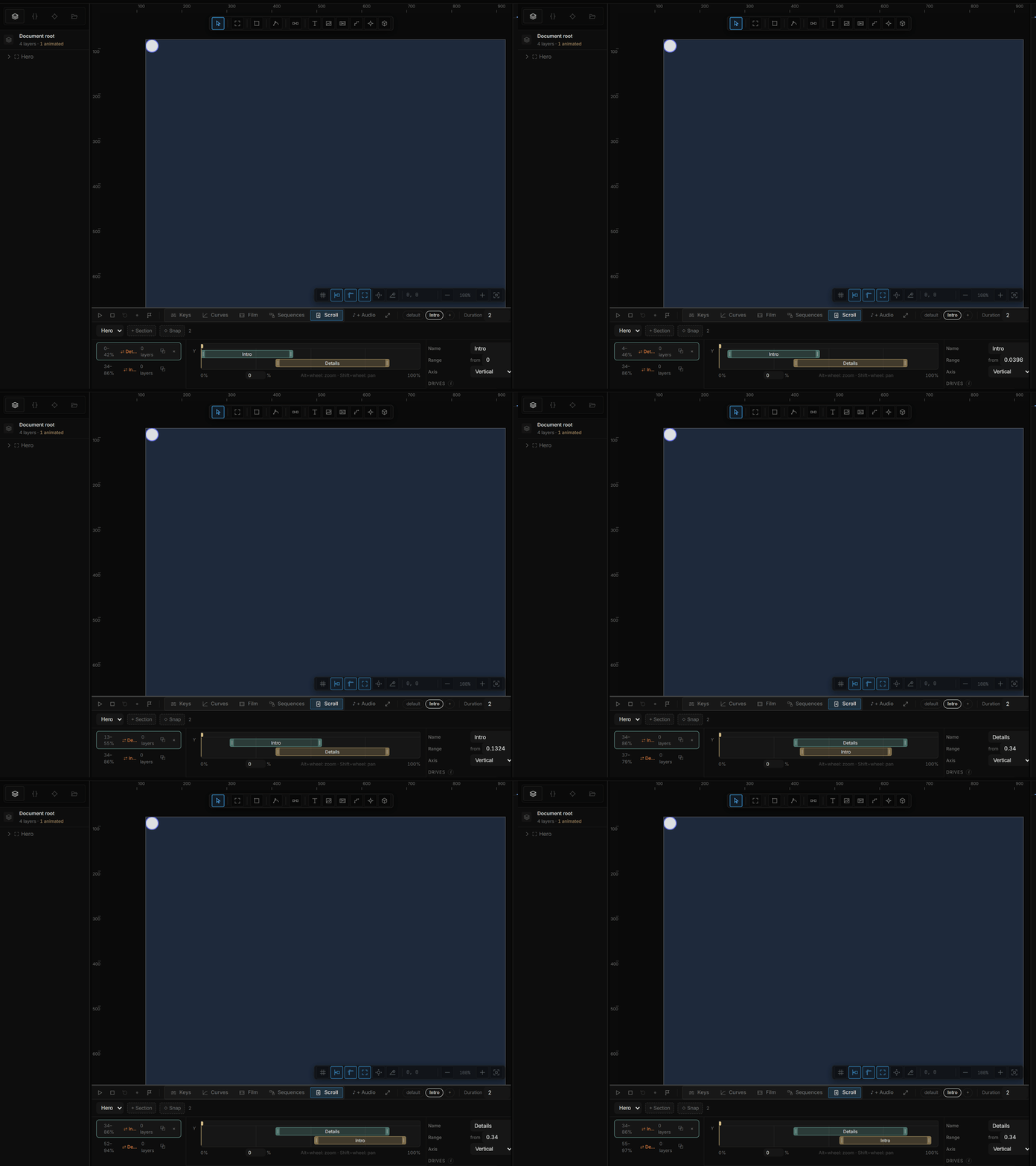
Because every band sits on the same axis, an accidental overlap is something you see rather than something you deduce from numbers. If each overlapping section Drives a sequence, that shared range crossfades the two films (⇄ on the row) — When two sections overlap.
Managing sections. Click a row to edit it — name, range, axis and which layers it holds. Each row also carries a × to delete that section; its layers simply go back to scrolling normally, and Ctrl+Z brings the section back with them still held.
One requirement: sections are measured against an artboard's scroll range, so the artboard has to actually scroll first — give it content taller than its frame (the panel tells you when it doesn't).
13Spawn and Destroy
Two steps create and remove layers at runtime — particles, a card that appears on click, a clone you throw away.
Spawn copies a Template (any layer, by name) and places it. Position is two fields, X and Y. Leave them empty and the copy is born at the rule layer's this.x / this.y. Type a number, or an expression that starts with =.
Destroy removes a layer. Pick a named layer, or Last spawn ($lastSpawn) — the copy this same rule just created. A Spawn step offers + Destroy to append that link.
$lastSpawn is local to the chain. A second click that is still running does not steal the first copy's id.
A typical burst: Click → Spawn (template = a spark, position = the pointer) → Wait → Destroy ($lastSpawn). Hide the template itself (the eye in the layer tree) so only the copies show.
The verb table is on Triggers, targets & verbs.
14Moving between artboards
In an app, each artboard is a page. Go to Artboard switches the played artboard; Go Back returns to the one you came from. Both only move in Play, Preview and the player — in Design and Simulate they do nothing.
The step's settings:
| Setting | Choices |
|---|---|
| Artboard | Your pages. The Components artboard is not one of them |
| Transition | Instant · Dissolve · Smart animate (same-named layers move) · Push · Slide in |
| Direction | Push and Slide in only — ← from the right, → from the left, ↑ from below, ↓ from above |
| Motion | Duration and easing. Hidden for Instant. Picking a transition while the duration is 0 fills a starting one — 180 ms for Dissolve, 360 ms for Smart animate, 380 ms for Push and Slide in |
- Dissolve crossfades the old page into the new one.
- Push slides both pages together, like a navigation stack.
- Slide in brings the new page over the old one, which dims slightly — a sheet or a modal.
- Smart animate pairs layers by name. A layer called Card / Title on both artboards glides from its old position, size, rotation, opacity, corners, stroke, blur, shadow, font size and colour to its new ones. Layers that exist only on the new page fade in; those only on the old page fade out. Layers that did not change stay still — a tab bar on both pages does not flicker.
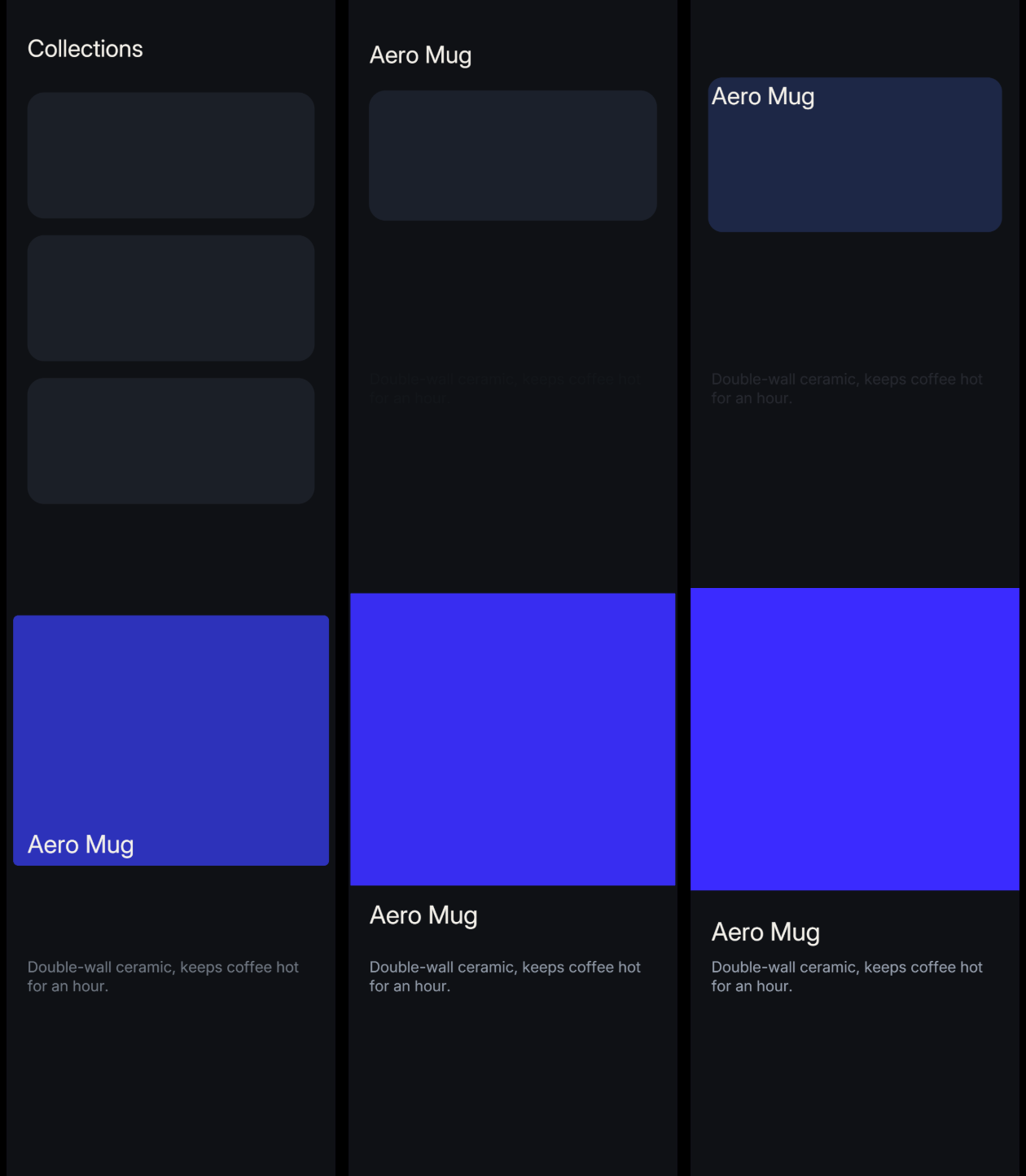
Go Back in Play runs the transition you arrived with in reverse — a Push that came in from the right leaves to the right. In the player, Go Back is the browser's Back button; see Routes.
The row reads the choice too: go to Detail (push left).
15Changing a colour
Set Appearance writes a colour — Fill, Stroke, Shadow, Gradient start or Gradient end — from a swatch or an =expression. With a Duration of 0 the colour changes at once. Give it a duration and it blends over that time with the easing you pick; the blend keeps its brightness, so blue to yellow does not pass through a muddy grey. A later instant colour step cancels a blend still running on the same colour.
16Where interactions can hide
A few places besides Sentences that also create interactions, so you know where to look:
- Recipes signed into the rows they created — the row remembers which recipe made it.
- The property badge (chapter 03): binding a stream to a property from the ◇ menu creates a sentence too.
- Motion Pose — a From → To look on the layer. When on that card writes the sentence that plays it; see Motion Pose.
- Sequence transitions (chapter 04) — named blends that rules can call.
They all show up in the same list. If something is behaving and you don't know why, switch Sentences to Whole scene and search.
17The complete catalogs
Triggers, targets, verbs, stream sources and the transform chain now live in one reference page, the same lists the + Interaction menu reads:
Sound from a rule (Play sound / Stop) is in that table and on Playing a sound from a rule. On Signal families are Audio and custom signals.
Recipes — ready-made behaviors
Recipes in + Interaction are still the fastest start. A recipe is applied with the defaults below; change any of them afterwards in the rule it opens (a duration on the step's Motion line, a scale in its Value…). For the raw catalogs, use the reference page.
| Group | Recipe | What it does | Defaults |
|---|---|---|---|
| Pointer | Lift on hover | Rises on hover, settles back on leave | 8 px · 200 ms |
| Pointer | Grow on hover | Scales up on hover, returns on leave | ×1.08 · 180 ms |
| Pointer | Shrink on press | Shrinks while held, springs back on release | ×0.94 · 90 ms |
| Pointer | Click to toggle | Each click toggles visibility | 200 ms |
| Pointer | Pulse on hover | Grows, then shrinks back by itself | ×1.15 · 160 ms |
| Pointer | Spin on wheel | Rotates with the mouse wheel; in Play the wheel doesn't scroll the page | 12° per 100 px |
| Scroll | Reveal on scroll | Fades in across a stretch of scroll | from 0.1 to 0.45 |
| Scroll | Parallax | Drifts more slowly than the scroll | 80 px |
| Motion | Magnetic cursor | Grows as the pointer approaches | 200 px radius · ×0.12 |
| Motion | Rise, then reveal | Rises first, then fades in | 24 px · 260 ms each |
| Between layers | Click → show target | Clicking this fades another layer in | to 1 · 250 ms |
| Between layers | Hover → show target | The other layer appears while hovering | 150 ms |
| Between layers | Click → signal → target | Broadcasts a signal; the other layer answers | 300 ms |
| Between layers | Scroll past → show target | Past a scroll threshold, the target appears | at 0.3 · 400 ms |
| Sequence & flags | Play, then signal | Plays the sequence, signals when it ends | no delay |
| Sequence & flags | Play forward, rewind on leave | Hover plays forward, leaving plays it backward | ×1 speed |
| Sequence & flags | Step through flags | Each click walks to the next flag; the arrow keys go both ways | 500 ms glide |
| Sequence & flags | Text reveals, then un-reveals | Per-unit text animation in on hover, out on leave — Text animation | 700 ms |
| Sequence & flags | Line writes on | A click draws the stroke from its start | 800 ms |
| Sequence & flags | Line writes, then un-writes | The stroke writes on hover and pulls back on leave | 700 ms |
Between layers recipes only appear when the scene has another layer to point at.
18Shortcut recap
| Play mode | Play in the artboard pill · Esc to exit |
| Sentences | + or Shift+A = add (recipes, events, streams, paste) · hover a row = checkbox to turn it off, and both layers outlined on the canvas · ⧉ copy · × delete |
| Scope | the menu at the top left — the selected layer or Whole scene |
| Whole scene | Scene group — keyboard and signals · ∿ Drive · ∿ Own playhead |
| Step timeline | drag a bar's end = duration · drag a row = order · ↑ ↓ select · Alt+↑ Alt+↓ move · Enter edit · Backspace delete |
| Test | ▶ runs the rule once · drag along the time ruler to scrub it by hand · Esc puts everything back |