A scroll-driven scene has three surfaces that work together:
| Surface | Where | Job |
|---|---|---|
| Artboard Scroll | Properties, on the frame | How far and how smoothly the wheel moves |
| Scroll Participation | Properties, on a child | Parallax (Factor) and pin (Hold) |
| Scroll tab | Timeline — Keys · Curves · Film · Sequences · Scroll | Named sections and snaps on a 0–100% rail. A section is a 0 → 1 source, can hold layers, and can drive a sequence |
Sentences that read a section — or fire On Scroll — are on Interactions. Sequence graph blends (a click that crossfades Intro → Outro) stay on Timeline & animation. Overlapping scroll-driven sequences blend on this rail — see When two sections overlap.
01What has to scroll first
Sections and participation are measured against an artboard's scroll range. The artboard's own Scroll section (next) is how far and how smoothly that range moves. Give the content a taller (or wider) area than the frame — the panel tells you when it doesn't.
02The Scroll tab
Open Scroll on the timeline. Empty, it says Scroll sections live on an artboard — draw one (A) and put layers inside it.
Once there is a board:
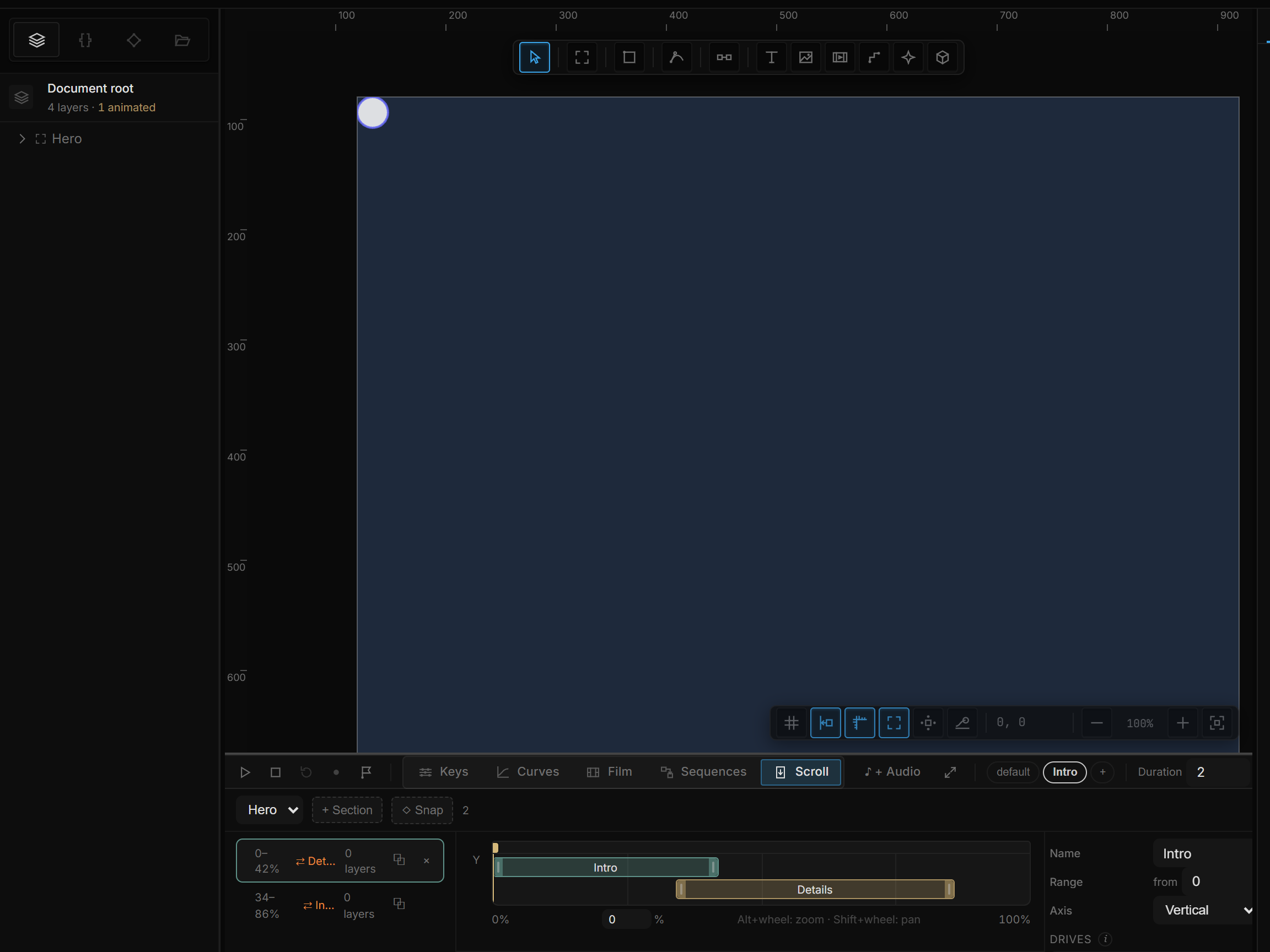
| Piece | What it is |
|---|---|
| Artboard picker | Which frame's rail you are editing. Defaults to the selected layer's parent |
| + Section | A new band, 25% of the range, on the axis that actually scrolls |
| List (left) | Every section: name, 20–45%, how many layers it holds, ⧉ duplicate, × delete |
| Rails (middle) | Y and/or X — only an enabled axis is drawn. Drag a band to move it; drag an edge to resize |
| Detail (right) | The selected section — or a ◇ snap. Empty: Pick a section — or a ◇ snap point — to edit it |
No sections yet: “+ Section” marks a stretch of this artboard’s scroll where the layers you pick stop moving and hold in place.
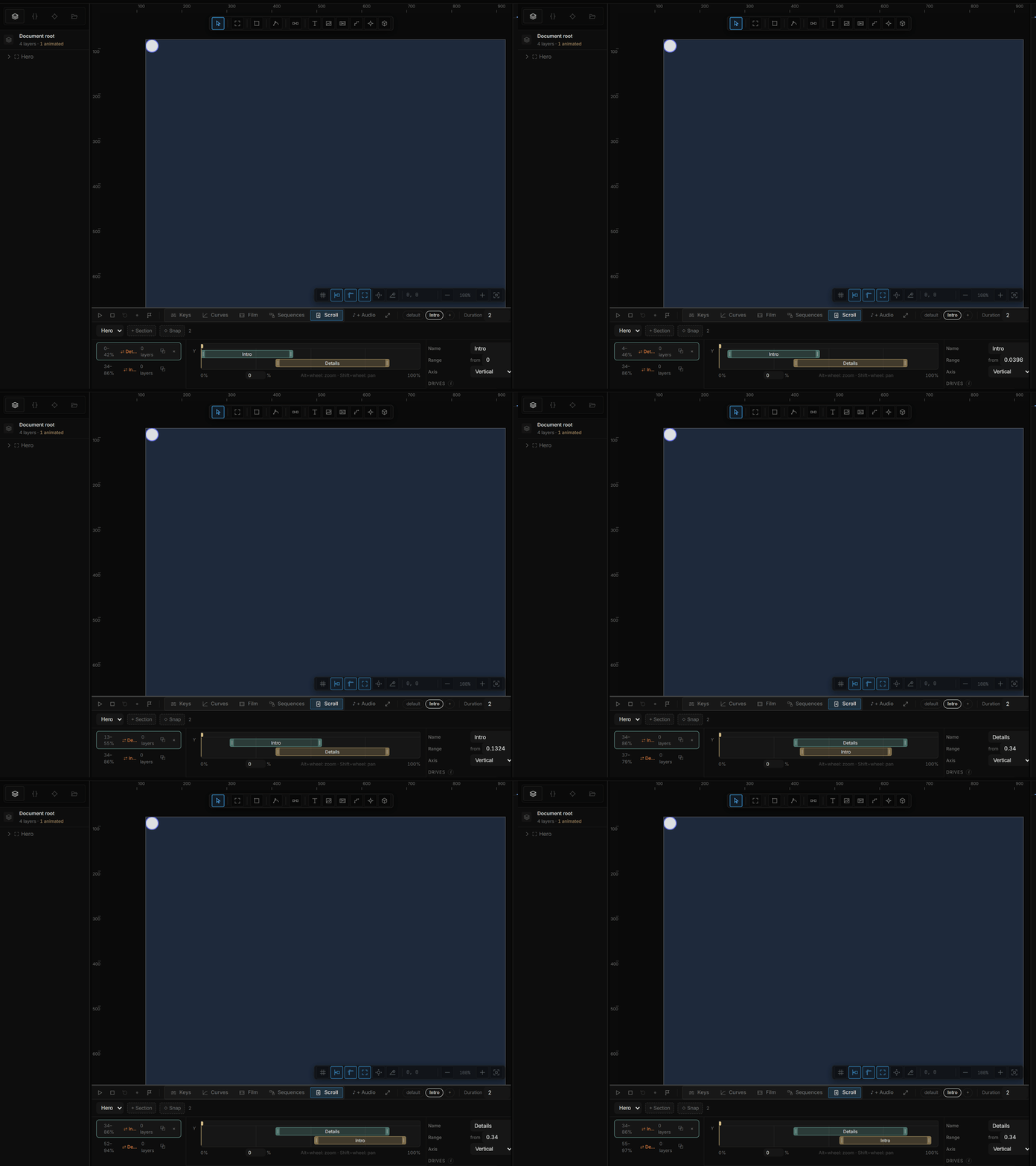
A list row that overlaps another on the same axis shows ⇄ Name. That badge is the scroll junction — not a bug. See When two sections overlap.
⧉ copies the section at the same range with the same held layers — then drag the new band. Ctrl+Z undoes delete.
03The artboard's Scroll section
Select the artboard. Scroll in Properties is the frame itself, not a child.
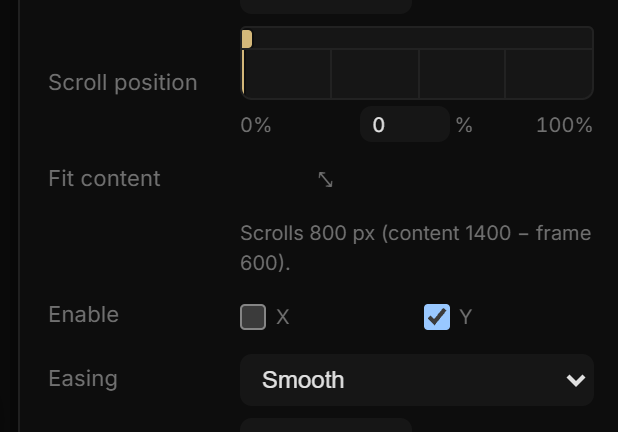
| Row | What it does |
|---|---|
| Scroll position | A rail you drag in the editor. The canvas actually scrolls — you can align things at a scrolled pose without entering Play. Hold bands from child sections show on the same rail |
| Content Size | W and H of the virtual area. Scroll range is content − frame. If children reach past the number you typed, the larger value wins — the hint says so |
| Fit content (⤡) | Sets Content Size to whatever the layers inside actually reach |
| Enable | X and Y. Off keeps the stored scroll value; the wheel just does not write that axis |
| Scroll Speed | Multiplier on the wheel. Default 1; range 0.1–5 |
| Easing | Instant writes the wheel immediately. Smooth eases to the new target |
| Smooth Ms | How long that glide lasts. Shown with Smooth. Default 150 |
| Snap | A step in px on X and Y. 0 is off. This is a grid for the wheel, not a named catch on the Scroll tab |
| Scroll-driven sequence | Opens Sentences so a sequence can follow this artboard's scroll |
| Layout view | Lays the content out flat: clipping and scroll are off so you can align. A dashed ghost shows where each layer will slide. To see the scrolled pose, drag the rail instead |
The wheel scrolls the artboard in Play. In the editor, use the rail.
04Scroll Participation on a layer
+ Add › Scroll Participation (Parallax, pin, hold) is how a child of a scrolling artboard opts in. The same row is under Add › Motion on the context menu. It only does something when the layer's direct parent is a scrolling artboard.
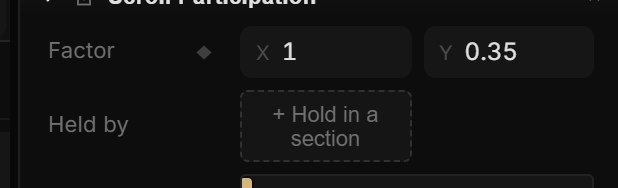
| Row | What it does |
|---|---|
| Factor | X and Y. How much of the parent's scroll this layer takes |
| Held by | Which sections currently pin this layer — or + Hold in a section to make one |
Factor is 1 / 1 on every new layer: the layer scrolls with the content, same speed as everything else. Changing it is the parallax.
| Factor | What you see |
|---|---|
| 1 | Moves with the content — the default |
| 0 | Stays put while the parent scrolls (sticky). Permanent, both before and after any section |
| 0.3 – 0.7 | Lags behind — a slower background |
| > 1 | Rushes ahead of the content |
X and Y are independent. A horizontal gallery can parallax on X and stay at 1 on Y.
Hold is not Factor 0
Factor 0 is sticky for the whole scroll. Changing it while the playhead is mid-scroll jumps the layer, because the offset is scroll × factor on every frame.
A hold is a window. The layer scrolls in, freezes for that stretch, then continues — no jump at the edges. + Hold in a section creates a section on the parent artboard, ticks this layer into it, and opens the Scroll tab so you can size the band. If the layer is already held, the row lists every section (Name · 20–45%) and each chip jumps to that band.
A layer can be held by more than one section. Removing Scroll Participation with × puts Factor back to 1 / 1 and takes the layer out of every hold.
05Sections
A section is a named stretch of that artboard's scroll. Click a row — or a band — to edit it.
Detail
| Field | What it does |
|---|---|
| Name | What you pick later as Scroll section → Name. Rules and drivers find it by this name |
| Range | from / to, 0 → 1 of this artboard's scroll (step 0.01). Same numbers as the band |
| Axis | Vertical or Horizontal. A disabled axis is labelled (not enabled) — turn it on in the artboard Scroll section |
| Drives | Who consumes this 0 → 1 — below |
| Hold in place | Which children freeze for this stretch |
| × Delete section | Layers go back to scrolling. Same as × on the row. Ctrl+Z undoes |
Drag the band or type the range — they are the same numbers.
Hold in place
Tick a child. It scrolls in, stands still across the band, then continues — no jump at the edges. Click the layer name to select it on the canvas.
A layer can be held by more than one section. The tick on this section does not steal it from another.
- Between two non-overlapping holds the layer scrolls normally. The row shows +N (Also held by “Outro”).
- If two holds on the same axis overlap, the windows merge into one longer freeze. The row shows ⧉N and the tooltip says so.
Each held layer also outputs Held in place 0 → 1 across this section. Bind a property to that (or drive a sequence from it) to animate while the layer stands still.
06Drives
A section's product is a number: 0 at the start of the band, 1 at the end, then it stays at 1. Drives is who is listening.
The hint: Pick "Scroll section → {name}" as the source anywhere a value is asked for — a sequence driver, a page timeline, or any bind.
Drive a sequence
If the scene has sequences, a picker — drive a sequence — lists them. Pick one:
- The source becomes Scroll section → this name.
- ⇥ turns on (this is the only setup that actually plays — without it, only the already-active sequence's driver runs, and the scrub looks dead).
- A chip ∿ Intro appears with ⇥ and ×.
⇥ on: Takes over the playhead inside this section — click to stop. Off: Only the ACTIVE sequence's driver runs.
Scrolling through the band plays that sequence from start to end. The rail playhead is live: drag it and the artboard actually scrolls, so you see hold and release without Play.
× on the chip stops the driver. The same bind also shows under Whole scene → Scene as a Drive row — one sentence, two doors. Sequence drivers is the Sentences side; ∿ Drive sequence from scroll on the artboard is the whole scroll (0 → 1 of the frame), not one section.
Drive a property
Binds that already read this section appear as chips (∿ Card · Opacity). Add one from the property: right-click the badge → ∿ Add binding… → Scroll › Scroll section → this name. Streams & variables.
Empty: Nothing follows this section yet.
07When two sections overlap
Two bands on the same axis that share a range show ⇄ Name on the list. That overlap is a junction.
If each section drives a different sequence, the engine does not cut hard at the edge. Across the shared range the two playheads crossfade — weight and both sample times come from scroll, so rolling back unwinds the same blend. This is not a cable on the Sequences graph and not Auto on end. Those fire on a clock or a rule. This one is tied to the wheel.
Do not overlap two activating drivers unless you want that mix. The inspector warns when two ⇥ drivers compete.
A transition you wire in the blend graph (Crossfade / Sync scrub / Parallel / Page curl) is a different tool: a named blend a sentence can call. Use the graph when a click or On Sequence End should change films. Use a rail overlap when scrolling should ease from Intro into Spin.
08Pick the tool
| You want | Use |
|---|---|
| One long film that is the whole page | Artboard ∿ Drive sequence from scroll, or ∿ Drive with Scroll progress Y |
| Chapters — Intro, then Spin, then Outro — each a sequence | Three sections, each Drives its sequence, ⇥ on. Overlap the seams for a soft handoff |
| A card that fades while it is pinned | Hold the card + bind Opacity to the section (or to Held in place) |
| Parallax background, no pin | Scroll Participation → Factor 0.3–0.7 — or the Parallax recipe |
| Fade in as the layer enters the frame | Recipe Reveal on scroll (Start / End) — binds Opacity to Enters the screen, no section required |
| Fire once at 50% | Trigger On Scroll on the artboard (axis, threshold, both directions) |
| Scroll to a point from a click | Verb Scroll To |
| Each artboard animates as it enters, same keyframes | Page playhead — ∿ Own playhead, not a section |
| Two sequences at once (loop + entrance) | Play together ⧉ / Drive layer ∿ / Layer weight from a section |
| Click plays Intro, then blend to Outro | Sequences graph — Sequence Blend in a sentence, optional Auto on end |
09Snaps
A snap is not a section. It is a catch on the same rail, drawn on its own row underneath the bands: where the wheel should settle. Click ◇ — the detail column switches from the section to the snap.
Three handles on the rail:
| Handle | What it does |
|---|---|
| Body | Moves the catch zone; the settle point comes with it |
| Edge | Widens or narrows the zone; the settle point stays |
| ◇ | Moves where the scroll lands; the zone stays |
Stop the wheel anywhere inside the zone and the scroll eases to the diamond.
| Detail | What it does |
|---|---|
| ◇ Snap | Optional name on the rail |
| Settle at | The landing %, plus ⌖ to move the whole zone to the artboard's current scroll |
| Zone | from / to in % |
| Ease | — smooth (the artboard's own Smooth Ms) or a curve with a duration |
This is still not the artboard Snap row (a pixel grid on the wheel).
10Fine adjustment
The rail starts showing the whole 0–100%. For a tight overlap, zoom it the way you zoom the timeline:
| Alt+wheel (or Ctrl+wheel) | Zoom around the pointer |
| Shift+wheel | Pan along the rail (plain wheel also pans once you are zoomed) |
| ⤢ 100% | Back to the whole range |
A hint under the rail repeats this while you work.
11Shortcut recap
| Artboard | Scroll in Properties · ⤡ Fit content · Enable X / Y · rail = editor pose |
| Layer | + Add › Scroll Participation · Factor = parallax · + Hold in a section = pin |
| View | Timeline Scroll tab · artboard picker · list / rails / detail |
| Section | + Section · drag the band · ⧉ duplicate · tick Hold in place |
| Drives | — drive a sequence — · ⇥ claims the playhead · chips = binds |
| Overlap | ⇄ on the row = junction crossfade of the two driven sequences |
| Snap | body = move zone · edge = resize · ◇ = settle · ⌖ = here · Ease |
| Rail | Alt+wheel zoom · Shift+wheel pan · ⤢ 100% |