In the interface a stream is called a binding (∿). A stream is a number that keeps changing — scroll progress, the pointer, an audio level, a variable — and a bind points one at a property so the property follows it every frame. This page covers binding, the sources on offer, the transform chain that shapes a value on its way, and the scene variables you define yourself. For the difference between a moment and a stream, read Interactions first.
01Quick tour
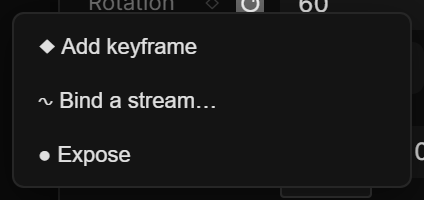
- Select a layer. Right-click the ◇ badge next to Rotation and choose ∿ Add binding….
- In the source picker choose Mouse X across artboard (0–1).
- Press ƒ to open the chain, add a Map Range step, set Out Min / Out Max to −15 and 15.
Move the pointer across the artboard: the layer tilts, and the row shows the live value it is receiving.
02Where a bind starts
| From | How |
|---|---|
| A property row | Right-click the badge → ∿ Add binding… (or Edit binding… once bound) |
| Any value field in a rule | The small button beside a value — take this value from somewhere — swaps the number for a source |
| Sentences | + Interaction › ∿ Bindings (or ✋ Gestures for drag / rotate / hover — see Gestures), pick a target such as Layer property or Sequence playhead, then change the Source in the row that opens |
| A section in the Scroll view | The Drives list under a section |
They all create the same thing, and it shows up in the Sentences list either way.
Once bound, the badge turns ∿ and the row shows the live value after the chain, with × (Remove link) next to it. The badge menu also offers ∿ Remove binding. If something else is also writing that property — a rule, physics, another bind — the badge shows ⚠ and clicking it opens the rule that is losing.
03Sources
The picker is grouped; each entry has a one-line hint as its tooltip. Your own values come first: Controls lists the output of every Slider, Toggle and Choice (Fields), and Variables lists each scene variable by name — one click, no second picker.
| Group | Source | Gives you |
|---|---|---|
| Basic | Fixed number | A constant — no live source |
| Layer | This layer | One of this layer's own values: X, Y, Z, Width, Height, Rotation, Scale, Opacity, Center X/Y (world), Scroll X/Y, Held in place (0→1), Enters the screen (0→1) |
| Layer | Another layer | The same list, read from a layer you pick |
| Scroll | Scroll progress | 0 at the top of an artboard, 1 at the bottom — pick the artboard and the axis |
| Scroll | Enters the screen | 0 as this layer is about to appear from the bottom, 1 once it has fully left the top |
| Scroll | While held in place | 0 → 1 across the stretch where this layer holds |
| Scroll | Scroll section | 0 → 1 across a named section, then stays at 1 |
| Pointer | Mouse X · Mouse Y | Pointer on the canvas, in px |
| Pointer | Mouse X / Y in artboard | Pointer inside this layer's artboard, in px |
| Pointer | Mouse X / Y across artboard (0–1) | 0 at one edge of the artboard, 1 at the other — parallax and tilt |
| Pointer | Mouse X / Y across this layer (0–1) | The same, across the layer itself |
| Pointer | Mouse proximity | 1 at the layer's center, 0 at half the Radius, −1 outside |
| Pointer | Mouse distance | Distance in px from the pointer to the layer's center |
| Pointer | Mouse speed X · Mouse speed Y · Mouse speed | How fast the pointer moves, in px/s |
| Pointer | Mouse sign X · Mouse sign Y | −1, 0 or +1 — which way the pointer is moving |
| Pointer | Wheel ΔX · Wheel ΔY · Wheel amount | The last wheel step in px — pair with the Wheel trigger |
| Pointer | Wheel X · Wheel Y · Wheel sign X · Wheel sign Y | Where the pointer was at the last wheel step, and which way the wheel turned |
| Time | Timeline time | The playhead in ms — loops with the composition |
| Time | Clock (never loops) | Milliseconds since start, whatever the timeline does |
| Time | Time of day | The wall clock — hour, minute, second, weekday, day, month, year, or the day as 0 → 1 |
| Audio | Audio | A band level 0–1: Level (RMS), Peak, Sub, Bass, Low mid, Mid, High mid, Treble, Onset, Beat, BPM |
| Keyboard | Key held | 1 while the key is held, 0 otherwise |
| Data | Variable | A scene variable, by name |
| Data | Data field | A number from a Data source at a dotted path — items.0.price, stats.cpu, items.length; clicked.price for the clicked copy's row |
| Copies | Copy index · Copy progress | Which copy is being drawn (0, 1, 2…), or its position across the set 0 → 1 |
| Copies | Clicked copy · Clicked instance (3D) | Index of the last clicked copy or 3D instance (−1 = none) |
04The transform chain
Between the source and the property sits a chain of steps. The ƒ button opens it (it shows the step count once there are any). Read it top to bottom:
- The top node is the source with the value entering the chain; the bottom node is the output — what gets written.
- Each step is one node. Its title line shows a summary (0…1 → 0…360); click it to open the parameters. The number on its right is the step's output, and every wire carries the value flowing through it.
- + Step at the bottom adds a step; ▲ ▼ move it earlier or later; × deletes it. Steps run in order.
- Each step knows the range arriving at it (in 0 … 1), so Map Range and Ease work on the real range without you copying numbers.
| Step | Parameters | What it does |
|---|---|---|
| Add / subtract | Amount | Adds a fixed amount — "8 less than its own Y" |
| Multiply | Factor | Multiplies — "1.1× its own scale" |
| Clamp | Min, Max | Keeps the value inside a range |
| Map Range | Input range (auto or In Min / In Max), Out Min, Out Max, Clamp | Linear mapping from one range to another. Auto uses the previous step's output range |
| Snap | Step | Snaps to steps, e.g. 90 for 90° steps, 0.25 for four steps on 0–1 |
| Ease | Preset | Shapes the value with an easing curve over its current range |
| Smooth | Time (s) | Exponential smoothing — filters sudden jumps |
| Spring | Stiff, Damp | A spring–damper follow: bouncy, organic |
| Delay | Sec | Reads the value from the past — trail and follow effects |
| Sign | — | −1, 0 or +1 — the direction of a speed or a wheel step |
| Absolute | — | Drops the sign |
| Not | — | Flips a yes/no value |
| Compare | Op, Threshold | Writes 1 when the value passes the threshold (< ≤ > ≥ =), 0 otherwise |
| Mix | A (at 0), B (at 1) | Blends from A to B using the incoming value as 0 → 1 |
| Accumulate | Mode | Adds the value up — Per second (× dt) or Per event |
The last six sit under More in the step menu.
The same editor appears inside rule actions and sequence drivers, so a chain you learn here is the chain everywhere.
05Variables
A variable is a number, text, on/off or color that the scene owns — a score, a selected tab, a theme color. Define them in the Variables tab of the left panel. The switch at its top has three faces:
- Values — the variables on this page.
- Lists — rows of data that Repeat, Chart and rules share. A list is not a variable; see Data sources.
- Theme — color and font tokens with modes (Light, Dark…), part of the design system.
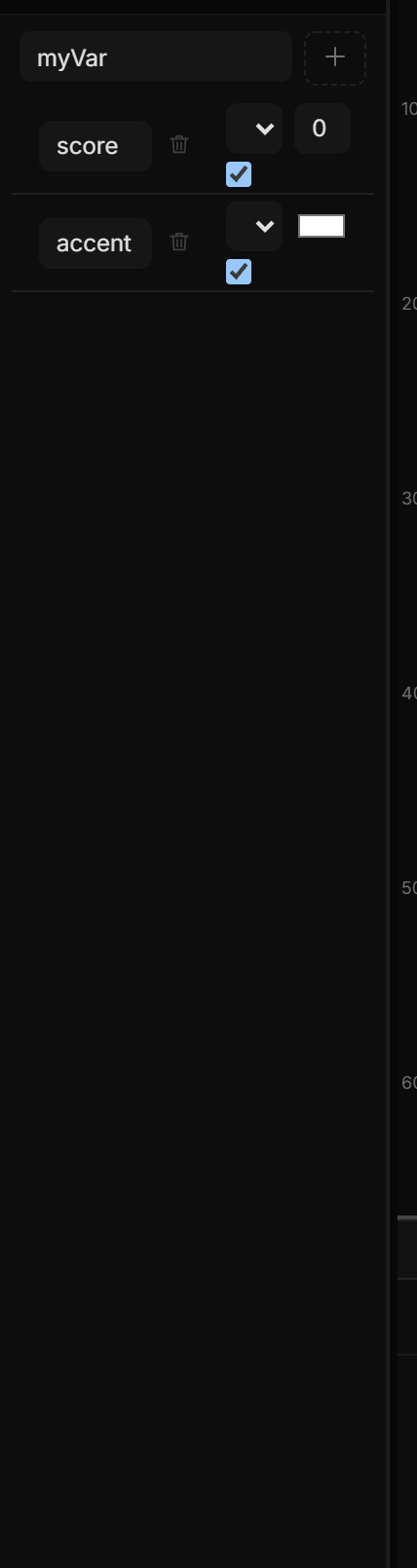
- Press + and pick a type — Number (count, progress, amount), Text (a label or message), Toggle (on or off) or Color (a shared swatch). The new variable is called var and its name is ready to type; click a name any time to rename it.
- The value next to the name is the starting value — what rules and bindings read before anything writes to it.
- The icon on the left is the type. Click it to change the type, or to switch Persist (the player keeps the value after a refresh — a cart, a setting) and Exposed to host (the page embedding your scene can read and set it — Embedding). A switched-on option reads Persist · on / Host · on.
- The trash icon deletes the variable.
Under a Number or Toggle, Drives lists every property that follows it, with its live value — click one to open that bind in Sentences. + Drive… lets you click a layer on the canvas; the variable then drives one of its properties (Esc cancels). Written by appears when rules change the variable with Set Variable, one chip per rule — click it to open the rule.
Where variables show up:
| Place | How |
|---|---|
| A bind | Source Variable → the name. Chain it like any stream |
| A rule action | Set Variable writes a value (a number, or another source) |
| A trigger | On Variable — see the watch modes below |
| A text | From… on a text's Content row writes {$score} into the text — Data sources |
| A guard or condition | Compare a variable against a number or another source — score is greater than 10 |
A click that does Set Variable score = score + 1, a text layer whose Opacity is bound to score through Clamp 0–1, and an On Condition rule that fires when score equals 10: that's a counter, a meter and a win screen in three sentences.
On Variable — watch modes
The trigger is not only "when it changes". The WHEN pane offers four watches:
| Watch | Fires |
|---|---|
| Changes | Any write (the default) |
| Becomes true (0→1) | Crossing from false to true |
| Becomes false (1→0) | Crossing the other way |
| While true | Every tick for as long as the value is true |
A Toggle variable that should start an intro once uses Becomes true. A hold that should keep a glow up uses While true.
06Shortcut recap
| Bind | right-click a badge → ∿ Add binding… · × or ∿ Remove binding to unbind |
| Chain | ƒ opens · + Step · ▲ ▼ reorder · × delete |
| Variables | left panel → Variables → Values · + picks a type · type icon for Persist / Exposed to host · trash deletes |