A variable font carries more than a weight: width, optical size, slant — and often axes of its own, like a softness, a "wonky" switch or a year. The Variable font block in the Text section turns every one of them into a slider, and builds motion from them in one click. Letter-by-letter entrances are on Text animation; typing and styling a text layer is on Drawing & layers.
01Quick tour
- Select a text layer and pick a variable font — Fraunces, Recursive or Climate Crisis are good first tries.
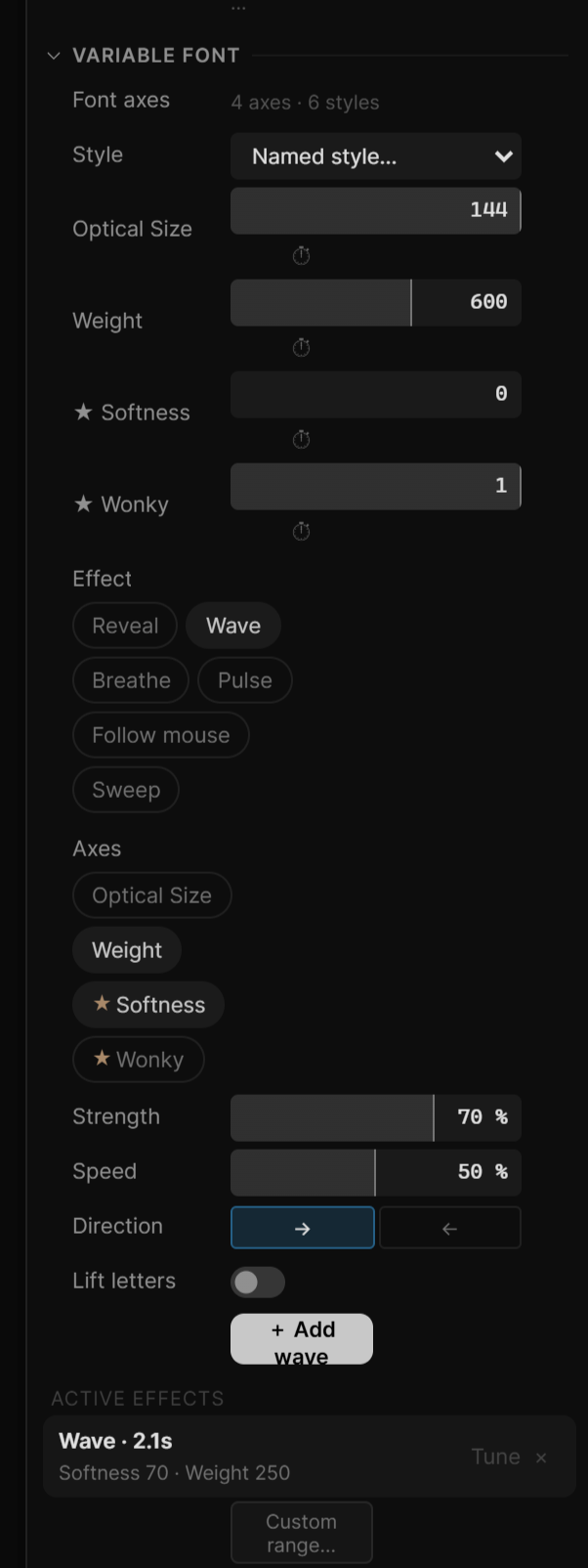
- Open Variable font in the Text section. Each axis is a slider; axes unique to this font are marked ★.
- Under Effect, pick Wave. The font's own ★ axis and Weight are already chosen under Axes.
- Press + Add wave, then Space. A swell of the chosen axes runs across the text, forever.
02Which fonts
Every family in the studio font list that ships as a variable file works here — among them Inter, Roboto Flex, Fraunces, Archivo, DM Sans, Montserrat and Newsreader. A second group is in the list for its axes alone: Recursive, Anybody, Bricolage Grotesque, Mona Sans, Shantell Sans, Bodoni Moda, Big Shoulders, Tilt Warp, Handjet, Sixtyfour, Workbench, Wavefont, Climate Crisis and Kablammo.
The full font file loads the first time you open the block for that family. The Font axes row says what it found — 3 axes · 9 styles — and hovering it lists every axis with its range and default. While the file loads it reads Loading the font file….
03Axes
One slider per axis, from the font's own minimum to its maximum.
- ★ marks an axis that is unique to this font — anything beyond weight, width, optical size, italic and slant. Hover a slider for its tag, range and default.
- ↺ appears on an axis you changed and puts it back to the font's default.
- Style — Named style… applies one of the font's built-in styles in one pick.
- Optical size follows the font size until you move it yourself.
- Some fonts hide technical axes. Show N technical axes reveals them; Hide technical axes tucks them away again.
Animating an axis
Every number in the block has a ⏱ button beside it. Click it and the value becomes a timeline property: keyframe it with the ◆ badge, bind it to the mouse, scroll or audio with ∿, or set it from a rule. Click ⏱ again to stop; the value stays where it is. A text layer can animate up to eight of these at once.
04Effects
Effects are the quick way to motion. Pick a behavior, pick axes, set how strong and how fast, and add it.
| Effect | What it does | Runs |
|---|---|---|
| Reveal | Letters arrive one by one, morphing from the extreme into the normal style | Once, from the playhead |
| Wave | A wave of the chosen axes runs across the text | Loops forever |
| Breathe | The whole text swells and relaxes together | Loops forever |
| Pulse | Random letters flare up and settle | Loops forever |
| Follow mouse | Letters under the pointer swell | Live, in Preview and Simulate |
| Sweep | One pass of the axes across the text | Once, from the playhead |
Hover an effect chip — the tooltip says the same.
| Control | What it sets |
|---|---|
| Axes | Which of the font's axes the effect moves. It starts with the font's first ★ axis and Weight. Click a chip to add or drop it |
| Strength | How far the axes travel from their current value toward the font's extreme. Default 70 % |
| Speed / Duration | Right is faster. Loops take 3.6 s at the left end down to 0.7 s at the right; one-off effects 2.4 s down to 0.6 s. Default in the middle. Not shown for Follow mouse |
| Direction | → or ← — Wave and Sweep only |
| Lift letters | Letters also rise a little where the effect is. Not shown for Reveal |
Press + Add … — the button names the effect. A toast says how to see it: press play, move the mouse over the text in Preview / Simulate, or keyframes added at the playhead for the one-off effects. It is one undo step.
- Reveal needs at least one axis. It rides the text's entrance clock. If the layer's Animate is Off, it switches to Letter, and two keyframes on Anim start at the playhead.
- Sweep writes two keyframes on the Range property, starting at the playhead. Drag them in Keys to move the pass in time.
Active effects
Everything on the layer is listed under Active effects as a readable line — Wave · 2.1s with Softness 100 · Weight 780 under it. × removes one. Tune opens every detail of that effect (below); a Reveal has no Tune — its timing is the text animation's. Custom range… starts an empty one with every field, for when you want to build from scratch.
05Tune — range animation
A range picks which letters are affected, how the pick moves across the text, and what happens to the letters inside it. Tune lays those out as three questions.
1 · Which letters
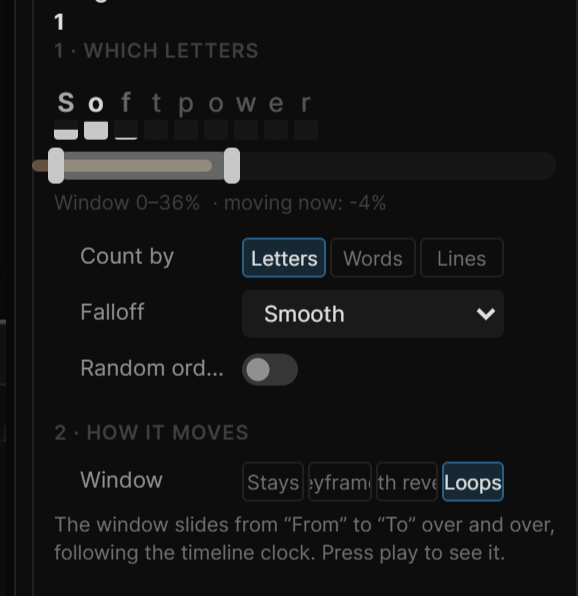
The strip shows your own text, one letter (or word, or line) at a time, with a bar under each: the taller the bar, the more that unit is affected right now. Below it is the window — drag its middle to move it, drag an edge to make it wider or narrower. The strip plays live while the timeline plays. A pale band shows where a moving window actually is at this moment.
| Row | What it sets |
|---|---|
| Count by | Letters (spaces skipped), Words or Lines — what one step of the window is |
| Falloff | How strongly letters inside the window are affected: Square (all the same, with a soft-edges value), Ramp up, Ramp down, Triangle, Round, Smooth (strongest in the middle) |
| Random order | Pick letters in a scattered order instead of left to right. The number is the shuffle — another number, another order |
2 · How it moves
Window chooses what slides the window across the text. A line under it explains the choice.
| Window | What slides it |
|---|---|
| Stays | Nothing — it stays where you put it. Slide it with Offset, or press ⏱ on Offset and bind it with ∿ to follow the mouse, scroll or audio |
| Keyframes | You decide when: the Range property goes 0 → 1 on the timeline. Add 0→1 here puts two keyframes at the playhead |
| With reveal | Moves with the text's entrance (Anim), so it rides the letter-by-letter reveal |
| Loops | Slides from From to To over and over, following the timeline clock. Every sets how long one pass takes |
From → To are percentages of the text — negative starts before the first letter, 100 ends past the last. ⇄ reverses the direction.
3 · What happens to them
| Row | What it sets |
|---|---|
| Amount | Strength of everything below, −100 % to 100 %. Negative inverts |
| axis rows | The value each chosen axis reaches inside the window. + Change a font axis… adds another; × stops changing one |
| Move X / Y | A sideways and vertical shift in px (negative Y is up) |
| Scale / Rotate | Scale (1 = unchanged) and rotation in degrees |
| Opacity | Opacity of the selected letters |
Every number here has its own ⏱, so a range's amount, offset or axis target can be keyframed, bound or set from a rule like any other property.
06Recap
| Where | Text › Variable font |
| Axes | one slider each · ★ = unique to this font · ↺ = reset · Named style… |
| Effects | Effect · Axes · Strength · Speed / Duration · + Add |
| Tune | 1 · Which letters · 2 · How it moves · 3 · What happens to them |
| Animate a value | ⏱, then ◆ or ∿ |