Bones let a drawing bend. You draw a chain, bind a path (or a mesh) to it, then rotate the bones — the shape follows. Drawing the chain is also on Drawing & layers; this page is the two Properties sections: Bone on a bone, Deform on the thing being bent.
01Quick tour
- Press B and drag a bone over a path (or convert a rectangle first). Keep clicking to grow the chain. Esc finishes.
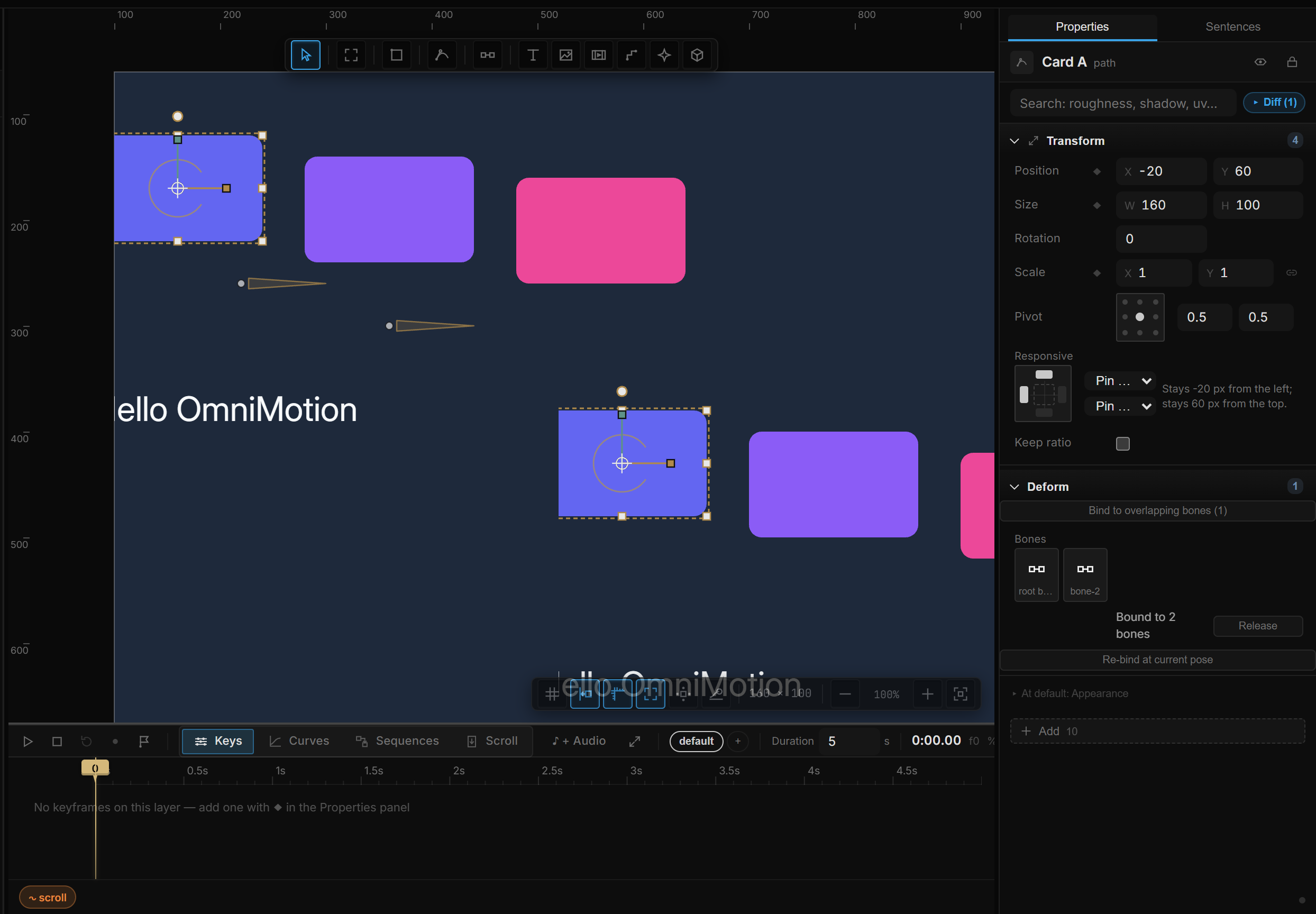
- Select the path. Deform appears. Click Bind to overlapping bones.
- Select a bone, press Play (or keyframe its rotation) — the path bends with it.
02Drawing a chain
| B then drag | Draws a bone |
| Click, keep clicking | Places joints; each click adds a child |
Shift | 15° steps — or starts a new root instead of chaining |
| Esc / V | Leaves the tool. Bone stays active between strokes, unlike the shape tools |
Right-click Add › Rig does the same without the tool:
| Action | What it does |
|---|---|
| Bone here | A bone at the pointer |
| Bone (chain from here) | When a bone is selected — the new one is its child, and the parent aims at it |
| Join bones into chain | Two or more bones, in click order; the first picked is the root |
| Attach to nearest bone | The layer keeps its spot and follows the closest bone (rigid — see images below) |
| Detach from bone | Leaves the rig; the layer stays where it is |
Draw bones over the artwork and layers under the influence field bind automatically. Deform is how you bind by hand, and how you unbind.
03The Bone section
Select a bone. Bone has three rows:
| Row | What it does |
|---|---|
| Length | The body of the bone, in px. Influence is measured along it |
| Influence | Radius — path points inside this distance follow the bone |
| Softness | How soft the edge of that field is. Low is a hard cut |
A child bone is pinned to its parent's tip. The panel says Chained — pinned to the parent's tip. Drag the body to rotate, drag the tip for IK.
Bones are ordinary layers. Keyframe rotation, drive it from a rule, nest them to grow the chain.
04The Deform section
Deform appears on a path, a rectangle, an ellipse, an image, or a mesh (when the document has a bone). What you get depends on the kind.
A rectangle or an ellipse
Bones bend path points. A rectangle has none yet. The section says so and offers Convert to Path — same geometry, editable points, undoable. After the convert, Deform shows the binding controls.
A path
| Control | What it does |
|---|---|
| Bind to overlapping bones (N) | Binds every bone whose influence covers this shape. Dim if none overlap — grow Influence or move the bone closer |
| Bones | A gallery of every bone in the same world (2D, or this 3D scene). Click to bind or release one |
| Release | Unbinds all. The shape returns to its own geometry |
| Re-bind at current pose | Freezes the current bone pose as the new rest. The shape keeps its look; the bones go back to zero |
Binding does not jump the shape. The pose at bind time is rest.
2D paths only see 2D bones. A mesh only sees bones inside its 3D scene. Mixing them was a silent no-op; the lists stay separate.
An image
Images do not bend. Deform says so and offers Attach to nearest bone / Detach — the same actions as the Rig menu. The image stays where it is and then rides the bone as a rigid child.
A mesh
Same gallery as a path, limited to bones in that scene. If the scene has no bones yet, the section tells you to right-click and add one under the scene.
05IK
On a chained bone, drag the body to rotate that joint. Drag the tip and the parents reach for it — inverse kinematics, one gesture. One drag is one undo step.
06Shortcut recap
| Draw | B · click to chain · Shift 15° · Esc finish |
| Rig menu | Right-click Add › Rig |
| Bind | Select the path → Deform › Bind to overlapping bones |
| Bend | Rotate a bone, or drag its tip for IK |