A map layer is a real, tiled map inside your artboard — you pick the look, point the camera, drop markers, and later fly between them from a rule.
01Quick tour
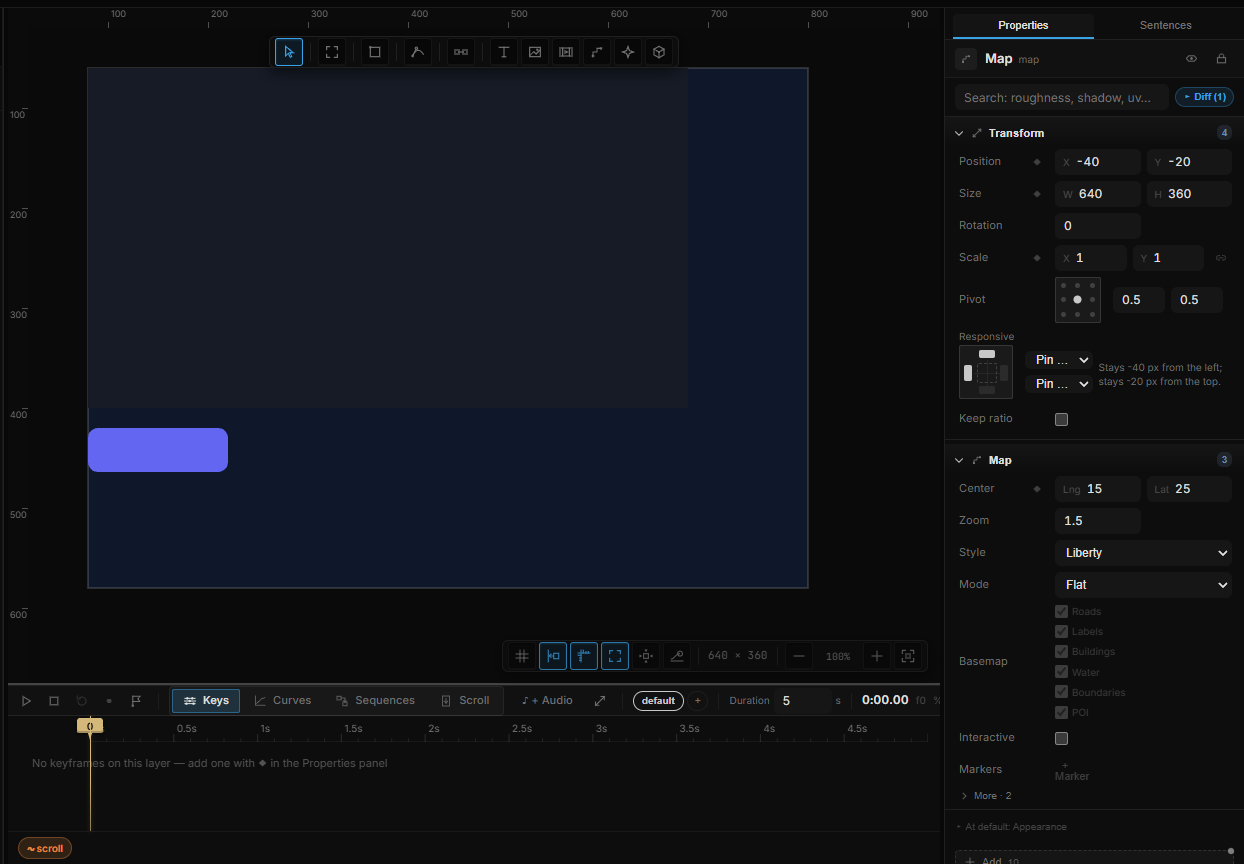
- Press M and click (or drag) on the canvas. A 400×300 map appears.
- In Properties, the Map section is at the top: choose a Style, set Center and Zoom.
- Click + Marker to drop a pin where the camera is looking.
02The Map section
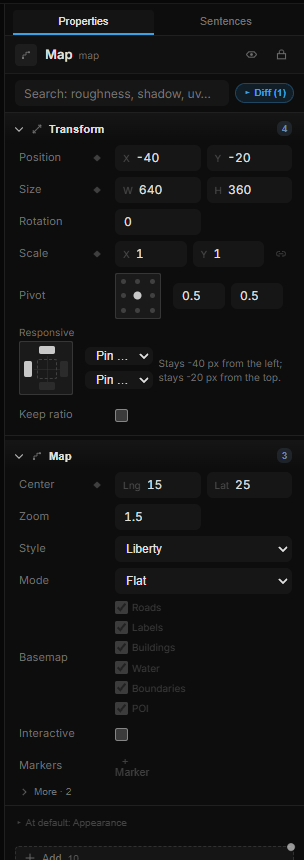
| Row | What it does |
|---|---|
| Style | The base map: Liberty, Bright, Positron, Dark, Fiord, CARTO Positron, CARTO Dark Matter, CARTO Voyager, MapLibre Demo, Terrain 3D |
| Mode | Flat, or Globe — terrain plus a globe projection; the tooltip suggests a pitch of 60° or more |
| Basemap | Show or hide Roads, Labels, Buildings, Water, Boundaries, POI. Works with vector styles (Liberty, CARTO, …); the toggles grey out on styles that don't support them |
| Interactive | Let the map be panned, zoomed and rotated directly on the canvas |
| Center | Longitude and latitude of the camera |
| Zoom | 0 (the world) to 22 (a street) |
| Pitch (under ▸ More) | Tilt, 0–85° |
| Bearing (under ▸ More) | Rotation of the map in degrees |
Interactive is off by default so that dragging on the map moves the layer, like any other layer. Turn it on when you want to navigate the map itself to find the right framing, then turn it off again.
03Markers
Below the camera rows, + Marker adds a pin at the current camera center. Each marker is one row:
| Field | What it does |
|---|---|
| Name | The label — this is what rules pick the marker by |
| Lng · Lat | Position; scrub or type. The default step is 0.01° |
| Color | The pin color |
| Custom icon URL | Optional — an image URL replaces the colored dot |
| × | Delete the marker |
04Animating the camera
Center, Zoom, Pitch and Bearing are ordinary properties. Everything that works on a rectangle's position works on them:
- click the ◇ badge to keyframe a camera move on the timeline;
- bind Zoom to scroll or Bearing to the clock with a ∿ stream (Streams & variables);
- scrub them in the halo (Tab).
05Flying from a rule
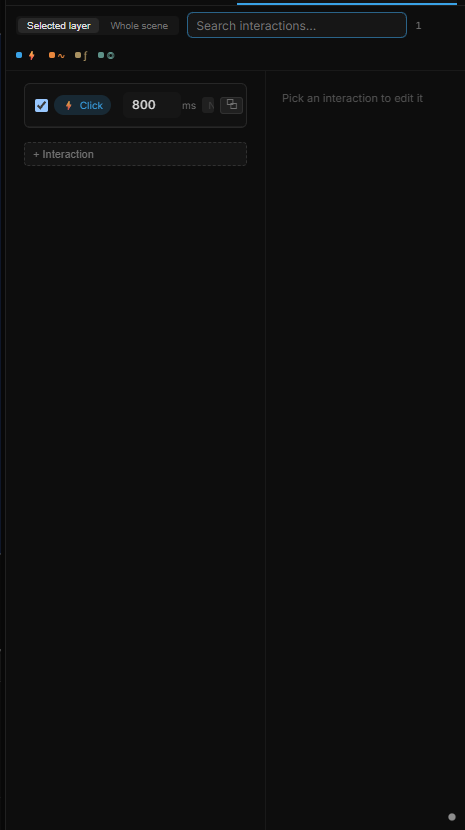
The Map camera target in Sentences becomes a Map: Fly to Marker action:
| Setting | What it does |
|---|---|
| Map layer | Which map to move |
| Marker | The marker to fly to |
| Duration | How long the flight takes — 800 ms by default |
| Easing | The curve of the flight |
| When done | Make the next step in the rule wait for the flight to finish |
A typical build is one Click rule per button, each flying to a different marker — the recipe list doesn't cover this, so use Custom… in the Sentences tab.
06Shortcut recap
| Create | M then click or drag |
| Navigate on canvas | turn on Interactive, then drag / wheel on the map |
| Camera | keyframe or bind Center, Zoom, Pitch, Bearing like any property |