A 3D scene is a layer like any other: it has a box on the canvas, sits inside an artboard, and can be animated, masked or wired into interactions. Inside the box lives a small 3D world with its own camera, meshes and lights. This page covers the scene itself and its camera; the things you put inside it have their own pages: Meshes, models & 3D text, Materials & textures, Lights & environment.
01Quick tour
- Press 3 (or pick 3D scene in the toolbar) and drag a box on the canvas. A click without dragging drops a 480 × 360 scene.
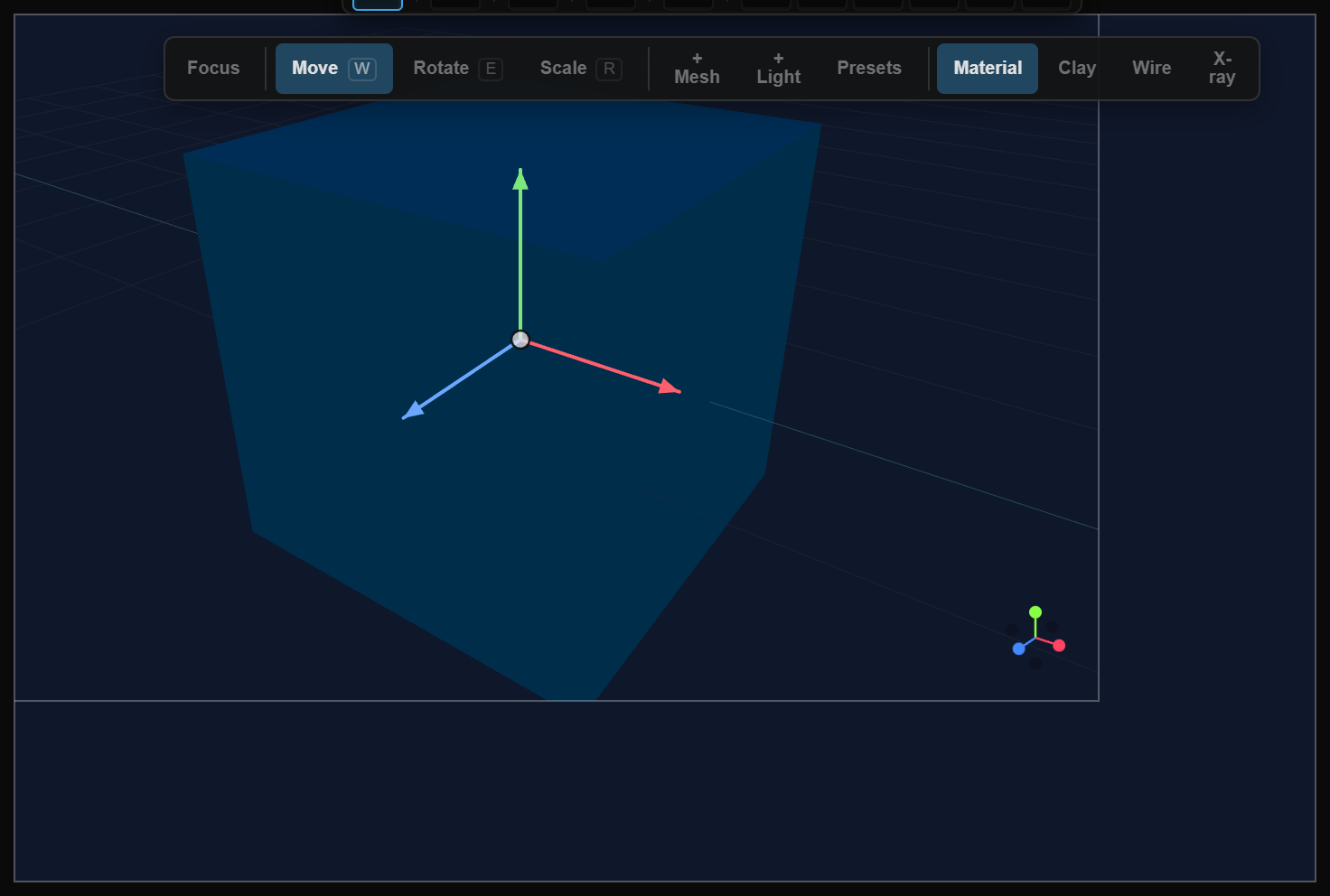
- With the scene selected, a small toolbar appears above the canvas: Focus, + Mesh, + Light, Presets.
- Click + Mesh and pick Cube. The cube is added as a child of the scene in the layer tree and becomes the selection; Move / Rotate / Scale buttons join the toolbar.
- Click + Light and pick Directional, then Presets → Three-point for a ready-made lighting setup.
- Hover the scene and middle-drag to orbit, roll the wheel to zoom. You are moving the scene's real camera — every gesture is undoable and shows up in the Camera section.
02The scene toolbar
The toolbar shows whenever the scene or anything inside it is selected. It always adds to the scene that owns the selection, so you can add a sibling while a mesh is selected.
| Button | What it does |
|---|---|
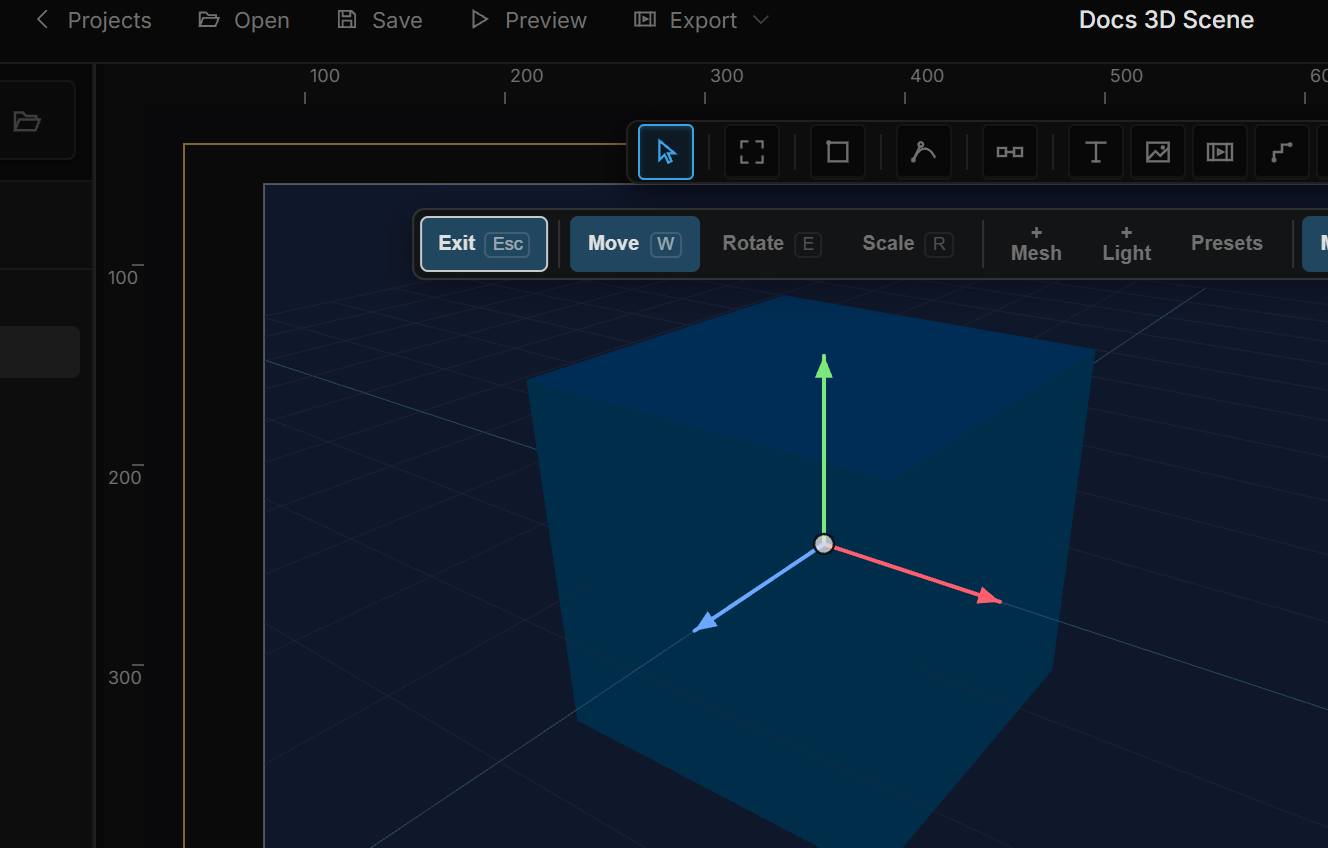
| Focus / Exit | Fits the scene to the canvas, dims everything else and roots the layer tree at the scene. Exit (or Esc) leaves. See Focus mode & navigation. |
| Move W · Rotate E · Scale R | Which 3D handles the selected mesh or light shows on the canvas. Only visible while a mesh or light is selected; a light has no Scale. |
| + Mesh | Adds a mesh — Cube, Sphere, Cylinder, Cone, Torus, Capsule, Plane, Model or 3D Text. |
| + Light | Adds a light — Directional, Point, Spot, Ambient, Hemisphere, Area, HDRI or Projector. |
| Presets | Light presets (Three-point, Studio, Sunset, Night). Replaces the scene's current lights in one undo step; an HDRI or Projector stays. |
03Placing things inside the scene
Meshes and lights are real layers. Their Transform section has Position X · Y · Z, Rotate X · Y · Z and Scale X · Y · Z — all keyframeable, all usable in expressions and rules.
On the canvas the selected object shows 3D handles. Pick the mode with Move / Rotate / Scale or W / E / R, then drag an axis handle. The center handle moves the object in the screen plane. Hold Shift while dragging to snap: rotation to 15° steps, movement to half-unit steps. One drag is one undo step.
Click a mesh inside the scene to select it — the click reaches into the scene and picks whatever surface is under the cursor. To reach a mesh hidden behind another, pick it in the Layers panel.
Press F with a mesh or light selected and the scene camera frames it (with a 2D layer selected F frames the canvas view instead).
Mesh here and Light here
Right-click Add › 3D drops a primitive at the pointer inside the scene, not at the scene origin:
| Action | What lands |
|---|---|
| Mesh here | A cube at the 3D point under the cursor |
| Light here | A point light at that same point |
Both stay greyed until a 3D scene — or a mesh or light inside one — is selected. Change the cube's Type or the light's Type in Properties afterwards; the menu stays one click on purpose.
The toolbar + Mesh / + Light still adds at the default place. Use here when you already know the spot.
04The camera
The scene's Camera section sits at the top of the Properties panel, above Transform — you place the scene box once and adjust the camera constantly. Everything here is a property: keyframe it, bind it to a stream, or set it from a rule with Set Property ("click the photo → the camera moves closer").
| Row | Values | Notes |
|---|---|---|
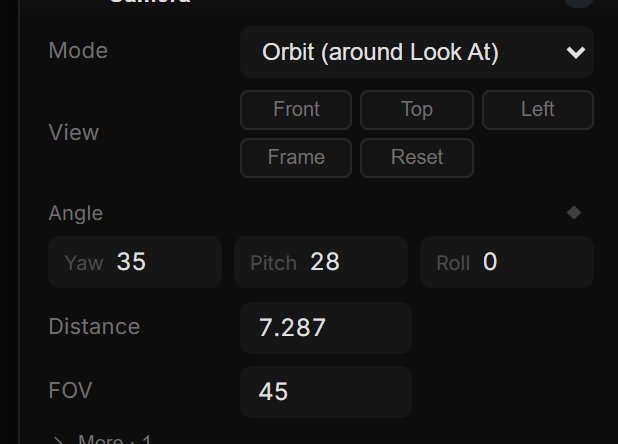
| Mode | Orbit (around Look At) · Free (own axis) | Orbit keeps the camera locked to the Look At point and rotates around it (subject-centric). Free keeps the camera at a position and turns it on its own axis (tripod, interior walkthrough). |
| View | Front · Top · Left · Frame · Reset | The three views set only the angles — Look At and Distance stay, Roll is zeroed. Frame fits everything in the scene. Reset returns to the default view. |
| Angle | Yaw · Pitch · Roll | Degrees. Pitch is clamped to ±89. Defaults: yaw 35, pitch 28, roll 0. |
| Distance | 0.2 – 500 | Orbit radius from the Look At point. Default 6. |
| FOV | 5 – 170 | Lens angle: ~20 is tele (flat, little perspective), 45 is standard (the default), 90+ is wide (dramatic depth). Animate it together with Distance for a dolly-zoom. |
| More → Look At X · Y · Z | world units | The point the Orbit camera circles. In Free mode the same row is labelled Position and is the camera's own location. |
05Editor cam vs Play cam
The scene's Editor section (collapsed by default, near the bottom of the panel) separates two questions: what does your mouse move while building, and what may the viewer's mouse move in Play.
| Row | Values | Notes |
|---|---|---|
| Ground grid | on / off | An editor guide on the scene floor. Never rendered. New scenes have it on. |
| Editor cam | Scene · Viewport · Locked | Scene — gestures drive the real camera (undoable, keyframeable). Viewport — a look-around view that never touches the document. Locked — nothing moves. |
| Set scene cam to view / Reset view | buttons | Only in Viewport mode. The first writes the look-around view into the scene camera (records a keyframe if recording is on); the second snaps the view back to the scene camera. |
| Cam speed | 0.1 – 3 | Gesture sensitivity for orbit, pan and wheel — in the editor and in Play. Lower it for fine framing. |
| Play cam | Off · Orbit · Full | How much the viewer can move the camera in Play. Off — camera locked, clicks still fire interactions. Orbit — drag to rotate only. Full — drag to rotate, right/middle drag or Shift+drag to pan, wheel to zoom. |
Navigation gestures
| In the editor | Does |
|---|---|
| Middle-drag over the scene | Orbit |
Shift+middle-drag | Pan |
Alt+left-drag | Orbit (for a mouse or trackpad without a middle button) |
| Wheel over the scene | Zoom in / out (dolly) |
| In Play (with Play cam: Full) | Does |
|---|---|
| Left-drag | Orbit |
Right- or middle-drag, or Shift+drag | Pan |
| Wheel | Zoom |
With Play cam: Orbit only the left-drag works; the wheel scrolls the page instead.
06Where the environment lives
Background, fog, shadows quality, ambient occlusion, depth of field, global illumination and bloom are all in the scene's Environment section — see Lights & environment.
07Shortcut recap
| Shortcut | Does |
|---|---|
| 3 | 3D scene tool |
| W / E / R | Move / Rotate / Scale gizmo (mesh or light selected) |
Shift while dragging a handle | Snap (15° rotation, half-unit moves) |
| F | Frame the selected mesh or light with the scene camera |
Middle-drag · Shift+middle-drag · wheel | Orbit · pan · zoom |
Alt+left-drag | Orbit |
| Esc | Leave Focus mode |