A 3D scene is a small box on a large canvas. Focus mode makes it feel like a full 3D editor: the scene fills the view, the rest of the document steps back, and the layer tree shows only what is inside. This page collects Focus mode and every way of moving the camera and the selection inside a scene. It assumes you know the basics from Scenes & the camera.
01Quick tour
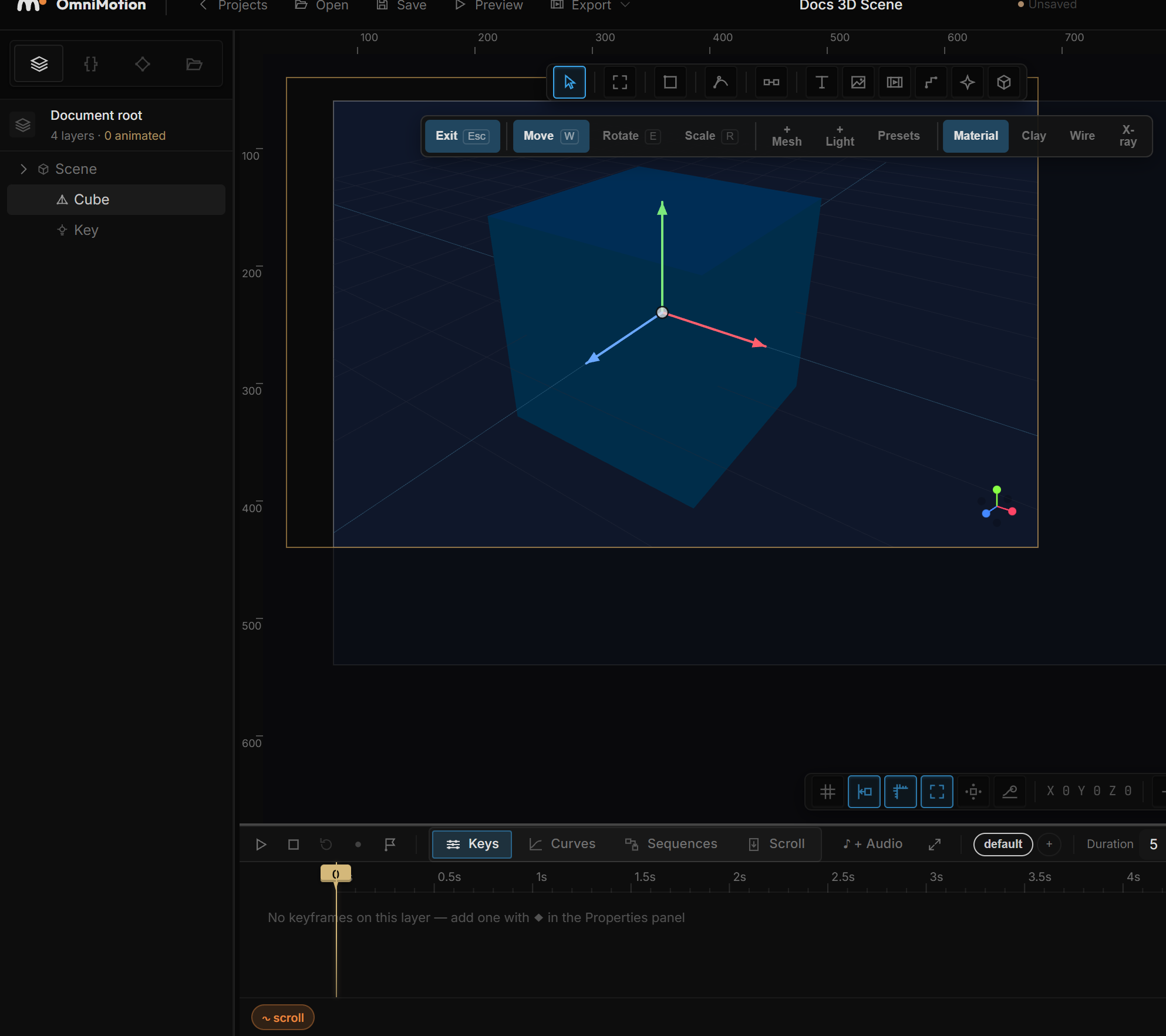
- Double-click a 3D scene (or a mesh inside it). The canvas zooms to fit the scene, everything outside it dims, and the layer tree now starts at the scene.
- Middle-drag to orbit,
Shift+middle-drag to pan, roll the wheel to zoom. - Click a mesh to select it, press W / E / R for the handles, F to frame it.
- Press Esc (or click Exit in the toolbar) to return to the whole document.
02Focus mode
Enter it three ways: double-click the scene, double-click a mesh inside it, or click Focus in the scene toolbar (hover it — the tooltip says what it does). Focus is an editor state: it is not saved with the file and does not change the render.
While focused:
- The canvas fits the scene and a thin frame marks its box. The scene keeps drawing in its own place; the "full screen" feel comes from the zoom and the dimming.
- Layers outside the scene are dimmed and cannot be clicked — a click on the dimmed area clears the selection but keeps the toolbar for the focused scene.
- The layer tree is rooted at the scene: the scene row on top, its meshes and lights underneath, nothing else.
- Everything else works as usual: gizmos, the Properties panel, undo, the timeline.
Leave with Esc (with the Select tool active) or the Exit button. Deleting the focused scene also leaves. Focus is not available while Play mode is on.
03Moving the camera
Gestures over a scene move its camera, not the canvas. Which camera depends on the scene's Editor cam setting (in the Editor section):
- Scene (default) — the real camera. Every drag is undoable and, when recording, keyframeable.
- Viewport — a look-around view that never touches the document. Use it to inspect an animated camera without breaking the animation; Set scene cam to view copies it back when you want to keep it.
- Locked — the mouse leaves the camera alone; gestures fall through to the normal canvas pan.
| Gesture | Does |
|---|---|
| Middle-drag | Orbit around the Look At point |
Shift+middle-drag | Pan |
Alt+left-drag | Orbit (no middle button needed) |
| Wheel | Dolly in / out |
| F | Frame the selected mesh or light |
| View → Front / Top / Left | Preset angles (Camera section) |
| View → Frame | Fit everything in the scene |
| View → Reset | Back to the default view |
Cam speed in the Editor section scales all of these; drop it to 0.25 for fine framing.
If the camera is driven by keyframes or an expression, the gestures skip the driven values and a note in the Editor section tells you to switch to Viewport to look around.
04Selecting inside a scene
- Click a mesh or light to select it. The click goes through the scene's surface and picks the object under the cursor. Clicking empty space selects the scene itself.
Alt+left-drag orbits the camera, so it does not pick layers. To reach an object hidden behind another, select it in the Layers panel.- Double-click a mesh: enters Focus mode on its scene.
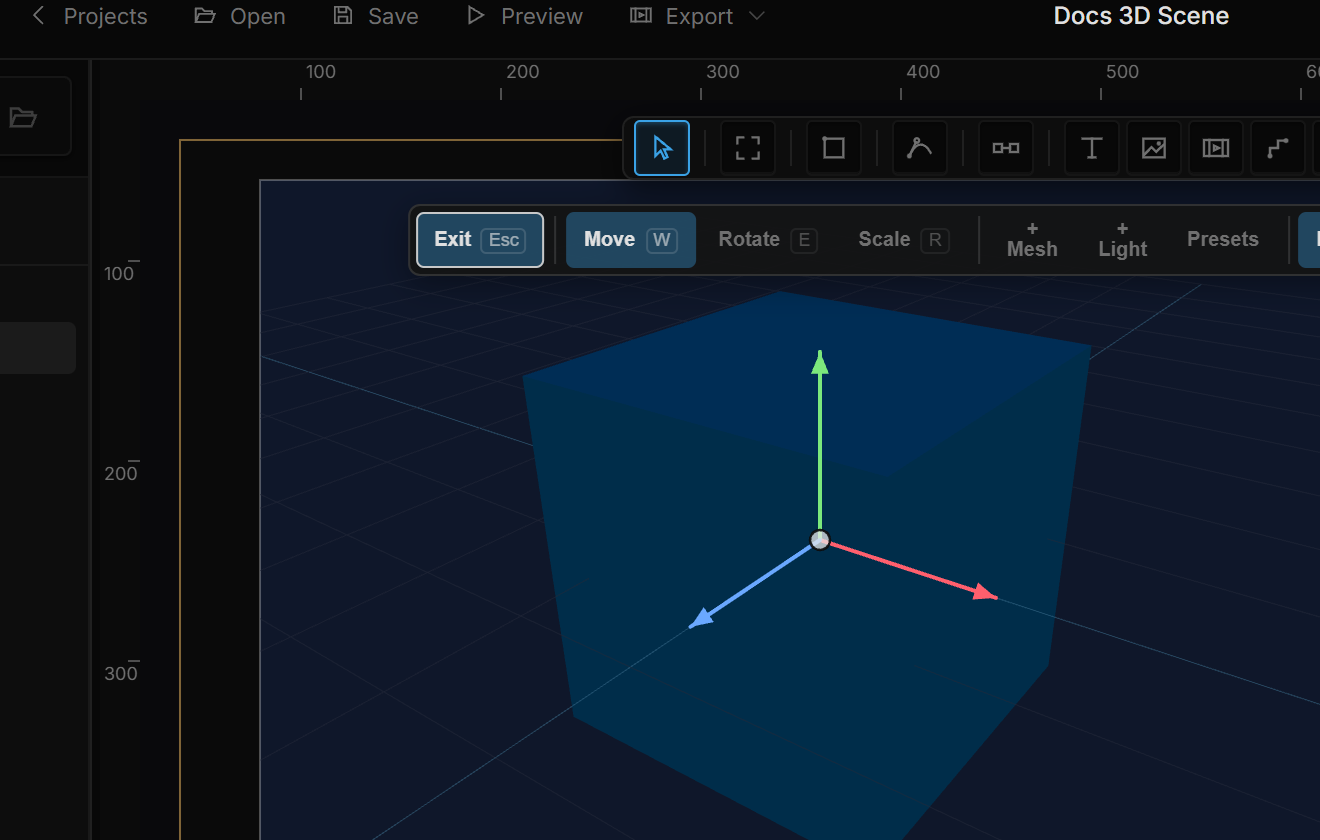
- W / E / R switch the gizmo to Move / Rotate / Scale while a mesh or light is selected (lights have no Scale). With a 2D layer selected the same keys are the 2D tool shortcuts again.
- Parts of a model — with a Model selected, open Model → Parts → Edit contents. Now clicking the model selects a part (highlighted in the list and outlined on the canvas) instead of starting a drag; clicking empty scene space clears the part. Done closes edit mode. See Meshes, models & 3D text.
06Shortcut recap
| Shortcut | Does |
|---|---|
| Double-click a scene or mesh | Enter Focus mode |
| Esc / Exit | Leave Focus mode |
Middle-drag · Shift+middle-drag · wheel | Orbit · pan · zoom |
Alt+left-drag | Orbit |
| F | Frame the selection with the scene camera |
| W / E / R | Move / Rotate / Scale gizmo |