A material is what a mesh's surface is made of: its color, how metallic or rough it is, whether light passes through it, and which textures wrap it. Materials are assets — one material can be shared by many meshes, and editing it updates all of them. This page covers the Material section of a mesh. Read Meshes, models & 3D text first if you have not placed a mesh yet.
01Quick tour
- Select a primitive or 3D text. Open the Material section.
- Click Presets ▾ in the section header and pick Gold. The mesh turns metallic; every value it set stays editable.
- Change Color, or slide Roughness under Surface to make it duller.
- Open Textures, set Base Color to Image and pick a picture from the library.
- To reuse this look on another mesh, select the other mesh and pick the material by name in its Asset row.
02Presets
Presets ▾ sits in the Material section header. The flyout has category chips — All, Dielectric, Metal, Glass, Plastic, Emissive, Custom — and a swatch grid. Hover a swatch for a one-line description.
| Category | Presets |
|---|---|
| Dielectric | Matte Dielectric, Ceramic, Rubber, Concrete |
| Metal | Chrome, Brushed Metal, Polished Metal, Gold, Copper, Steel |
| Glass | Clear glass, Frosted Glass, Green glass, Thin Glass |
| Plastic | Glossy Plastic, Matte Plastic, ABS Black, Toy Plastic |
| Emissive | Amber Glow, Neon Cyan, LED White |
A preset writes two things at once: the material asset (color, transmission, side…) and the mesh's Metalness / Roughness / Emissive values under Surface. Textures are never part of a preset.
Save As — type a name and click + to save the current material plus its Metalness/Roughness/Emissive as a custom preset. Custom presets appear under Custom with a × to delete them. They are stored in this browser.
03One material, many meshes
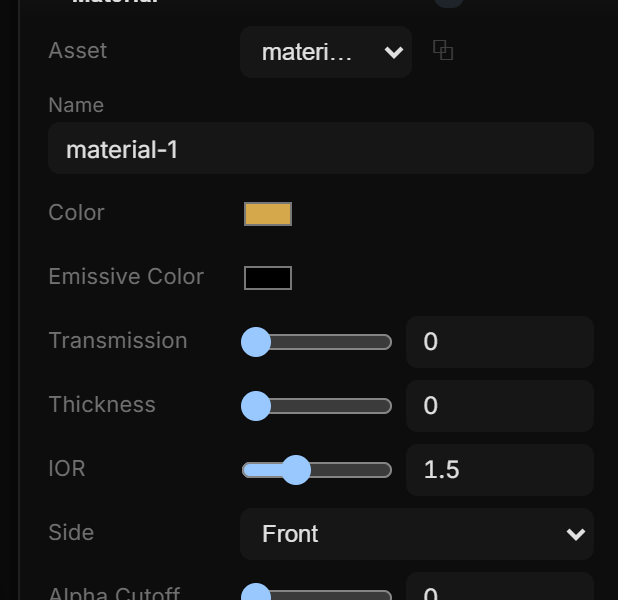
- Asset — which material asset this mesh uses. The list shows every material in the document; a shared one shows its user count, e.g.
material-2 (3). Picking another mesh's material shares it: one edit updates every user. - ⧉ (next to Asset) — breaks the share by giving this mesh its own copy. Disabled when the material is already unique to this mesh.
- Name — rename the asset so it is easy to find in the list.
A material nobody uses any more is dropped automatically.
04Basic values
| Row | Range | What it does |
|---|---|---|
| Color | color | Base (albedo) color. Multiplied with a Base Color texture — keep it white to see the texture as is. |
| Emissive Color | color | Self-lit color. Its strength is the keyframeable Emissive value under Surface. |
| Transmission | 0 – 1 | Glass: how much light passes through. |
| Thickness | 0 – 10 | Glass thickness — how strongly light refracts. |
| IOR | 1 – 2.5 | Index of refraction: glass 1.5, water 1.33, diamond 2.4. |
| Side | Front · Back · Double | Which faces are drawn. Open or single-sided geometry (a Plane seen from behind) needs Double. |
| Alpha Cutoff | 0 – 1 | Pixels below this alpha are discarded entirely — the leaf / fence texture workflow, together with an Alpha texture. |
05Surface
These three belong to the mesh, not the shared asset, so two meshes can share a material and still differ here. They are properties: keyframe them, bind them to a stream, drive them from a rule.
| Row | Range | Notes |
|---|---|---|
| Metalness | 0 – 1 | 0 = dielectric (plastic, stone), 1 = metal. |
| Roughness | 0 – 1 | 0 = mirror-sharp reflections, 1 = fully matte. |
| Emissive | 0 – 20 | Strength of the Emissive Color. Above 1 it feeds the scene's Bloom (HDR). |
▸ More under Surface holds the texture transform — also keyframeable: Tile X · Y, UV Offset X · Y, UV Rotate.
06Projection
Projection decides how a texture lands on the shape.
| Mode | Use it for |
|---|---|
| UV | The mesh's own texture coordinates (default). |
| Planar | Projected from a world plane — floor and wall textures. A second dropdown picks the plane's axis: X, Y or Z. |
| Triplanar | Three plane samples blended by the surface direction — seamless on shapes without good UVs. Base Color only. |
| Camera | The texture is thrown from the scene camera and slides over the geometry when it moves. This is a mapping mode on the material — not the Projector light, which stamps from its own frustum. |
| Screen | Screen space — the texture stays fixed to the camera (video wall, transition effects). |
For every mode except UV a Proj Scale row appears (repeats per world unit) with two offset fields (X, Y). Triplanar has scale only.
To throw a picture from a lamp you place and rotate — and to bake it onto a face — use a Projector light, not this row.
07Textures
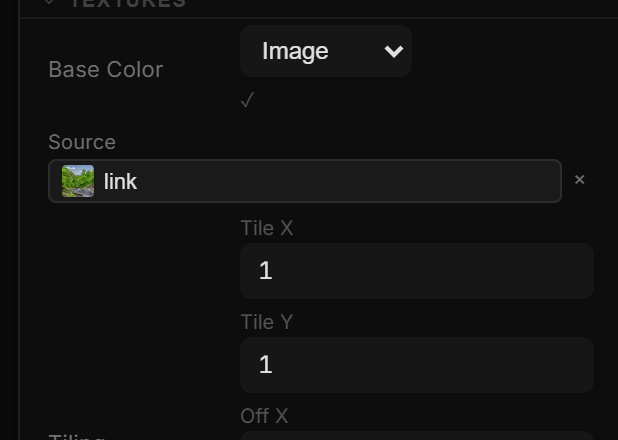
The Textures sub-block is collapsed until a slot is filled; its header then says how many. Each slot is a dropdown with the same source types:
| Source | Extra rows |
|---|---|
| — none — | — |
| Image | Source — pick from the library, upload with + File, paste a URL…, or drag a file onto the field. |
| Video | Source (video file); Clock: Timeline locks the frame to the playhead (correct frame while scrubbing and rendering) or Free-run plays at its own rate; Loop; Rate (Free-run only). |
| Layer | Layer — any 2D layer or artboard in the document is drawn onto the surface (screen-in-screen), plus a refresh rate in frames per second (0 = draw once and freeze). In Play / Simulate, with Projection: UV, clicks and hover on Base Color → Layer hit the 2D children of that layer (a button on the artboard is a button on the mesh). The source can sit off-canvas or stay hidden on the page. A Projector layer stamp is still a picture — it does not receive clicks. |
| Camera | Device: Webcam or Screen share. The browser asks for permission. |
Next to the dropdown a status shows … (loading), ✓ (loaded), ⚠ (failed or access denied) or NPOT — the image is not a power-of-two size, so Tile (repeat) will not work and edges are clamped.
| Slot | What the map does |
|---|---|
| Base Color | The surface picture. Multiplied with Color. |
| Normal | Bumps and dents without changing the geometry. Strength: Normal Scale under More. |
| Roughness | Per-pixel roughness, multiplied with the Roughness value. |
| Metalness | Per-pixel metal mask, multiplied with Metalness. |
| Ambient Occlusion | Baked crevice shading. Strength: AO Intensity. |
| Emissive | Where the surface glows, times Emissive Color and Emissive. |
| Alpha | Greyscale transparency mask. Pair with Alpha Cutoff for cut-outs. |
| Displacement | Real vertex displacement — needs many Segments on the mesh. Strength: Displace Scale / Displace Bias. |
| Bump | Greyscale height, the cheap relative of Normal. Strength: Bump Scale. |
When any slot is filled a reminder row points you to Surface → More for Tile, UV Offset and UV Rotate.
08More
▸ More at the bottom of the section holds the advanced physical layers. All are sliders unless noted.
| Row | Range | What it does |
|---|---|---|
| Env Intensity | 0 – 5 | Strength of environment reflections (studio env or HDRI). |
| Flat Shading | on / off | Flattens surface normals — a low-poly look. |
| Clearcoat | 0 – 1 | A thin lacquer layer on top (car paint, polished wood). |
| Clearcoat Rough | 0 – 1 | Roughness of that lacquer. |
| Sheen | 0 – 1 | Fabric sheen (velvet, satin). |
| Sheen Color | color | Color of the sheen. |
| Sheen Rough | 0 – 1 | Spread of the sheen. |
| Iridescence | 0 – 1 | Soap-bubble / oil-slick color shift. |
| Iridescence IOR | 1 – 2.5 | Refraction of the color shift. |
| Normal Scale | 0 – 4 | Strength of the Normal map. |
| AO Intensity | 0 – 2 | Strength of the Ambient Occlusion map. |
| Displace Scale | 0 – 5 | Displacement amount. |
| Displace Bias | −2 – 2 | Zero point of the displacement. |
| Bump Scale | 0 – 2 | Strength of the Bump map. |
Map strengths do nothing while their slot is empty.