A list is a named table of data your scene owns — products you typed, a feed from a URL, rows the page embedding your scene pushes in. You make it once in the Variables tab under Lists, and everything reads it by name. A Data Repeater is not the list — it prints one card per row. Change the list and every reader follows.
In expressions, sentences and the host page the same thing is called a Data source: On Data, Set Data, Data field, data('Products', …). It is the same list.
01Making a list
Open the Variables tab in the left panel and switch its top to Lists. Press + and pick the type of the first field — Number, Text, Toggle or Color. A list called List appears with one item; click the name to rename it. Renaming updates every reader in the scene.
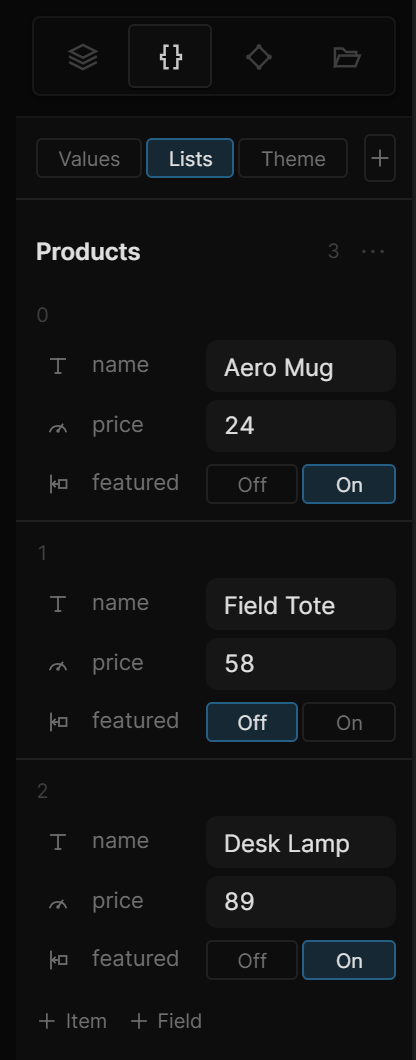
The items are listed one under another, numbered from 0. Each field shows its type icon, its name and its value:
| To | Do |
|---|---|
| Add a row | + Item |
| Add a field | + Field, then pick its type |
| Rename a field | Click its name |
| Change a field's type, or remove it | Click its type icon — the types, then Remove field |
| Delete a row | The trash icon on that item |
The number next to the list's name is its row count. Every edit is one undo step. Data that is not a table of rows — a single object, nested JSON — shows as JSON text instead.
02Where the rows come from
··· (List options) on the list picks where its rows come from, and holds its switches:
| Option | What it does |
|---|---|
| Table | Rows you type here (the default) |
| URL | A JSON or CSV feed. A URL row appears with Fetch; the rows it brings in are read-only. Until the first fetch the list says Fetch to fill this list.; a failed fetch shows its error under the URL |
| Page | The page embedding the scene pushes the rows in — see The host page. Until it does, the list says Waiting for the page. |
| Persist | The player keeps this list after a refresh — a cart. The file still holds the design rows, not the visitor's |
| Exposed to host | The embedding page can read and write the list by name |
| Delete list | Removes it |
A switched-on option reads Persist · on / Host · on.
A named slice of a list — Featured, sorted by price, the first eight — is a View; see Lists and views.
03Reading a list
Everything reads by name plus a dotted path into the data: Products.0.name, Stats.cpu, Menu.items.length. Arrays take a number for the index; length works on any array.
Cards — Data Repeater
In a Data Repeater, set Data to List and pick the list. The number of copies follows the rows. Two repeaters can read the same list — a grid and a ticker of the same products, one fetch.
A repeater that has its own JSON or URL can hand it over with Share as list: a list is created from it and the repeater switches to it.
Photo walls — 3D Gallery
A mesh with a Data Repeater and Clones → Gallery takes one photo per row: the Gallery says Bound on Data Repeater and follows the list live — the 3D twin of the cards above.
Numbers — streams
Wherever a stream source is picked (the ∿ badge, a value in a sentence, a sequence driver), the Data group offers Data field: pick the Source (the list), pick or type the Path. The result is a number, so the transform chain applies — map a 0…100 load to 0…360°, smooth a price. In a hand-written expression the same read is data('Stats','cpu'); the segments can be separate arguments, and a String variable can be one of them: data('Strings', text('lang'), 'title').
Two extra path words exist for a list that feeds a repeater: clicked and hover — the row of the copy the visitor last clicked or is pointing at. data('Products','clicked','price') is the price on the clicked card; one rule on the template is enough for a detail panel.
Text and images — templates
Text is not a number, so text comes from a template. Select a text layer and click From… on its Content row; pick a variable or a list, then write the text with placeholders in braces (× on the row goes back to plain text):
{Products.0.name} — {Products.0.price|2} ₺
Now {$now|HH:mm} · {Products.length} items
{Products.clicked.name}| Placeholder | Gives you | ||||||
|---|---|---|---|---|---|---|---|
{Source.path} | The value at that path — text as is, numbers as they are, arrays as their length | ||||||
| `{Source.path\ | 2}` | A number with 2 decimals · `\ | ,2 thousands separator · \ | %1 percent · \ | int` rounded | ||
| `{Source.path\ | time} \ | date \ | datetime \ | HH:mm \ | DD.MM.YYYY \ | ddd D MMM` | A date value (a timestamp or an ISO text) formatted — pattern words: YYYY MM M DD D HH H mm ss ddd MMM |
{$name} | A scene variable's text · `{$score\ | %0}` formats a number variable | |||||
| `{$now\ | HH:mm:ss}` | The current time | |||||
{{ }} | A literal brace |
An Image or Video layer has ∿ From data… next to its source: a template that resolves to a URL (or a library asset:12). An empty result leaves the current image alone.
The same placeholders work in a sentence's Set Text and Set Image actions, and in the URL and body of Send request and Open URL.
Markers — maps
A map layer's Markers section has ∿ Markers from data…: pick the source, the array path, and which fields hold longitude, latitude and, optionally, a label, a colour (#hex) and an icon URL. Markers you added by hand stay; the data ones refresh with the source. Both kinds are now saved with the scene.
Reacting — sentences
| Sentence part | What it does |
|---|---|
| On Data (trigger) | A list was written — by a fetch, the host, or a Set Data action. Watch Updated (any write), Row count changes, or A field changes with a path |
| Every N seconds (trigger) | Repeats while the scene plays — rotate a headline, tick a clock |
| After idle (trigger) | Fires once after N seconds without pointer, keyboard or signal input; any input re-arms it — a kiosk returning home |
| Refresh Data | Re-fetches a URL list (or a repeater's own URL) |
| Set Data | Writes into a list: Set a field, Append row, Remove at index, Clear. The value is =expression for a number, JSON text for an object or row, anything else as template text |
| Send request | GET / POST / PUT / DELETE a URL with an optional JSON body; the response can land in a list |
| Open URL | Opens a link (new tab by default) |
| Go to artboard | Plays another artboard — the page of your app — in Play, Preview and the player, with a transition — Moving between artboards |
A cart is three sentences: On click → Set Data Cart Append row {"id": {Products.clicked.id}}, a text bound to {Cart.length} items, and On click → Send request POST with {"items": {Cart}} into Receipt.
The host page
A page embedding the scene can read a list marked Exposed to host with getData('Products'), push any JSON value with setData('Products', value), and list what is exposed with listDataSources(). See Embedding.
04The ✦ Assistant
The assistant sees your lists and their shape in the scene, and can create them — including Views: "make a product grid from this URL, show the clicked product's price in the panel, flash the heading when the list changes" lands as one list, one repeater, one template, one On Data rule.
05Shortcut recap
| Make | Variables tab → Lists → + → first field type |
| Rows | + Item · + Field · type icon → type or Remove field · trash deletes a row |
| Source | ··· → Table / URL / Page · Persist · Exposed to host |
| Text / image from data | Content row → From… · Image → ∿ From data… |
| Number from data | any ∿ picker → Data › Data field |
| Cards | Data Repeater → Data → List |