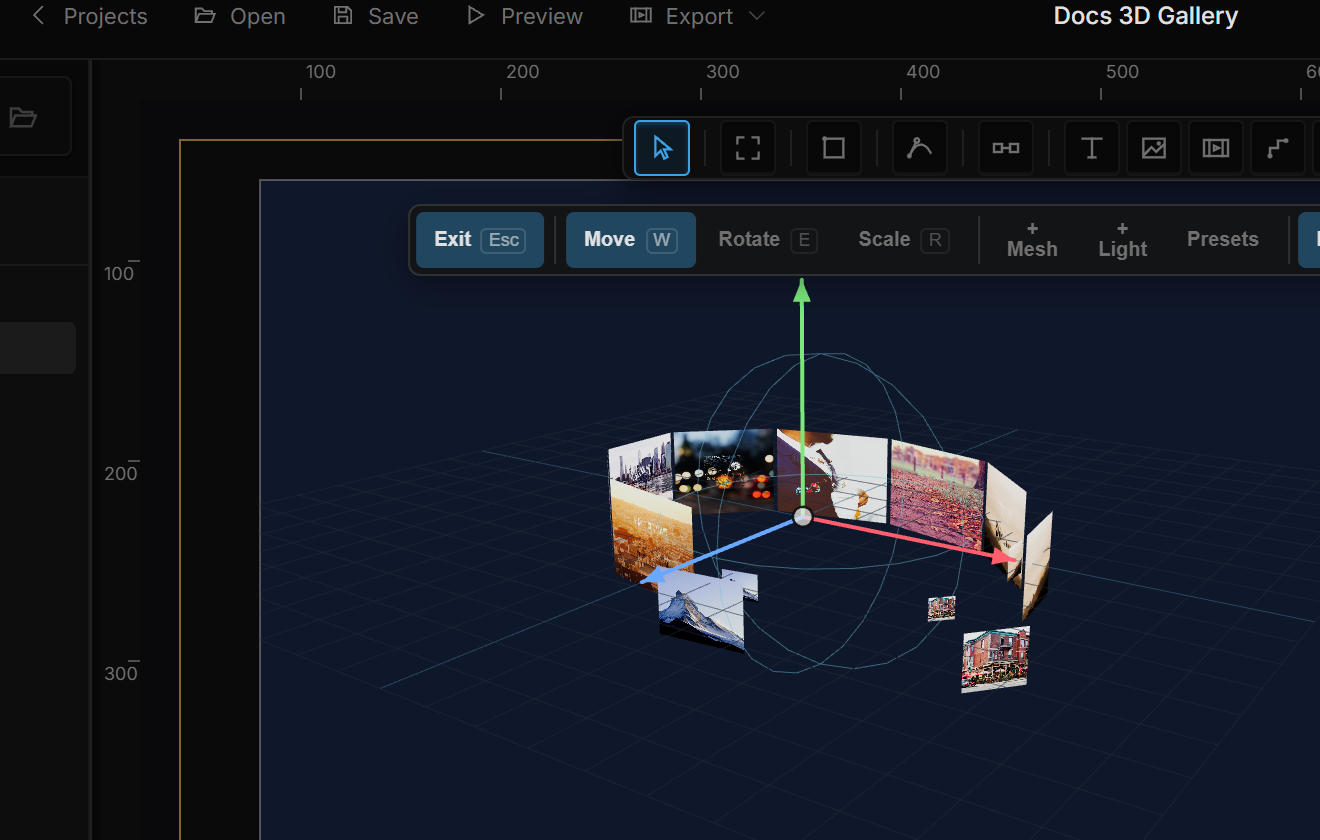
Clones turns one mesh into many: a grid, a ring, a spiral, a sphere of copies — all drawn in a single pass, so thousands are fine. On top of the arrangement sits a stack of Clone effects that move, rotate or scale whole clones: a ripple across a grid, a spiral that rises, a cursor that pushes copies away. Read Meshes, models & 3D text first.
01Quick tour
- Select a mesh (a Cube or a Plane works well). At the bottom of Properties click Add and pick Clones.
- A Clones section appears. The default is a Grid of 4 × 1 × 4 copies, 1.6 units apart — the row reads 16 copies · one draw call.
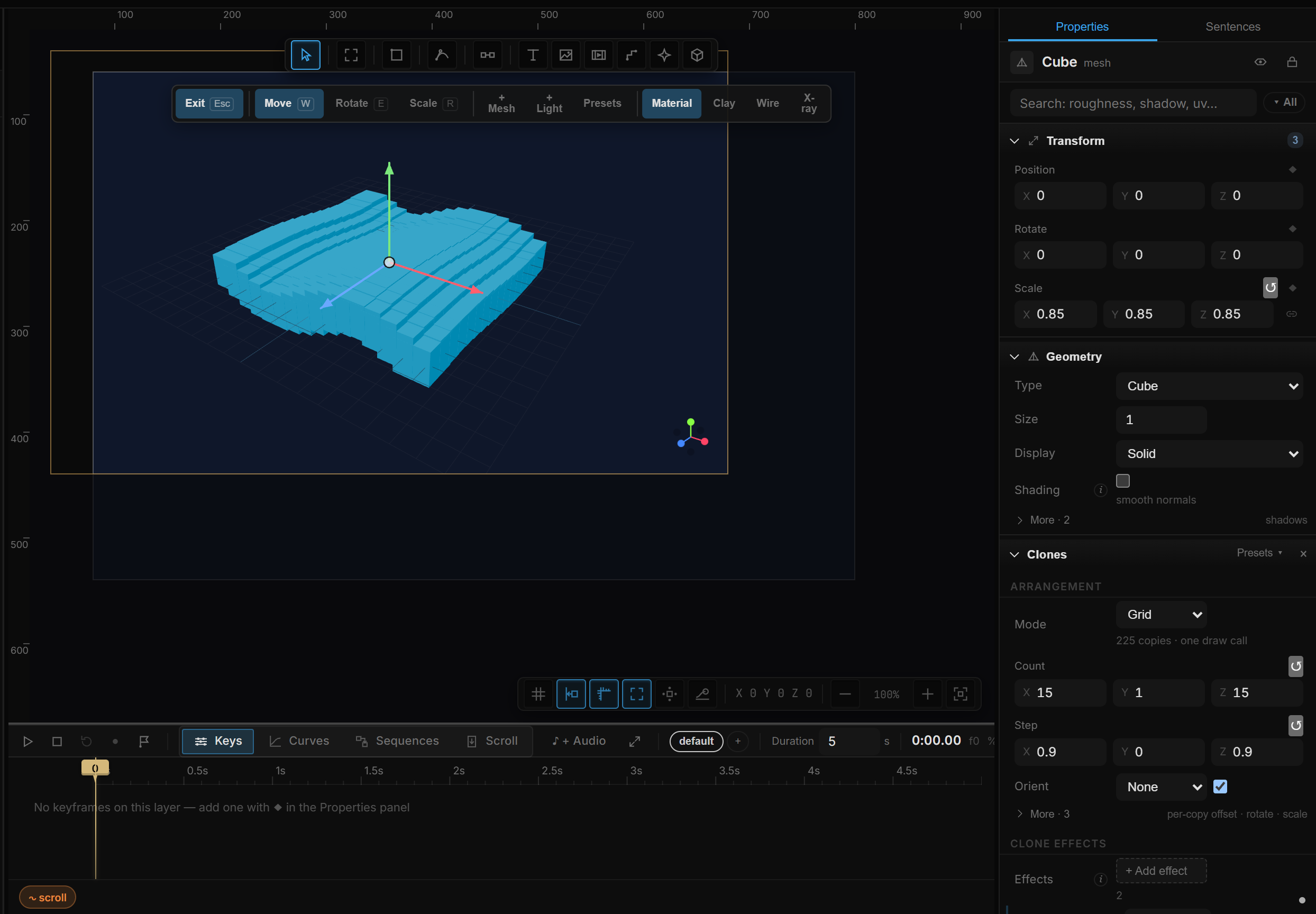
- Click Presets ▾ in the section header and choose Liquid Wave. The grid becomes 15 × 15 and two effects are added: Ripple and Smooth.
- Under Clone effects, click the Ripple row to open it and drag Offset Y — the wave grows.
02Arrangement
| Row | Shown for | Notes |
|---|---|---|
| Mode | all | The layout (table below). The suffix shows the copy count. |
| Count | Linear, Radial, Helix, Honeycomb, Sphere, Disc, Cylinder | Number of copies (1 – 4096). Default 12. |
| Count X · Y · Z | Grid | Copies along each axis (1 – 64). |
| Step X · Y · Z | Linear, Grid (Honeycomb: X and Z) | Spacing in world units. Default 1.6. |
| Radius | Radial, Helix, Sphere, Disc, Cylinder | Circle or surface radius. Default 3. |
| Turns | Helix | Spiral turns. Default 2. |
| Helix Height / Height | Helix / Cylinder | Total height. Default 4. |
| Orient | all | None keeps the original orientation; Outward faces away from the center; Inward faces the center (a ring gallery); Tangent follows the circle. The checkbox next to it centers the arrangement on the mesh. If the mesh's Transform → Face camera is Upright or Full, each copy faces the camera instead and this row is ignored — Face camera. |
| Mode | Layout |
|---|---|
| Linear | A row along one axis. |
| Grid | An X / Y / Z grid — the basic photo wall. |
| Radial | Evenly spaced on a circle. |
| Helix | A rising circle. |
| Honeycomb | Hexagonal packing. |
| Sphere | Even spread over a sphere; with Orient: Outward the classic "ball surface" look. |
| Disc | Sunflower spiral from the center outward. |
| Cylinder | Golden-angle spiral on a cylinder. |
▸ More holds the per-copy deltas — values that accumulate from one copy to the next, like the 2D Virtual Repeat:
| Row | Notes |
|---|---|
| Offset Δ X · Y · Z | Added to the position on each copy. |
| Rotate Δ X · Y · Z | Degrees added on each copy. |
| Scale Δ | Multiplied on each copy (1 = constant; 0.95 shrinks a spiral toward its end). |
03Clone effects
The Clone effects sub-block is a stack. Effects apply in order and accumulate, so ↑ / ↓ matter. Each row shows a one-line summary (click it to open the effect), an Enabled checkbox and ×.
Click + Add effect for the card menu. Every card says what it does:
| Group | Effect | What it does |
|---|---|---|
| Hareket | Shift | Shifts every clone in the area the same way. |
| Hareket | Ripple | A soft wave driven by position and time — a liquid-surface feel. |
| Hareket | Scatter | Offsets each clone randomly — but every render comes out the same. |
| Order | Accumulate in order | The effect grows with clone order — spirals, staircases, twisting towers. |
| Order | Formula | You write the effect: $i clone index, $n total, $time seconds, $x / $y / $z position. The result multiplies the effect. |
| Interaction | Push / pull | Pushes away from a point (+) or pulls toward it (−). |
| Interaction | Squash / stretch | Pushes clones inside the sphere to its surface and shrinks them — a ball that crushes what it passes. |
| Interaction | Aim at target | Turns clones toward a point (or pushes / pulls from it). |
| His | Smooth | No effect of its own: smooths the effects above it so motion becomes fluid. Put it last. |
A new effect comes with values that visibly do something, so you never add one and see nothing.
Inside an effect
Open an effect and you get, top to bottom:
- A sentence explaining it.
- Its simple parameters — the two to four that matter most for that type. Advanced → at the bottom shows every parameter; ← Simple goes back.
- Its toggles: Spring (Smooth — settle with spring physics; Stiff and Damp appear while on), Accumulate (Accumulate in order — off interpolates first ↔ last instead), Look at target (Aim at target), Invert (Squash / stretch — affect clones outside the sphere).
- Formula — the expression field, for the Formula effect.
- Source — where the effect's point is: Fixed (a point in the mesh's own space; a Point X · Y · Z row appears), Mouse (follows the cursor), Layer (follows another layer, picked in a second dropdown).
- Area — where the effect applies: Infinite (every clone equally), Sphere, Box (the largest axis distance decides) or Plane (only the height difference counts). With a shape chosen: Size → Radius and Softness (0 = hard border), Edge (the easing curve of the border), and Show area — draws the area as a wireframe on the canvas that follows the cursor or layer. On by default.
| Parameter | Range | Notes |
|---|---|---|
| Strength | −5 – 5 | Overall weight (1 = full). |
| Push | −50 – 50 | Push / pull and Aim at target: positive pushes, negative pulls. |
| Offset X · Y · Z | ±5000 | Displacement added to each clone. |
| Rotate X · Y · Z | ±360 | Degrees. |
| Scale X · Y · Z | −1 – 5 | Scale delta: 0 = unchanged, 0.5 = 50 % bigger, −0.5 = half. |
| Frequency / Speed | Ripple | How dense the waves are (small = broad) and how fast they flow. |
| Variety | Scatter | Another random arrangement; the same number always gives the same result. |
| Softness | Smooth | 0 snaps into place instantly, 0.95 drifts slowly. |
| Stiff / Damp | Smooth with Spring | Spring stiffness and damping (lower damping = more overshoot). |
Presets
Presets ▾ in the Clones section header applies an arrangement and an effect stack in one click. Nothing is locked afterwards — every value stays editable.
| Preset | What it builds |
|---|---|
| Liquid Wave | 15 × 15 grid + Ripple + Smooth — a fluid surface. |
| Galaxy Spiral | 100 copies on a circle + Accumulate in order + Ripple + Smooth. |
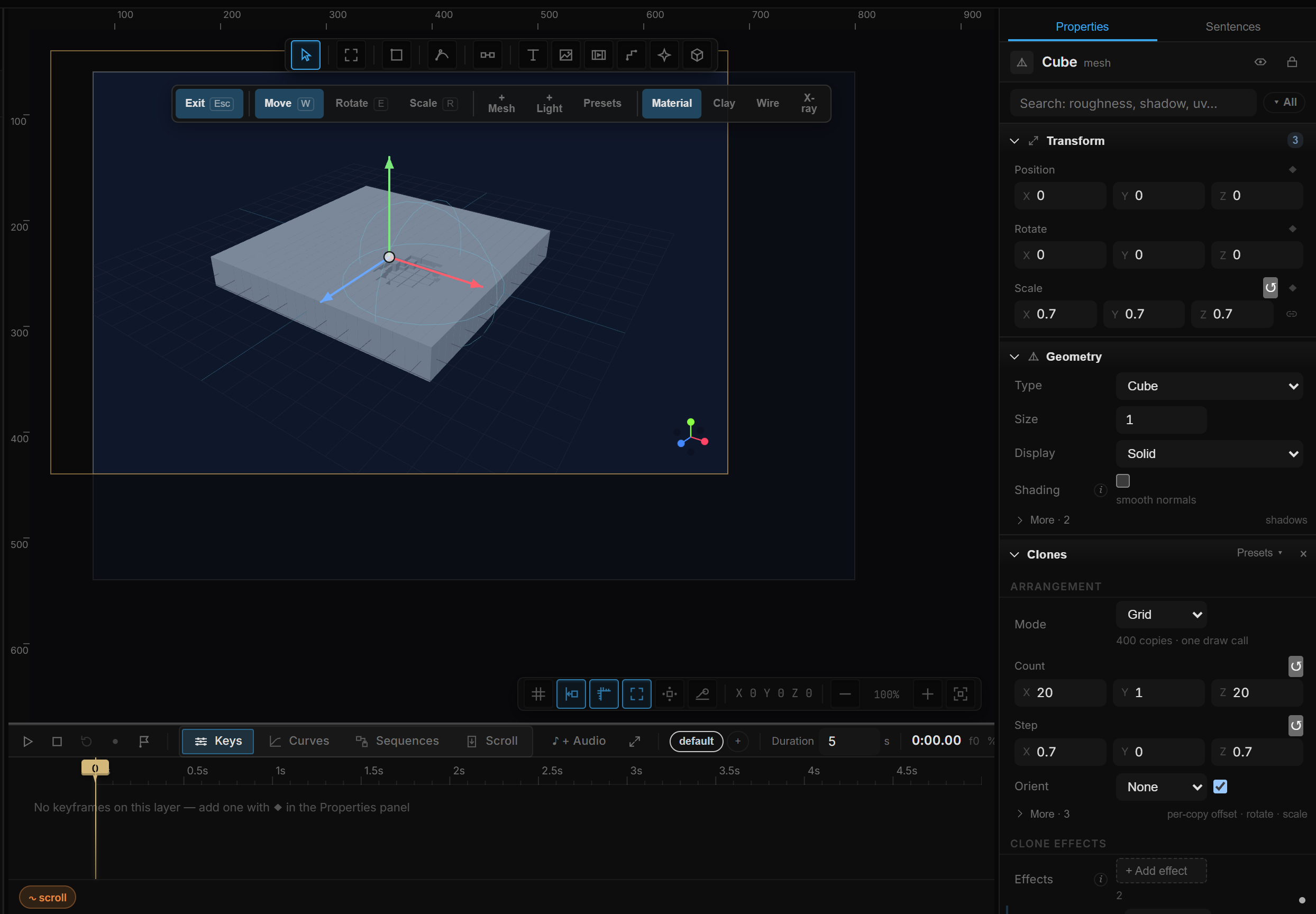
| Magnetic Field | 20 × 20 grid + Squash / stretch following the mouse + Smooth — the cursor crushes what it touches. |
| Helix Tower | 48 copies on a helix + Accumulate in order + Smooth — a tower that rises as it turns. |
04Gallery
Gallery puts a different photo on each clone — the 3D photo wall. It is collapsed until it has images.
- Gallery — manual photos for a visual wall: library, + Add photos…, or Bulk URLs. A list of rows belongs on Data Repeater — Clones does not own data.
- Manual mode lists each image as #0, #1… with a ×. Clone i shows image i (wrapping around when there are fewer images than clones — data mode follows the row count instead).
- Fit — Cover fills the frame and crops, Contain fits the whole image.
- Focused → Scale and Lift — how much the focused clone grows (default 1.6×) and moves toward the camera (default 0.8).
- Gallery Focus — the index of the focused clone. A property: keyframe it, or set it from a rule.
- + Click to focus (Motion Pose) — turns on Motion Pose with Focus: Clicked photo and wires Click toggle. See Motion Pose's In 3D section for Hover and timing.