✦ AI is one panel with one text box. The chips above the box make things — an image, a clip, a sound, a 3D model, a screen. Anything you type instead goes to the assistant, which edits the scene. History keeps everything either one has done. Nothing AI produces is ever deleted — discard just hides it, and it is still one Ctrl+Z away.
This page is the tour. The details have their own pages: The ✦ verbs, Reference, Look and Recipe, History and Storyboard, Explore ideas, Choreography & the Motion tab, and Prompting well for the chat.
01Opening it
Click AI in the top bar (the ✦ button, also Shift+S). The right rail gains a ✦ AI tab next to Properties and Sentences, and a small ✦ pill follows your selection on the canvas. Click AI again to leave — the ✦ AI tab, the pill and the Storyboard timeline tab go away. The canvas is never covered.
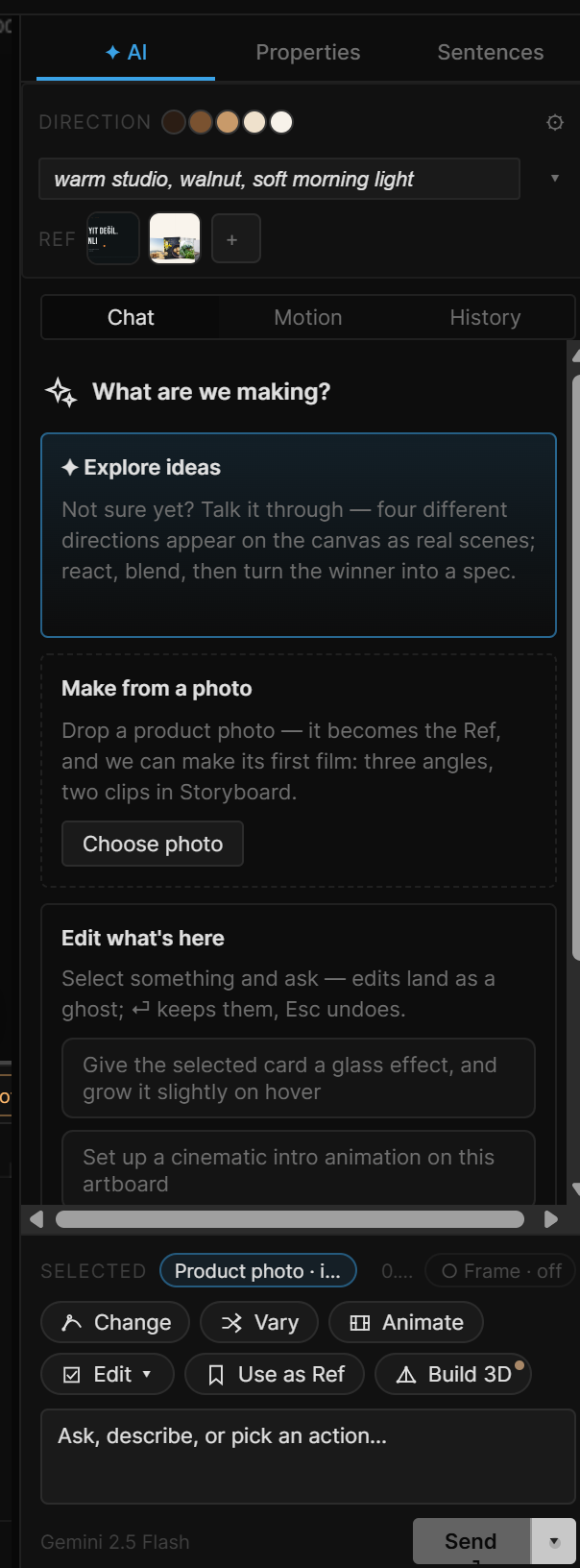
02The panel, top to bottom
- Direction — the project's Look (a style sentence every generation and every design turn inherits), its palette, and Ref (up to four identity images). Drop an image anywhere on this row to add it to Ref. ⚙ opens the AI settings. Reference, Look and Recipe
- Chat · Motion · History — three views. Chat is the conversation. Motion turns a layout into choreography you can shape beat by beat (Choreography & the Motion tab). History is everything AI did in this project (History and Storyboard).
- Selected — what the AI sees this turn: the selected layer and its kind (or nothing — actions make something new), the playhead time, and the Frame chip (below).
- The chips — the actions for your selection. They change as the selection does.
- The box — type here. Enter sends, Shift+Enter adds a line.
- The foot — the assistant's model (or, when a chip is armed, the estimated cost and model), ✨ to rewrite a prompt, Send and ▾ for options.
With an empty chat the panel offers four ways in: ✦ Explore ideas, Make from a photo (drop a product photo or Choose photo — it becomes the Ref), Edit what's here (three example requests you can click into the box), and Make something new.
03Chips do, text asks
One rule runs the box:
- A chip does exactly that. It runs one ✦ verb — Make, Paint, Change, Animate… — spends no chat turn, and shows its cost before you press anything.
- Text asks the assistant. Whatever you type without an armed chip is a chat message.
A verb that needs a sentence arms when you click it: the chip lights, the box shows ✦ Make (or whichever verb) in front of your text, and Send becomes that verb's name. Press Enter and the verb runs with your sentence. Click the chip again, click × on the label, or press Esc to disarm — the box talks to the assistant again. Verbs that need no sentence (Use as Ref, Frame →) run the moment you click them. Edit ▾ opens a row of its own actions, each of which runs on click. The full list is on The ✦ verbs.
After a result, a short → next step line sometimes appears above the box — click it to do exactly that next.
The ✦ pill on the canvas
Under whatever you select, a small pill shows up to five of the same verbs. Clicking one arms it in the panel and puts your cursor in the box — you still type in one place. Use as Ref and Frame → run right there. The ✦ at the pill's start opens the panel on the composer.
04A worked example
A product campaign in five moves:
- Drop three photos of the product onto Direction — they become Ref. Before your first generation the panel offers Make its first film? — Make film sets up a product set and does steps 3–4 for you (three angles, two clips, playing in Storyboard); Just Ref keeps the photos and stops there.
- Select nothing, arm Make, type "on a marble counter, morning light", Enter → keep the best of four.
- Select the set (an artboard with a 3D scene) → Take. Turn the camera, Take again — as many angles as you need. The Product campaign starter on the Projects screen has this set ready.
- Select two takes → Between → a clip from one angle to the other.
- Right-click the clip in History › Made → Why… → Save as Recipe. Next product: new photos in Ref, Run with new Ref — same angles, new product. Recipe
05Talking to the assistant
Type without an armed chip and the assistant works on the scene through the same operations the panels use — nothing it builds is out of reach of Properties.
- Layers, layout, styling, motion, interactions, scroll, variables, repeats, physics, components, custom cursor, 3D, sound, states — ask for any of it by name.
- Whole pages — brief it like a page and it drafts the layout first, converts it into real layers (repeated cards and rows become components), then adds motion on top.
- The ✦ verbs — "take three angles of this and put a clip between each" runs Take three times and Between twice, in one turn.
- It reads the scene before editing and looks at the rendered canvas after a creative change — at several scroll positions and moments in time — to judge and fix its own work.
While it works, a plan strip above the chat ticks off its steps and a line under the dots names the current step with a seconds counter. ■ Stop ends the turn. Each change it makes shows as a small card listing the layers it touched.
How it uses your selection
Select a layer before you ask and it becomes the context: "make this glass", "animate it in from the left", "use this as the reference" all mean that layer. With nothing selected, describe what you want by name or kind — it reads the scene and finds it. The playhead time is context too.
Letting it see the frame
The Frame chip on the Selected row sends the canvas at the playhead along with your message, so the assistant sees what you see. Click it to cycle:
| Chip | Sends the frame |
|---|---|
| Frame · auto | Only when you point at the moment — "this frame", "here", "too big". The dot fills when this message will include it |
| Frame · on | With every message |
| Frame · off | Never |
Each frame costs roughly a thousand tokens. The same setting is Frame under ⚙.
06Do it, or Show me how
▾ next to Send has a Mode row:
- Do it (default) — the assistant edits the scene directly. No confirm card; the turn is one undo step.
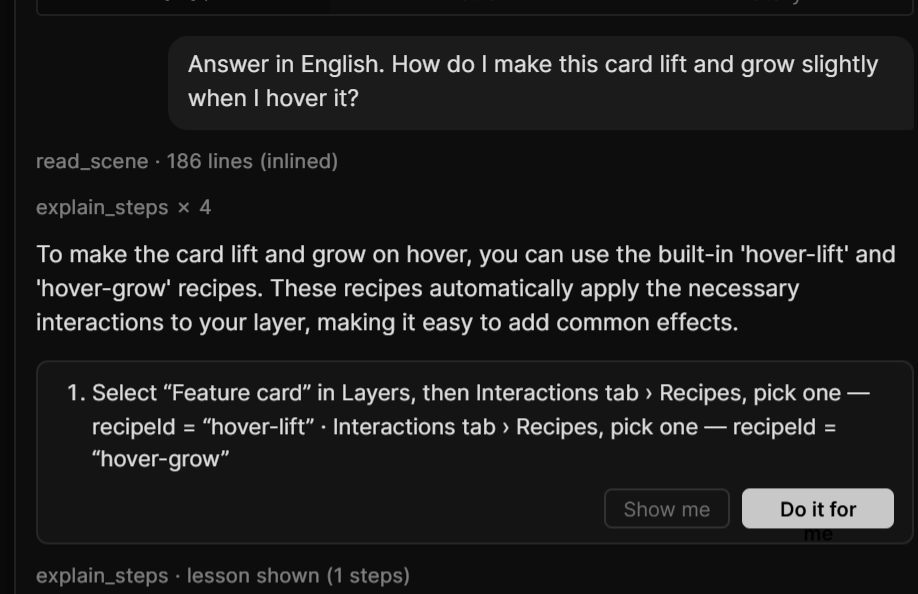
- Show me how — nothing changes. Send reads Show me, and the answer is a lesson card: numbered steps, plus Show me (highlights each panel and control in the app, step by step) and Do it for me (applies the same steps to the scene as one undo step).
Use Show me how when you want to learn where a control lives rather than have it done.
07Skills and models
Skills are short briefs on a look, a layout, a kind of motion or a capability. ▾ › Skills starts on Auto: a cheap first pass picks what fits your message, and never mixes two looks, two layouts or two motion styles in one turn. Click chips to pin up to two yourself; every message then uses them. Hover a chip for what it does.
| Kind | Skills |
|---|---|
| Look | Liquid Glass, Grain Gradient, Neon, Soft UI, Apple, Editorial |
| Layout | Layout, Bento |
| Motion | Cinematic, Kinetic Type, Micro, Scroll, Logo Reveal, Transitions, Data motion, UI demo loop, Motion craft |
| Tools | Generative, Icons, Live data, Scene 3D |
The assistant's model is under ⚙ › Assistant. Auto (the default) lets a cheap first pass decide how much model the request needs. Settings › AI & Generation has the same Default model, and Auto mode provider — switch it to Gemini if Claude's quota runs out.
08AI settings (⚙)
| Row | What it does |
|---|---|
| Assistant | The chat model |
| Design | Who designs new pages: Assistant or Google Stitch (needs a Stitch key). Motion is always added by the assistant. Importing HTML & Stitch screens |
| Frame | Auto (when you say "here"), Every message or Off |
| This session | Tokens in, out and from cache |
| Last 24h | Model requests on this device — useful when a plan has a daily limit |
| ↺ New chat | Clears the conversation (the token counter stays) |
09Undoing what AI did
- An assistant turn — when it ends, a ✦ AI preview strip at the top of the canvas names the edits. keep ⏎ closes it (the edits are already applied); discard or Esc takes the whole turn back in one step. Later, Ctrl+Z does the same.
- A generation — appears as a ghost over its target first. Enter keeps, Esc discards, ← → walk the variants, Shift+Enter asks for four more. Until you keep, nothing has touched the scene.
- Further back — History › Assistant lists every turn that changed the scene; Restore puts the scene back as it was right after that turn, as one undo step. History
A Recipe run is one undo step per step it ran.
10Limits worth knowing
- AI edits the open scene only — it doesn't open, save, export or preview for you.
- Each project has its own chat. Opening another project starts a fresh conversation.
- Long jobs stop themselves. A chat turn is a handful of rounds; a bigger request ends with a note and continues in your next message. A generation that's still running shows under Running in History — keep working while it finishes.
- Tokens and generations cost money. ⚙ counts session tokens, a result's Why shows what it cost, and History › Made shows the project total. Settings › AI & Generation › Spend limits sets when you're asked before a generation runs, a per-turn cap for the assistant and a monthly cap.
11Shortcut recap
| ✦ AI on / off | AI in the top bar, or Shift+S |
| Take / Paint the selected artboard | Shift+R — opens AI with the verb armed |
| Send / run the armed verb | Enter in the box · Shift+Enter new line |
| Disarm a verb | Esc in the box, or × on its label |
| Stop a turn | ■ Stop |
| Ghost | Enter keep · Esc discard · ← → variants · Shift+Enter four more |
| AI preview strip | Enter keep · Esc discard the turn |
| Lineage on the canvas | L (while AI is on) |
| Undo | Ctrl+Z reverts a whole turn · Restore in History goes further back |
The full list for the whole tool is on Keyboard shortcuts.