Nothing ✦ makes is ever deleted. History keeps all of it, in one timeline; Storyboard puts the shots you choose in order and fills the gaps with motion.
01History
History is the third view of the ✦ AI panel, after Chat and Motion. Everything AI did in this project is there, newest first, grouped by day: generations, assistant turns, Stitch screens, Look and Ref changes, Explore rounds. It is saved with the project.
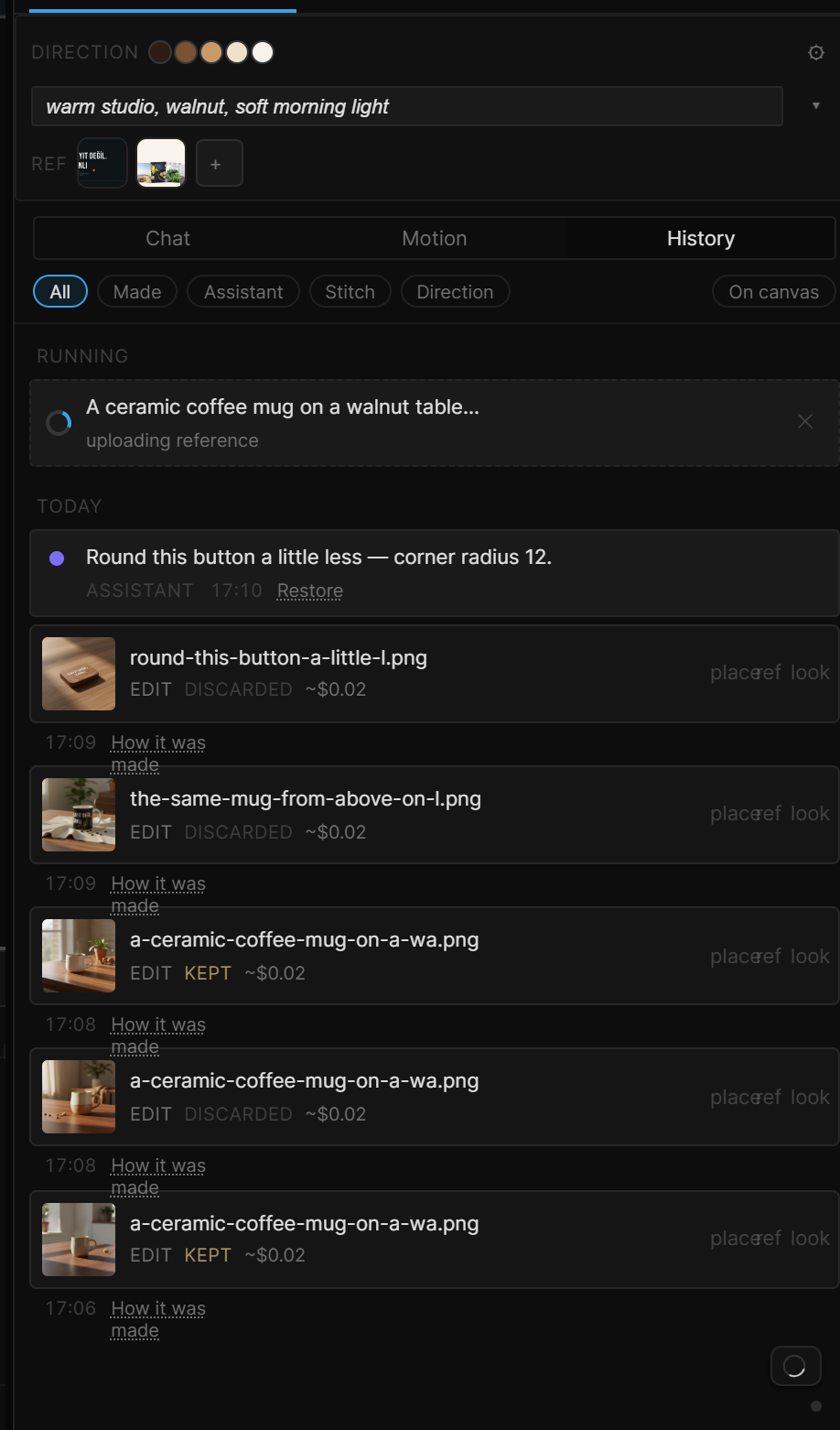
Jobs still running sit at the top under Running — generations with their progress, a Stitch screen, Explore cards being composed, the assistant's turn. ✕ cancels one.
The filters along the top narrow the list:
| Filter | Shows |
|---|---|
| All | Everything, newest first |
| Made | Every image, clip, model and sound — the Recipes strip, kept / discarded, variants (below) |
| Assistant | Every applied assistant turn — Restore any of them |
| Stitch | Screens from Google Stitch, plus the Stitch project browser — see Importing HTML & Stitch screens |
| Direction | Look, Ref and Explore — how the direction changed |
On a generated item, How it was made opens its chain back through its inputs right there in the list. On an assistant turn, Restore replaces the scene with how it was right after that turn — one undo step. Snapshots for Restore are kept in this browser; a turn made on another computer says snapshot not on this computer. Select on an item selects the artboard it made, if it's still there.
On canvas (L) lays every result out on the canvas as cards, with chains drawn as threads between them. Press L again to leave.
02Made — every generation
Made is every generation, kept or discarded. The header shows how many and what this project has spent so far; the filters narrow by all, kept, discarded, running, or by verb. Four variations of one shot stack under it — click the stack to open it.
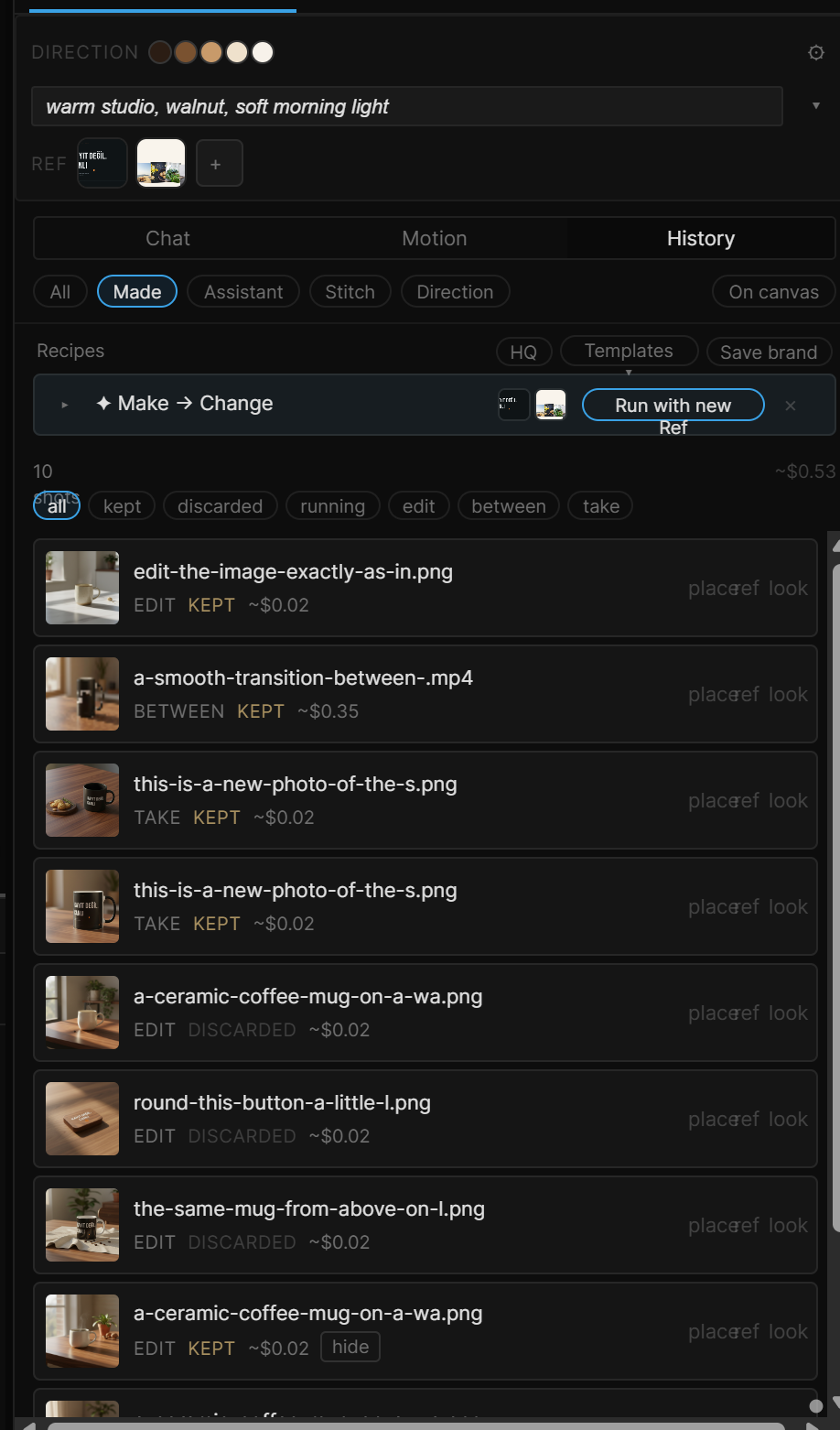
On any card: place drops it on the canvas, ref adds it to ✦ Ref, look turns it into the project's Look. Right-click for Vary, Animate, Upscale, Derive PBR maps, Build, Go to this angle (moves the 3D camera back to where a take was shot), Why…, View graph and Reveal in Files.
The Recipes strip at the top of Made — saved chains, Templates ▾, HQ and Save brand — is covered in Reference, Look and Recipe.
03Why — the full story of a shot
Why… opens everything about one shot: Model, the exact Prompt, Look, the Ref it used, Camera, Seed, Cost, When. Copy prompt takes the text; Re-run makes it again with the same everything; View graph shows its chain; Save as Recipe keeps the whole chain behind it.
04Properties › Generated
Select a generated layer on the canvas and Properties has a Generated section with the same story in short — Made (verb and time), Model, Prompt, Look, From, Inputs, Seed, Cost — and:
- Regenerate — same request, new result.
- Vary ×4 — four variations, same prompt, new seeds.
- Change… — arms Change in the AI panel for this image; the result replaces it.
- Advanced… — the full generation form, bound to this layer.
- How it was made and History open the panel on this result.
05Storyboard
A timeline tab next to Keys and Curves while AI is on: a row of frames in the order they'll play. Drag frames in from History › Made or Files, or select a layer and + Add selected layer; drag them into a new order; × removes one.
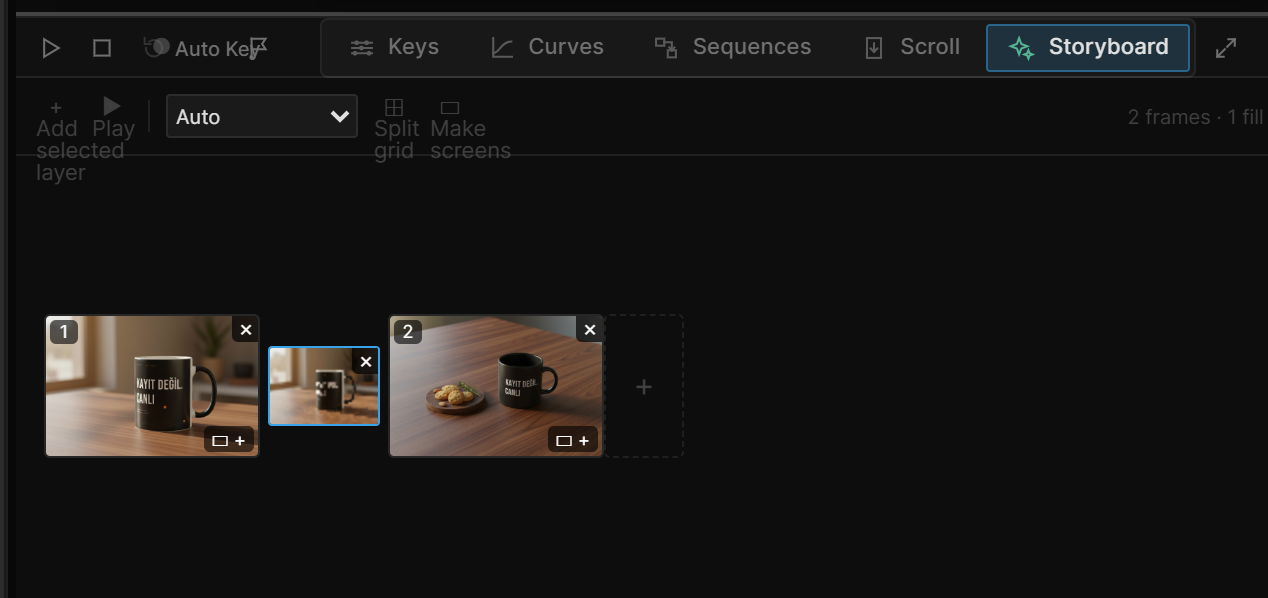
A ✦ between any two frames fills the gap — a short clip that carries you from one frame to the next, made the same way Between on the canvas is. Describe the move if you want ("the camera drifts right"), or leave it to the two frames. The clip attaches to that gap: move or remove either frame and the fill goes with it.
▶ Play previews the whole row — frames and fills in order.
From a storyboard sheet
Have a drawn storyboard as one image — a grid of panels? Select it and ⊞ Split grid: it is cut into frames (locally, free) and its style becomes the Look. The grid menu next to it says how: Auto finds the gutters, or pick rows × columns yourself.
▭ Make screens makes an artboard for every frame that has none, with the frame on it as a faint guide. ◐ Guide shows or hides those guides (editor only — never in play or export); its slider sets how faint.
06Undo
A shot you keep is one undo step; a Storyboard change is not part of undo — it's a project setting, like Ref and Look. Remove a frame with its × instead.