Three things make a set of generations look like they came from one shoot: the same subject, the same style, and the same sequence of shots. ✦ Ref holds the subject, ✦ Look holds the style, and a Recipe holds the sequence. Ref and Look sit on the Direction row at the top of the ✦ AI panel; all three live in the project and survive a reload.
01Ref — keep the identity
✦ Ref is up to four reference images. Any verb that supports it sends them automatically, so the same product, character or set stays itself across every generation — you don't repeat "the same red sneaker" in every prompt.
To add one:
- Drop an image anywhere on the Direction row, or on Make from a photo in an empty chat.
- Click + at the end of the Ref row and pick from Files.
- Select a generated image → Use as Ref chip (or in the ✦ pill).
- ref on a card in History › Made, or Use as reference on a card in Files.
Click a Ref thumbnail's × to remove it.
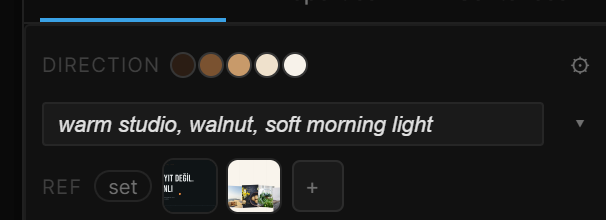
A set with its own Ref
Working inside a set (an artboard and what's inside it) that needs a different identity than the rest of the project? Select the artboard and turn on set next to Ref. That artboard keeps its own reference list — it starts as a copy of the project's, then edits separately. Turn set off to use the project's Ref again.
02Look — keep the style
✦ Look is a style sentence every generation — and every design turn of the assistant — leans on. Type one into the Look field on the Direction row: "warm studio, walnut, morning light". Enter or clicking away sets it.
To pull a Look from an image instead, click ▾ next to the field → From an image and pick one: a five-color palette and a sentence come out of it automatically, no model call. The palette shows as dots on the Direction row; click them to change the image. Turn Look off in the same popover clears it. Edit ▾ › Use style as Look on an image does the same in one click, and so does look on a History › Made card or Use as Look on a Files card.
The Look is added to the prompt, not written over it. Your sentence still says what the picture is; Look says how everything should feel. Every Look and Ref change is recorded under History › Direction.
03Recipe — replay a chain on a new product
A chain of ✦ generations — say Take, Take, Between — is worth keeping when you'll need the same shots for the next product. Right-click the last shot of the chain in History › Made → Why… → Save as Recipe: the verbs, prompts, models and the artboards they rendered are saved as a card in the Recipes strip at the top of History › Made, named after the chain — Take ×2 → Between.
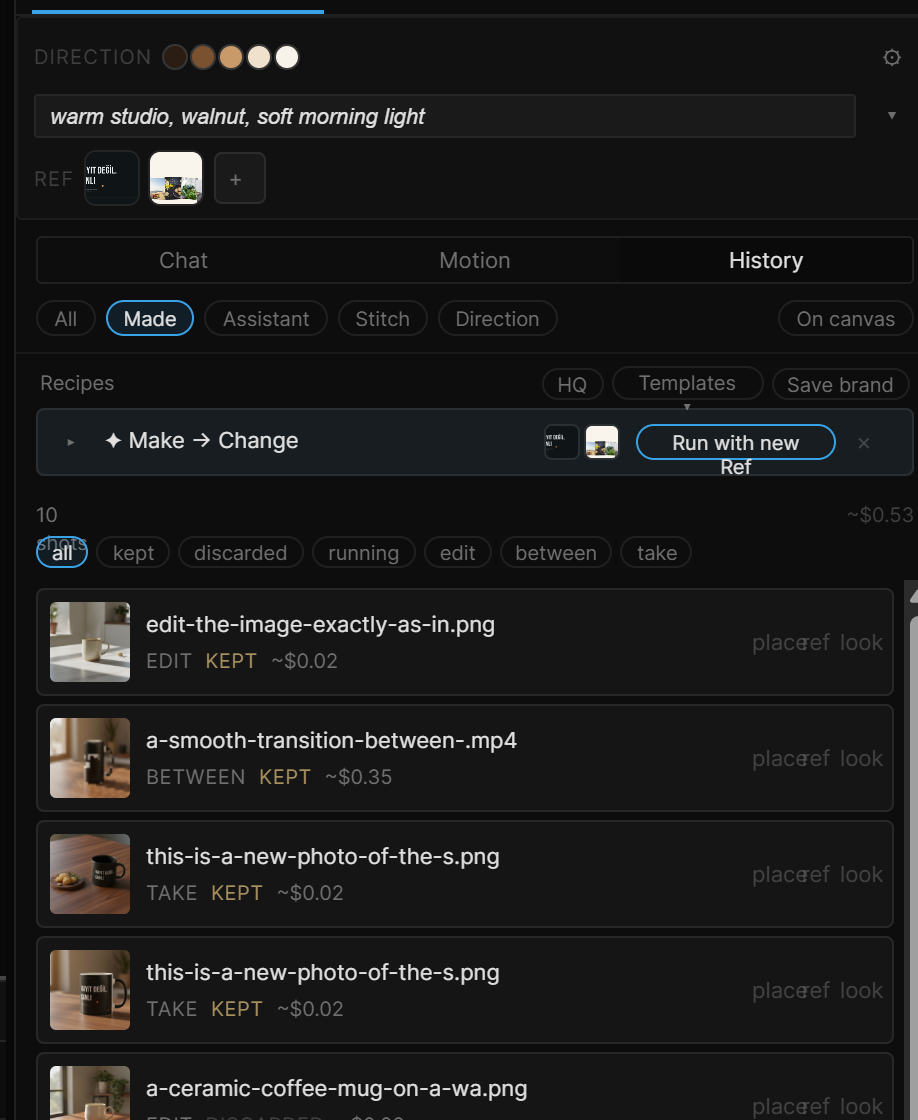
To reuse it: swap the product photos in Ref, then Run with new Ref on the card. Each step runs again in order with whatever Ref is set now — the same artboards, the same camera angles, the new product. Results land on the canvas the same way the originals did (each Take beside the artboard, the clip under the frames), and every step is its own Ctrl+Z.
- ▸ on a card lists its steps. Double-click the name to rename it; × deletes it.
- A card whose Take points at an artboard that no longer exists says artboard missing and won't run.
- HQ on the strip runs recipes on the Quality models — slower, better, costs more.
What a Recipe keeps and what it doesn't:
- Kept: the order of steps, each step's verb, prompt, model, Look, aspect and count, which artboard a Take or Paint used, and which earlier step a Between or Blend takes its frames from.
- Not kept: the Ref images themselves — that's the point. Whatever is in Ref when you run is what gets used.
- Steps it can replay: Make, Take, Paint, Change, Between, Animate, Blend. A chain that passes through Illustrate, Edit, Vary or Build 3D can't be saved yet; the message says which step stopped it.
Templates
Templates ▾ on the Recipes strip offers ready chains that run with your Ref and land in Storyboard. Each shows a rough price and time before you pick it.
| Template | What it makes |
|---|---|
| Product film | Three angles, two clips between them — the first film for any product |
| Turntable | Four takes around the product, four clips — a full loop |
| Social loop | Two angles, there and back — a seamless loop for feeds |
| Hero + lifestyle | A clean hero shot, a scene in use, and the move from one to the other |
| Before / after | Plain on white, then fully styled — one clip carries the reveal |
| Season | Spring, summer, winter — three scenes, two clips |
Save brand
Save brand keeps this project's Ref, Look and recipes under a name. The Projects screen then shows it under Start from brand — a new project that begins with the same Ref, Look and recipes.
04Shortcut recap
| Add to Ref | Drop on Direction · + on the Ref row · Use as Ref chip · ref on a Made card · Use as reference in Files |
| Set Look from an image | Look ▾ → From an image · Edit ▾ › Use style as Look · look on a Made card · Use as Look in Files |
| Save a Recipe | Right-click the last shot → Why… → Save as Recipe |
| Run a Recipe | Change Ref → Run with new Ref on the card |