A web page can become an artboard of ordinary, editable layers: frames with auto-layout, text, images, icons — and repeated cards and rows as components. You can bring in a page you already have (Import HTML), or have Google Stitch design a new screen from a sentence. Both use the same import, so everything on this page about what you get applies to both.
01Importing a page
Three ways in, all opening the same dialog:
- Import HTML… — the code icon in the top bar, or the OmniMotion ▾ menu.
- Import file… — pick an
.htmlfile. (An.omnifile still opens as a new project.) - Drop an
.htmlfile on the canvas — the hint reads Drop to place it here · .html becomes an artboard. The artboard lands where you dropped it.
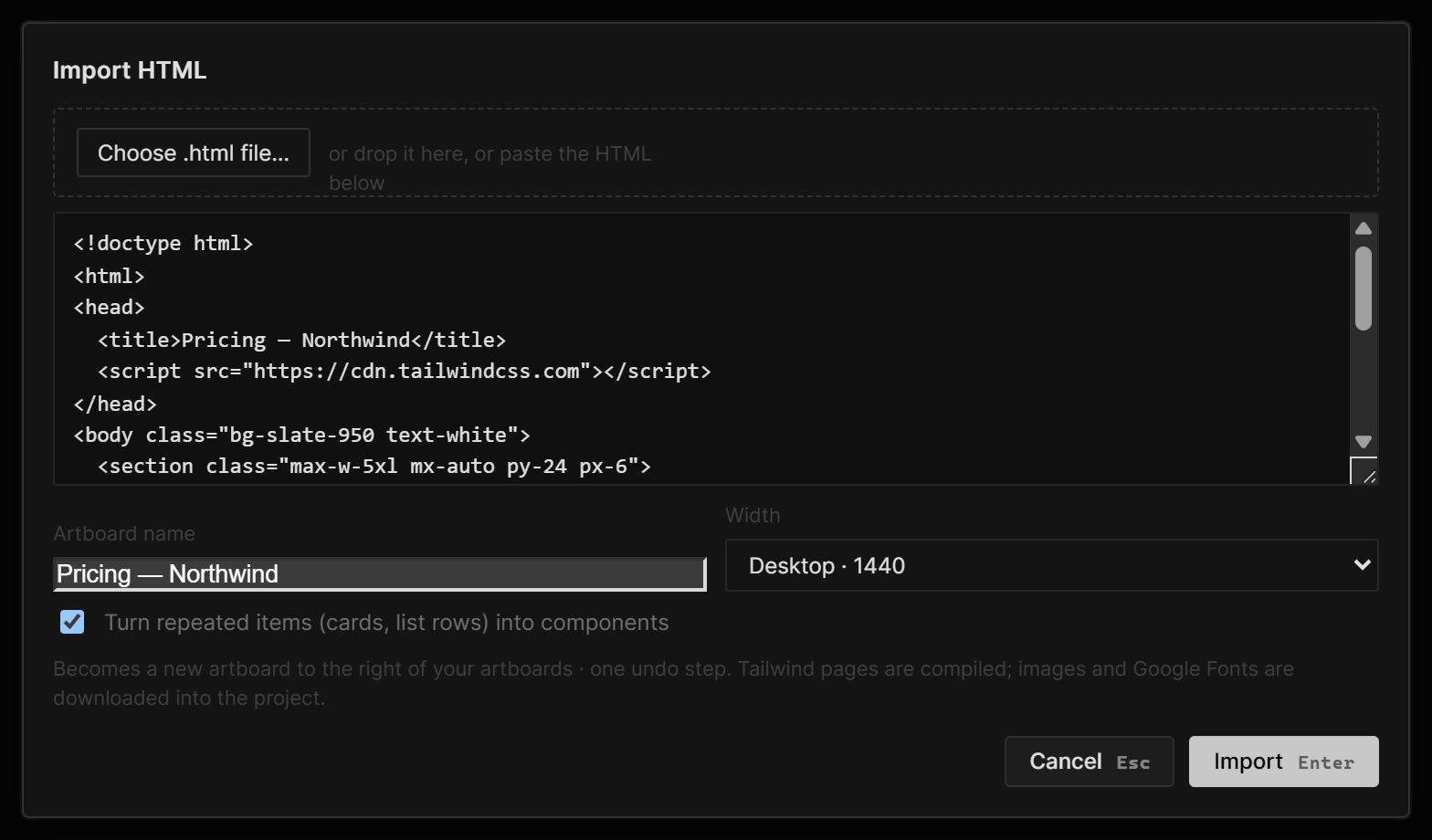
The dialog
| Control | What it does |
|---|---|
| Choose .html file… | Pick a file — or drop one onto that strip, or paste the HTML into the box below |
| Artboard name | Filled from the page's <title> (else the file name, else Page). Type your own and it stays |
| Width | The viewport the page is laid out at: Mobile · 390, Tablet · 834, Laptop · 1280, Desktop · 1440, or Custom… (320–3840 px). It starts on a guess from the page's own widths |
| Turn repeated items (cards, list rows) into components | On by default. Repeats become components and lists; off, every copy stays separate layers |
Import runs it. Pages built on Tailwind are compiled, and the page's images and Google Fonts are downloaded into the project, so it may take a few seconds.
.html or .htm. Width matters: a page laid out for 1440 and imported at 390 comes in as its mobile layout, because the import measures the page at the width you pick.What you get
- A new artboard, to the right of your artboards (or where you dropped the file), selected and framed in view. The whole import is one undo step.
- Real structure. Rows, columns and grids become Layout; text stays live text with its fonts; icons become vector icons; shadows, gradients, rounded corners, blurs and glass come across.
- Components. With the checkbox on, cards, list rows, buttons and badges that repeat become components — kept in the Components artboard — and evenly spaced runs become lists fed by a data source. A card with one highlighted copy becomes a variant. See Components.
- Light and dark. A page with a dark mode brings both: its colors become Light and Dark theme tokens (Variables › Theme) instead of a second page.
When it's done, a message names the artboard with its layer and component count. If anything could only be approximated, the dialog stays open with a list — object-fit contain drawn as cover, border-style dashed drawn as solid, transform … not converted (skew / 3D) — up to eight lines and a count of the rest. Done closes it.
If the page relies on scripts that couldn't run, it still imports, with a warning that some styles may be missing.
02Designing a screen with Google Stitch
Google Stitch is an optional design source: instead of the assistant drawing a new page itself, Stitch designs the screen and it comes in through the same import. Motion, scroll and edits are always done by the assistant.
To set it up:
- Paste a Google Stitch API key into Settings › AI & Generation › Stitch and Save.
- In the ✦ AI panel, ⚙ › Design → Google Stitch (or Settings › AI & Generation › Design source).
Then, with nothing selected, the first chip above the AI box is Design screen. Click it, describe the screen — purpose, sections top to bottom, content, style — and press Enter. ▾ › Device picks Desktop, Mobile or Tablet (laid out at 1440, 390 or 834). The foot reads Google Stitch · your Stitch quota instead of a price. The screen lands as a new artboard, selected, as one undo step. Each new screen goes into a new Stitch project.
With Stitch as the design source you can also just ask in Chat — "a pricing page for a note-taking app", "make a dark version of this screen", "three variations of the hero" — and the assistant has Stitch design or rework the screen, then adds the motion. If Stitch fails, the assistant says so and asks before designing it another way.
03Stitch in History
History › Stitch lists every Stitch screen in the project and holds the Stitch project browser.
- Design a screen… switches the design source to Stitch and arms Design screen in the box.
- Projects › Load (later Refresh) lists your Stitch projects. Pick a project… to list its screens — thumbnail, device, date — and Import one as a new artboard.
- Apply design system brings the picked project's colors (per mode) and fonts in as theme tokens under Variables › Theme.
Under Stitch artboards in this scene, click a name to select it, then:
| Button | What it does |
|---|---|
| Re-fetch | Downloads the screen's latest version from Stitch as a new artboard — this one and its motion stay as they are |
| Edit… | Opens a prompt: say what to change (dark mode, denser cards, sidebar layout) and Edit in Stitch. The result is a new artboard, Name edit |
| Variations (checkbox under Edit…) | How many (1–5, default 3), how far (Refine (close), Explore, Reimagine (far)), and what may change (Layout, Colours, Images, Fonts, Text — none ticked means anything). Make N variations brings each in as its own artboard |
Results always arrive as new artboards next to the source; the original and any motion on it are never touched. Stitch runs one job at a time — the top of the view shows it with a seconds counter and Cancel, and a failed job says why and what to try.