A prototype moves between screens — a list opens a detail, a menu slides over a page. In OmniMotion each screen is an artboard, and a rule's Go to Artboard action takes you there with a transition. This page covers the transitions. Writing the rule itself is on Interactions; moving between sequences on one artboard is Transitions and the blend graph.
01Quick tour
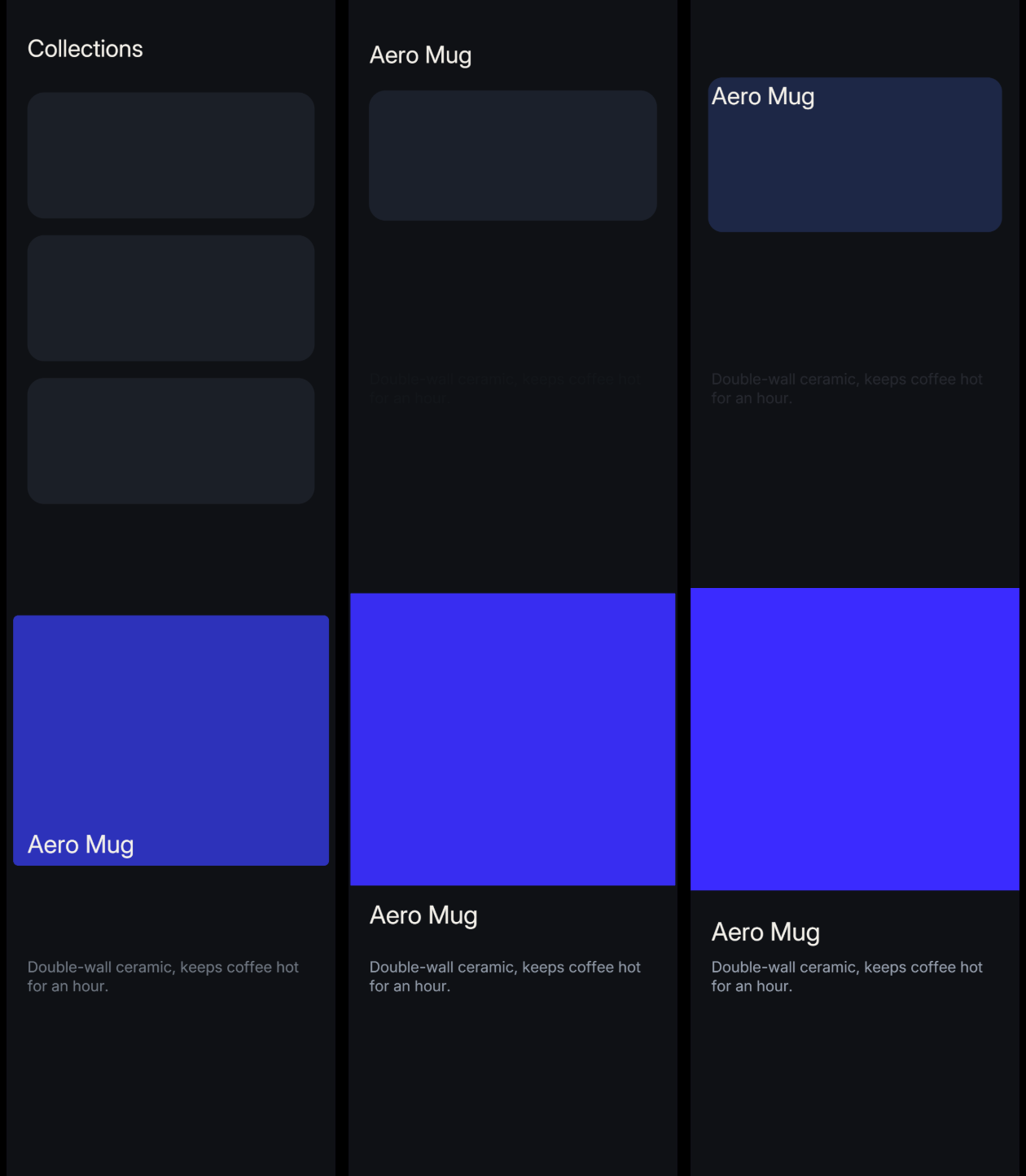
- Draw two artboards, List and Detail. Give the card that should grow the same name on both — say
Card. - Select the card on List and add a sentence: Click → Go to Artboard → Detail.
- Set Transition to Smart animate (same-named layers move).
- On Detail, add Click → Go Back to a back button.
- Press Play and click the card. It grows into the detail layout; the back button reverses it.
02The settings
| Setting | What it does |
|---|---|
| Artboard | The screen to go to |
| Transition | Instant, Dissolve, Smart animate (same-named layers move), Push or Slide in |
| Direction | Only for Push and Slide in — ← from the right, → from the left, ↑ from below, ↓ from above |
| Duration | In ms. Hidden for Instant. Picking a transition fills in its default |
| Easing | The curve of the move. Shown once Duration is above 0 |
The rule's summary reads the choice back — go to Detail (push left).
| Transition | Default duration | What you see |
|---|---|---|
| Instant | — | A cut |
| Dissolve | 180 ms | The old screen crossfades into the new one |
| Smart animate | 360 ms | Matching layers travel from their old look to their new one; everything else fades |
| Push | 380 ms | Both screens slide together, the new one pushing the old one out |
| Slide in | 380 ms | The new screen slides over the old one, which dims slightly |
03Smart animate — how layers are matched
Smart animate looks for the same layer on both screens:
- By name path first —
Card/Titleon one screen matchesCard/Titleon the other. - Then by a name that is unique on both screens — a lone
Pricematches a lonePrice, even if it sits in a different group. - Not matched when the two layers are different kinds (a text and a rectangle), or when the name appears twice on one screen. The tool would rather fade than guess.
Each matched layer starts from its old position, size, rotation, opacity, scale, corners, stroke, blur, shadow, font size and colors, and glides to its new ones. Positions are compared on screen, so a layer that moved into a different group still travels the right way. Colors blend smoothly rather than through grey. Layers that are identical on both screens — a fixed tab bar — are left alone.
New layers with no partner fade in; old layers with no partner fade out.
Card, Card/Image, Card/Title on both screens is all Smart animate needs.04Going back
Go Back returns to the previous artboard and plays the transition that brought you there in reverse: a push from the right goes back to the right, a slide up slides back down, and Smart animate unwinds.
05Where it runs
Transitions play in Play, Simulate, Preview and the published player — the same way in all of them. While you design, nothing navigates.
06Recap
| Action | Go to Artboard › Transition · Direction · Duration · Easing |
| Back | Go Back plays it in reverse |
| Match | same name path, or a unique name on both screens |