Let the world move the scene.
Make scale follow bass, glow follow the beat and 3D lights follow audio levels. Populate repeated content from data sources.
Start here: Audio clipsSound on the timeline
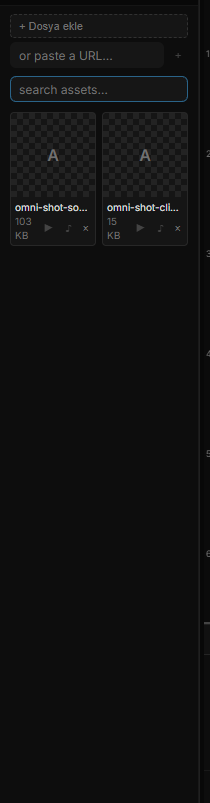
Place audio clips in the timeline to coordinate sound with animation, or trigger a sound from an interaction rule. Choose the approach that matches the experience.
Audio-reactive visuals
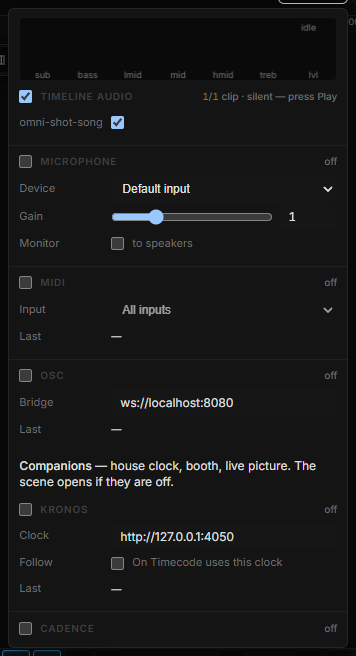
Use audio analysis or microphone input as a source of changing values. Connect those values to properties such as movement or effect intensity to build a responsive composition.
Data-driven content
Use variables and Data Repeater to connect changing information to repeated visual elements. Plan the data source and update behavior around the intended installation.
Design the card. Let data fill it.
Bind data fields to text and image layers in each repeated item. Configure a REST source and refresh interval, or push rows from a host application through the runtime API.
Explore Data Repeater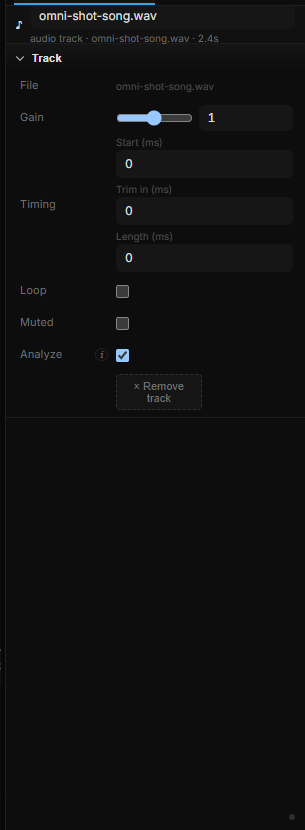
Go deeper
Continue with the feature guides below. Draft labels describe the documentation status.