A choreography is motion written as beats instead of keyframes: the background fades, the headline rises word by word 200 ms later, the cards follow one after another, the button pops last. The tool turns the beats into ordinary keyframes on the active sequence, and keeps the beats so you can change the timing of a whole screen in one move. You work with choreographies in the Motion tab. Keyframes and the timeline itself are on Timeline & animation.
01Opening the Motion tab
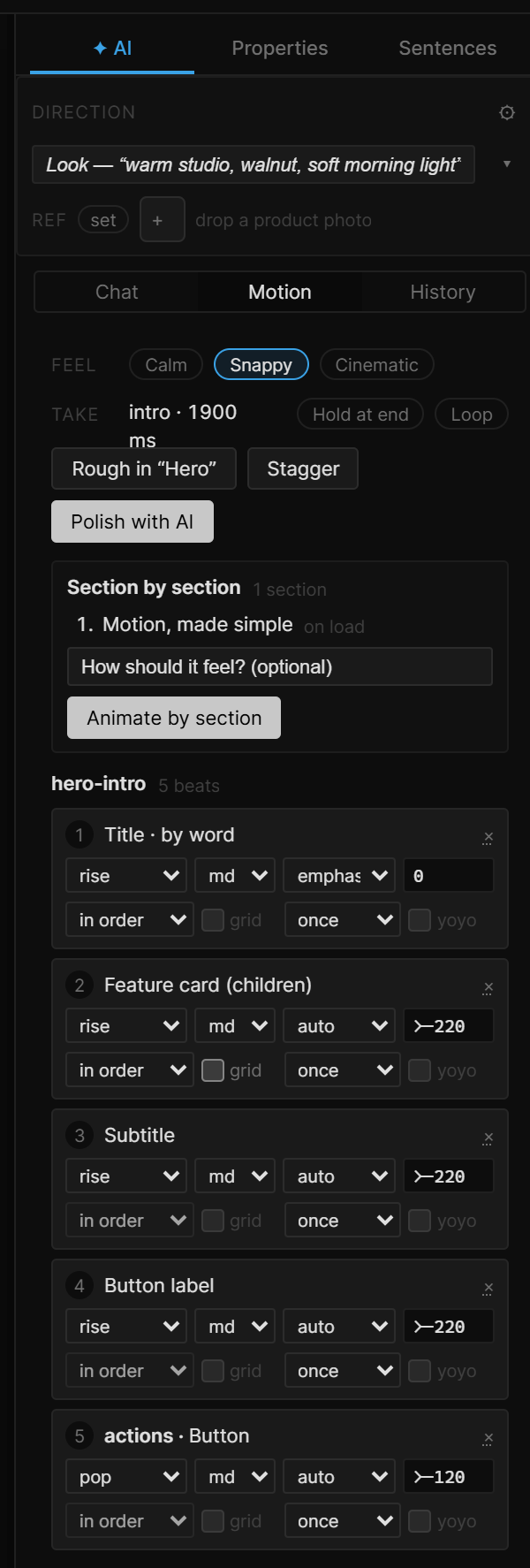
Turn on ✦ AI in the top bar and open the ✦ AI tab on the right. Its top row switches between Chat, Motion and History — pick Motion. Every button in this tab works without the assistant except Polish with AI and Animate by section. Everything it does is undoable with Ctrl+Z.
02Quick tour
- Select an artboard.
- Press Rough in "Artboard". Its layers are staged in reading order on a sequence called
intro. - Pick a Feel — Calm, Snappy or Cinematic. Every choreography re-times itself.
- Press Space. Adjust any beat below; the keyframes follow.
03Feel
Feel sets the project's motion tokens — the named durations, curves and stagger gaps every beat refers to:
| Feel | Character |
|---|---|
| Calm | Slow rises, long overlaps, soft easing |
| Snappy | Quick, tight, a small overshoot on accents |
| Cinematic | Deep, decisive arrivals and long holds |
Switching Feel re-times every choreography in the project, including the ones on other sequences. A sequence that would cut its motion short, or that sits idle for too long after it, gets its length adjusted to match. If the tokens were changed some other way, the row reads custom.
04Take
The Take row names the active sequence and its length.
- Hold at end ends the sequence a readable beat after the last move.
- Loop restarts the sequence when it ends. Click again to stop looping.
05Rough in, Stagger, Polish
- Rough in "Artboard" builds an animatic of the selected artboard (or the artboard around the selection): the background fades, a large headline rises word by word, body copy rises with an overlap, a group of three or more children staggers, and small actions like buttons pop in last. It writes to the
introsequence, sets its length with a readable hold at the end, and leavesintroactive. Roughing in the same artboard again replaces that choreography instead of stacking a second one. - Stagger N — with two or more layers selected, they rise one after another, in reading order.
- Polish with AI switches to Chat and asks the assistant to check the motion, fix what the check flags and refine the choreography without adding new elements.
06Beats
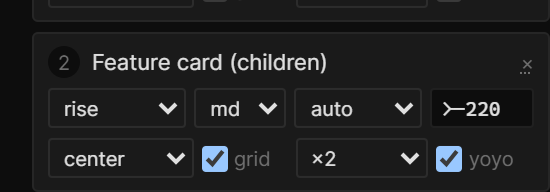
Below the buttons, every choreography on the active sequence is listed with its beats. Click a beat's title to select its layers; × removes the beat. Any change re-writes the keyframes at once.
| Field | What it sets |
|---|---|
| Entrance | fade, rise, drop, slide-left, slide-right, scale, pop, depth or blur. Shows custom when the beat carries its own values |
| Duration | A token — xs, sm, md (the default), lg, xl. The Feel decides how long each one is |
| Easing | auto, or a token — enter, emphasized, standard, spring, exit, linear |
| Start | > after the previous beat (the default) · >-120 overlap it by 120 ms · < together with it · <+200 200 ms after it starts · @label> after a named beat ends · a plain number is milliseconds |
The second row shapes beats that move several things — several layers, a group's children, or text split into letters or words:
| Field | What it sets |
|---|---|
| Wave (first drop-down) | Where the stagger starts: in order, reverse, center, edges or random. Random is the same shuffle every time |
| grid | Stagger by distance on screen instead of layer order — for grids and scattered layouts. A wave from the center of a 3×4 grid spreads out like a ripple |
| Repeat (second drop-down) | once, ×2, ×3, ×4, ×6 or ∞ loop (until the sequence ends) |
| yoyo | Play the repeats back and forth instead of jumping back to the start |
Hover a field — the tooltip explains it. The wave and grid are greyed out on a beat with a single target, and yoyo until the beat repeats.
Hand edits are kept
The keyframes a choreography writes are ordinary keyframes: drag them in Keys, reshape them in Curves. The first time you change one, that property is marked as hand-edited and the choreography stops touching it — the card shows N hand-edited kept. Re-apply throws your edits away and writes the beat again.
Choreographies on other sequences are listed by name at the bottom; switch the sequence in the timeline to edit them.
07Check
When the Motion check finds something on the active sequence, the issues are listed here too, each with Select. The same check lives on the timeline as the Motion button — the tags are explained on Motion check.
08Section by section
A long page is easier to animate one band at a time. With an artboard selected, Section by section shows the plan before anything runs: the page split into up to eight sections, each marked on load (visible on the first screen) or on scroll (further down). A full-size background stays still.
- Optionally type How should it feel? — "calm and editorial", "punchy launch page".
- Press Animate by section. The assistant writes one section at a time. Each section is measured with the Motion check and gets one fixing pass if something is still flagged.
- Watch the status next to each section: writing…, checking…, fixing…, then ✓ clean, needs a look or nothing moves.
Sections on the first screen play one after another on intro. Sections below get their own sequence, driven by scroll as the band comes into view. When every section is done, each one is measured again on the final scene, and intro ends with a short hold and becomes the active sequence.
Each turn shows up in Chat with a short title such as Motion run · 2/3 · Features and in History, so any section can be undone. Stop ends the run; Clear removes the statuses. The run uses your model quota — at least one turn per section.
09Shortcut recap
| Open | ✦ AI tab › Motion |
| Start | Rough in (artboard) · Stagger N (2+ layers) |
| Timing | Feel re-times everything · Start > < >-120 @label> |
| Waves | in order · reverse · center · edges · random · grid |
| Undo | Ctrl+Z after any button |