Your work lives in this browser as a project, kept up to date automatically. Ctrl+S writes that project now. A .omni file is a separate step — Export — for keeping a copy, sending it, opening it on another machine, or feeding OmniPlayer. This page covers both, and what happens when something goes wrong.
01The Projects screen
The tool opens on the Projects screen. It lists every project stored in this browser, with a thumbnail of its last look.
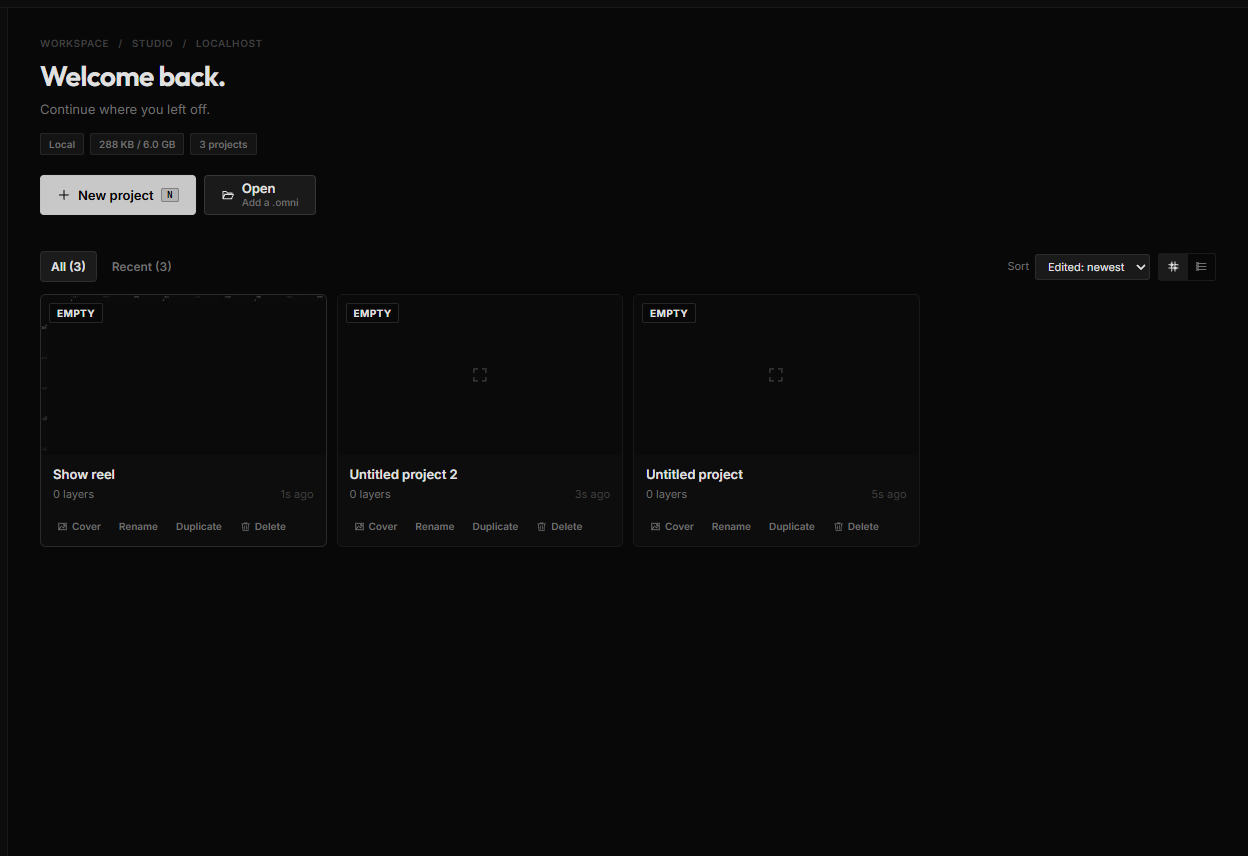
- New project (N) creates an empty project and opens the editor.
- Import — or drop a file on the page — brings a
.omniin as a new project. Legacy.ntpackv3/.ompackscene files still import the same way. - Starters are ready-made projects the studio publishes. Click one and it downloads and opens as a new project of your own, cover included; nothing ties it to the starter afterwards.
- Cover on a project card picks an image from your computer as that card's picture. Until you do, the card shows the last canvas view, refreshed on every save. Auto cover goes back to that.
- Click a project to open it. Hover a card for Rename, Duplicate and Delete.
Duplicate is the safe way to experiment: the copy is named … copy and is completely independent. Delete asks first, and means it — the project and every file stored inside it are removed for good.
To return to this screen from the editor, click Projects in the top bar — the icon on the left, or the first word of the Projects / project name breadcrumb — or Back to projects in the main menu. Nothing is lost by leaving: the project already holds your latest changes.
Copy link in the main menu copies a link that opens this project directly. It works in this browser only — the project itself stays on this device.
.omni file is for. If storage is unavailable (a private window, very strict privacy settings), the tool tells you it could not create the project.02Save — this browser
Save in the top bar (the disk icon, or Save in the main menu), or Ctrl+S, writes the open project in this browser. It does not download anything. A small dot on the Save icon, and Unsaved next to the project name, mean a change hasn't been written yet; Saved means it has. A toast confirms Saved.
Autosave does the same write a few seconds after every change. Close the tab and reopen the project, and it's all there — layers, keyframes, sequences, rules, and the files you imported, including large images, videos and 3D models.
If autosave ever stops working (the browser's storage is full or blocked), a toast warns you once: Autosave is not working. Export the project to keep a copy. Take it literally and use Export → Project file (.omni).
03Project files — .omni
Export → Project file (.omni) downloads one gzipped file named after the project in the top bar — click the name to change it first. The pack holds the scene and the files you imported as raw bytes, not as giant text URLs. Open it on another machine, in the studio, or in OmniPlayer, and the scene comes back whole — big models and videos included.
A toast confirms Exported my-project.omni. Depending on the browser you may see nothing else happen.
.omni in as a new project — the project you are editing is never overwritten: | Where | What happens | |---|---| | Projects › Import (or drop a .omni on the hub) | The file becomes a new project in the list. | | Import file… in the top bar or the main menu | The file opens as a new project. If the one you are editing has unsaved changes, a dialog — Import as a new project — offers Save current, then import, Import without saving or Cancel. | A file that can't be read shows an error with the reason instead of a blank canvas — a scene made with a newer version of the tool, for example, says so. Import file… also takes an .html page: that one doesn't make a new project — it becomes an editable artboard in the project you are editing. See Importing HTML. Legacy .ntpackv3 / .ompack files still open in the studio, but they only carry what was embedded as text. Use .omni when the scene has large assets or when you share with OmniPlayer. The browser player accepts .omni directly — drop it on the page or pass ?scene=<url> to a hosted file. Preview from the editor is the fastest check without exporting. ## Recovery Things that would normally lose work, and what the tool does about each: - You close the tab or the browser. If a change hasn't been written yet, the browser asks whether you really want to leave. Either way the project holds the last autosave; reopen it from Projects. - The browser crashes. Open the tool, open the project — the last autosave is there. - A panel crashes. The rest of the editor keeps working and a card says Something went wrong — your work is not lost, with Try again and Download project (a .omni). Your scene stays in memory and autosave keeps running. - A recoverable session dialog appears at start. If the editor finds an autosave from a session that wasn't inside a project, it offers Restore or Discard before you do anything else. Restore loads it; Discard deletes it. What no recovery covers: a project you Delete, and a file you overwrite by exporting over it outside the tool. Duplicate before risky experiments, and keep dated .omni files for milestones. ## Shortcut recap | | | |---|---| | Save | Ctrl+S write this project in the browser · Import file… open a .omni as a new project | | Export | Export → Project file (.omni) — scene and assets, for another machine or player | | Projects | Projects in the top bar · Copy link · New project (N) · Import / drop a .omni · Rename / Duplicate / Delete |