There are two ways to see a scene run: Play on the canvas, and Preview in the player. They answer different questions, and OmniPlayer is also how a scene reaches other people.
01Play mode — inside the editor
Select an artboard and click Play in the pill above it. The editing chrome steps aside, a banner reads ▶ Playing — Hero, and that artboard behaves for real: hovers hover, clicks click, scrolling scrolls, rules fire. Press Esc (or the button in the banner) to come back.
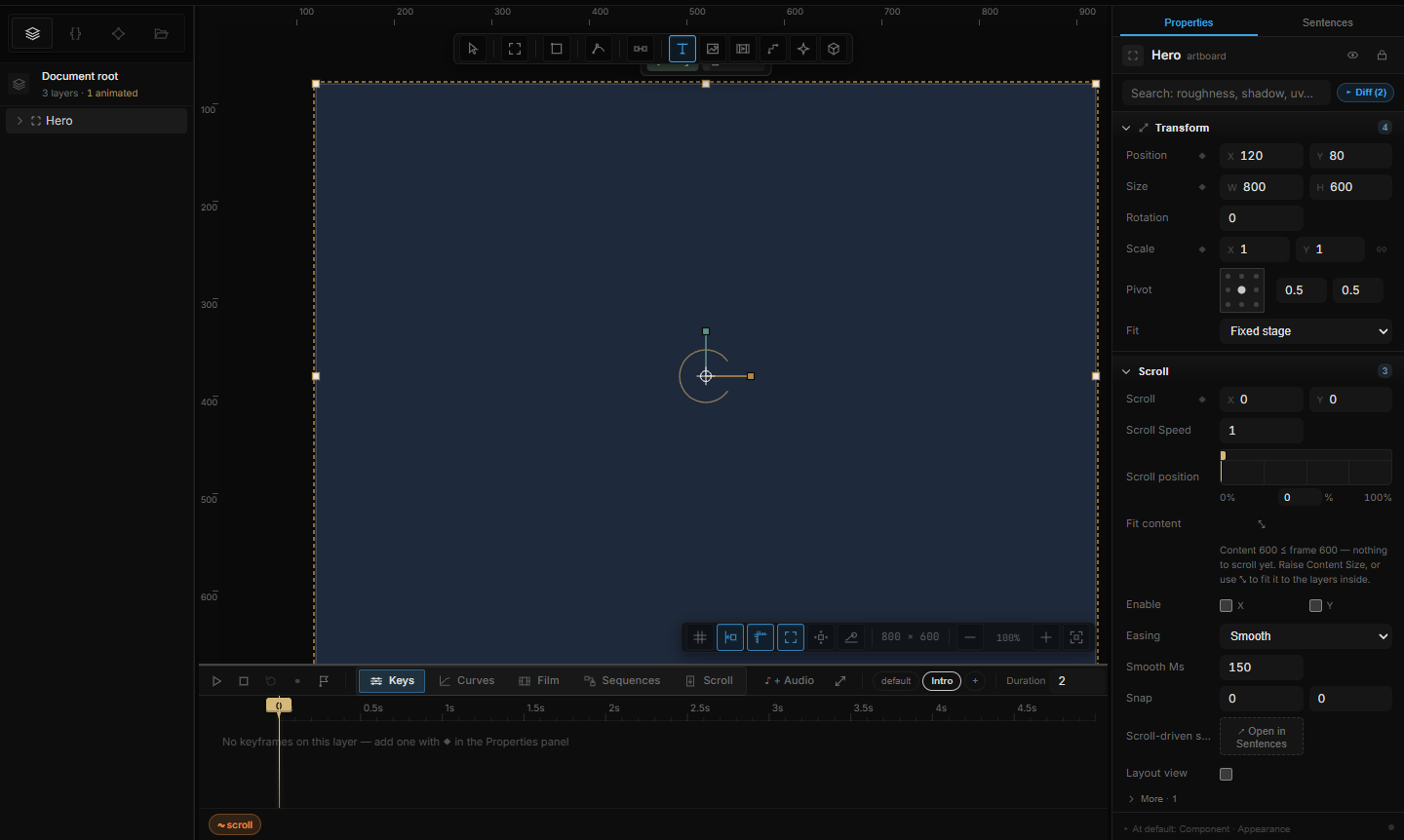
Play mode is for checking one behavior quickly. You stay in the editor, your panels stay open, and the moment you leave, every property goes back to where you left it.
02Preview — OmniPlayer in a new tab
Preview in the top bar packs the scene as it is right now and opens OmniPlayer in a new browser tab. Nothing is written to disk.
What you get there is the experience a visitor gets:
- The artboard meets the window the way its Fit says: a Fluid artboard becomes the window and its layers respond, a Fixed stage is scaled to fit, Fill covers and crops (Responsive & Screens).
- The active sequence plays from the start.
- Every interaction, scroll section, stream and input works.
- There is no editor: no selection, no panels, no grid.
Which artboard opens follows one rule, the same one Export uses: the artboard you have selected; if you selected a layer, the artboard it sits in; otherwise the first artboard in the scene. The toast that confirms — Opened Hero in the player — names it.
The player tab keeps the scene it was opened with. Change something in the editor and click Preview again for a fresh tab; the old one doesn't update.
When to use which
| Play mode | Preview | |
|---|---|---|
| Where | On the canvas | A new tab, OmniPlayer |
| Scope | One artboard | The whole scene, from the selected artboard |
| Size | Your canvas zoom — or any size you drag or type, on a Fluid artboard | The real window, screens switching as it resizes |
| Good for | Trying one behavior, tweaking, trying again | The final check — and showing someone |
03OmniPlayer
OmniPlayer is a page with nothing on it but a canvas. It loads a project file — the same .omni you export from the studio — three ways:
- From the editor — what Preview does (in-memory, no download).
- Drop a file. With nothing loaded, the page says Drop a .omni project here. Drag an exported
.omniin and it plays. Legacy.ntpackv3and.ompackscene files still open the same way. - A hosted address. Open the player with a link that points at a
.omnion the web — how you put a scene on a page (Embedding a scene).
The player refuses politely when it can't help: a file saved by a newer version of the tool shows This scene was made with a newer OmniMotion — update OmniPlayer to open it, rather than playing it wrong.
04Sharing a scene
Today, sharing means giving someone the project and a player:
- Send the file. Export → Project file (.omni) and send that. They open it in Projects › Import in the studio, or drop it on OmniPlayer / open
player.html?scene=<url>if you host the file. - Put it on a page. Host the
.omniand embed the player — see Embedding a scene. - Don't need interaction? Export a PNG or a video instead; it travels anywhere.
There is no hosted "share link" built into the studio: a Preview tab is yours alone, and its address stops working when the editor tab closes.
05Shortcut recap
| Play mode | Play in the artboard pill · Esc exit |
| Preview | Preview in the top bar — opens the selected artboard in OmniPlayer |